Premium Placements
Premium placements enable you to put your product in prominent positions on category pages and competitor pages to drive more traffic to your product listing.
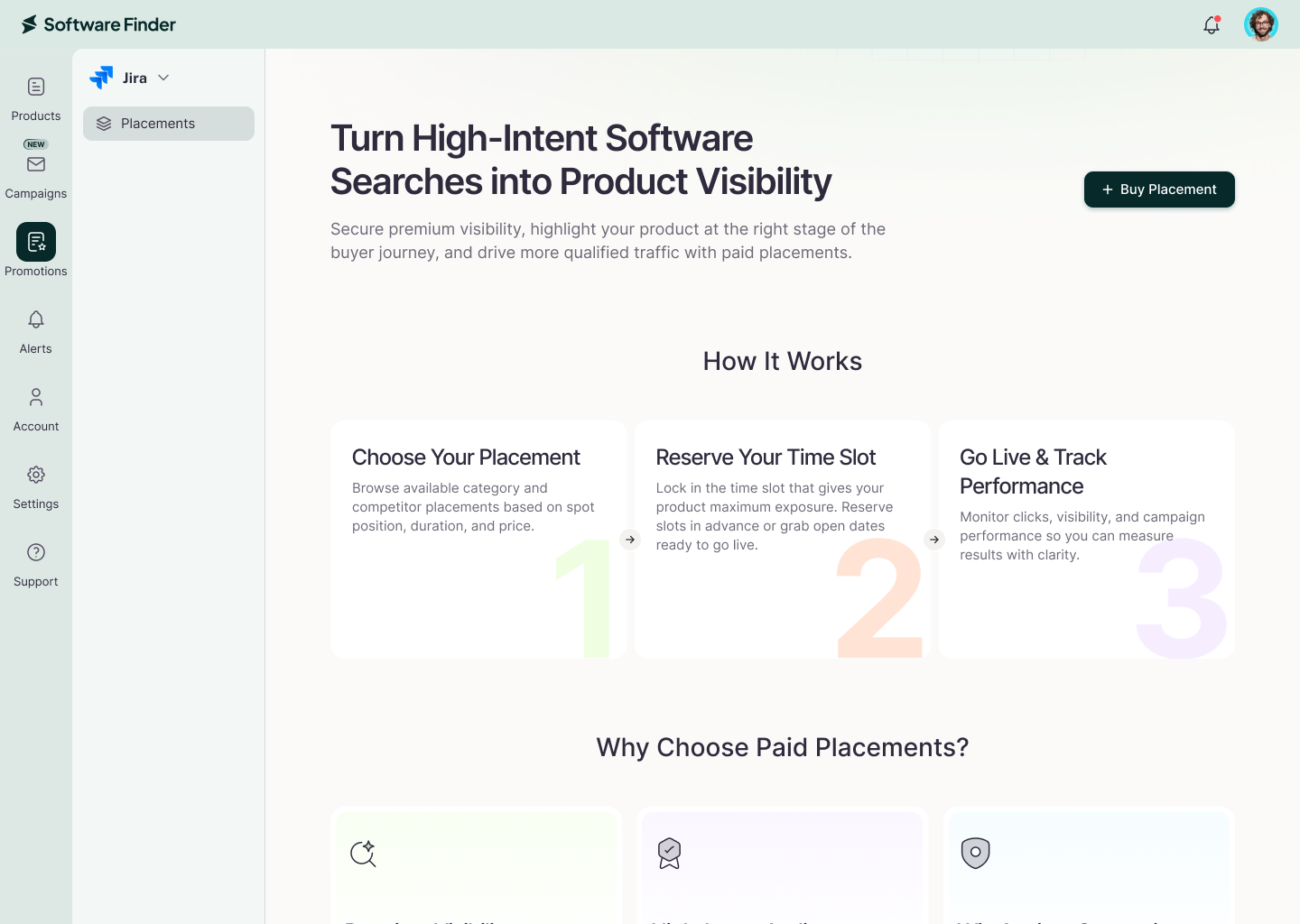
In the Vendor Portal: Promotions > Placements.
Open Placements
To open Placements:
- In the left sidebar, click Promotions.
- At the top of the Promotions menu, select a product.
- Click Placements.
If the product has no placements yet, the page shows Promote Your Product and a Buy Placements button.
Buy Placements
Buying placements takes three steps. At any point, click Cancel to leave without buying, or Contact Support for help.
Step 1: Select Placements
To select placements:
- Click Buy Placements.
- Review the Campaign Name and edit it if needed.
- In Category Placements, select the categories you want. Use the search box to find a category, and click Load More to see more.
- For each category, select a spot: 1st, 2nd, 3rd, or 4th. The 4th spot is shared with other vendors.
- For each placement, select a duration in Available Duration:
- 3 Months
- 6 Months
- 9 Months
- 1 Year
- In Competitor Placements, select the competitors whose pages you want to appear on, and select a duration for each.
- Review your selections in the Selected Placements panel on the right. To remove a placement, hover over it and click the x icon.
- Click Next.
Durations are shown only where available. If a spot is already booked, you can schedule the placement for the next available duration.
You can select placements from both sections, or from only one.
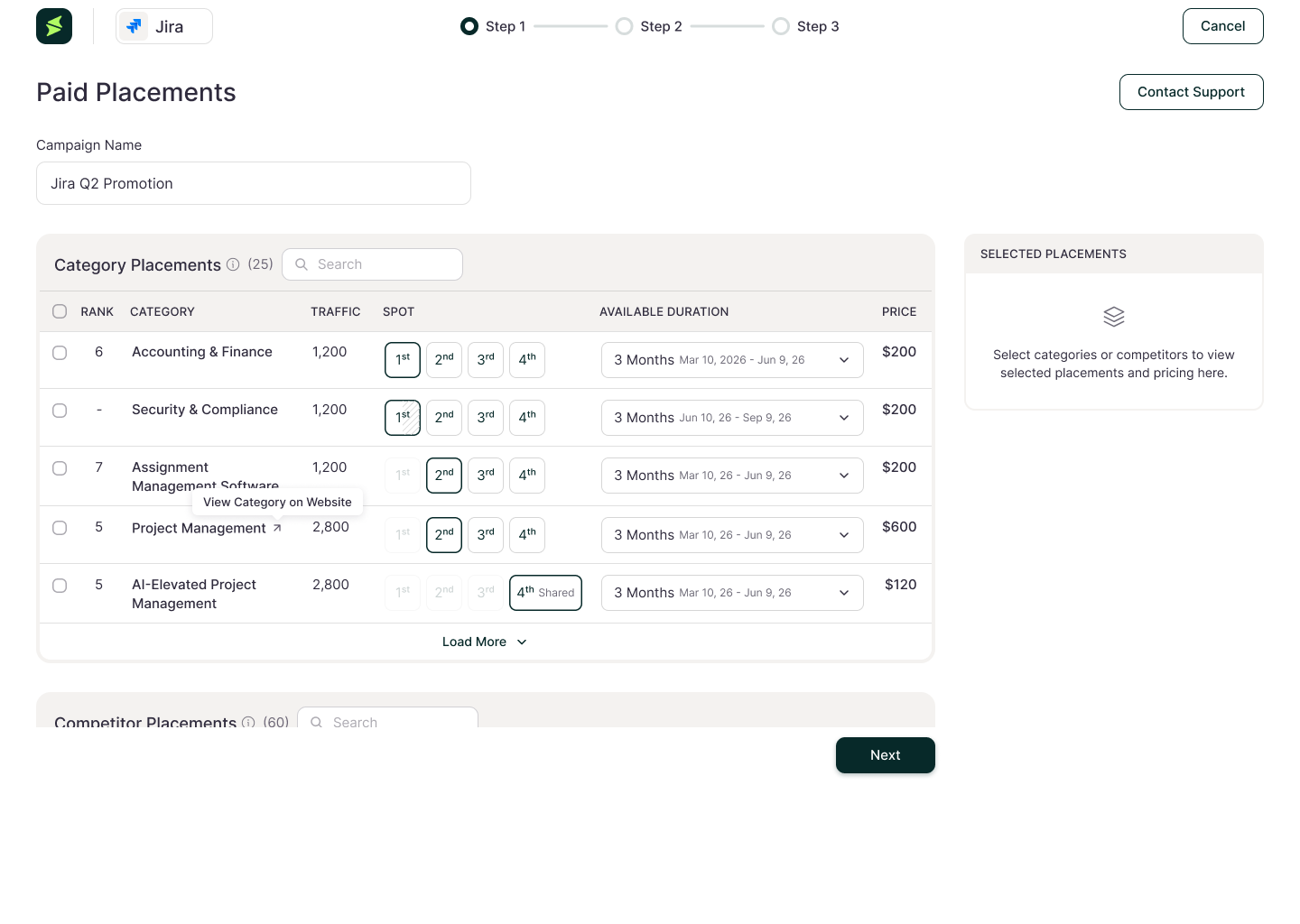
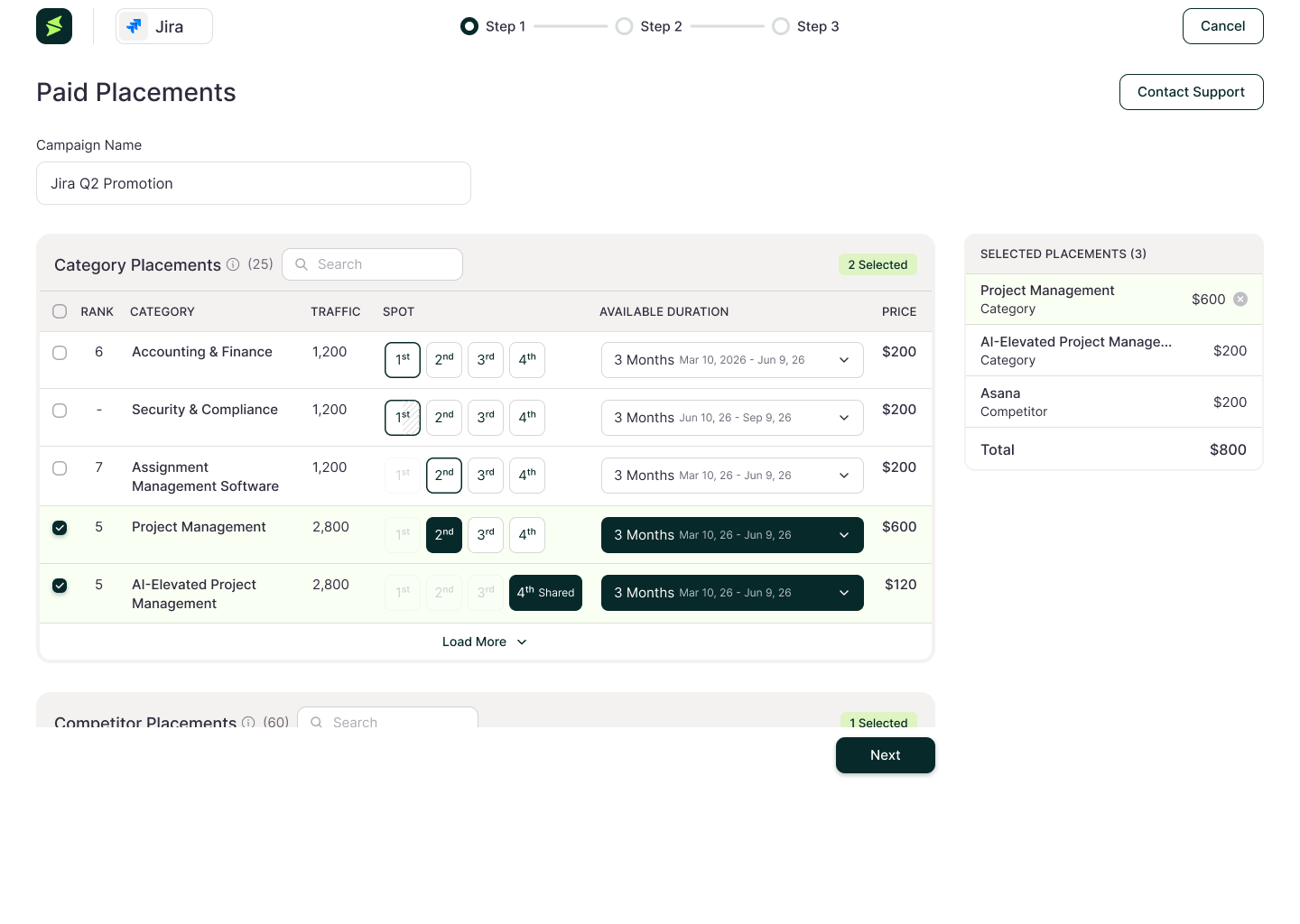
The placement tables show these columns:
| Column | Description |
|---|---|
| Rank | Your product's rank in the category (Category Placements only). |
| Categories or Competitor | The category or competitor page where your placement appears. |
| Traffic | The traffic volume for that category or competitor page. |
| Spot | The position of your placement. |
| Available Duration | How long the placement runs, with its start and end dates. |
| Price | The price of the placement. |
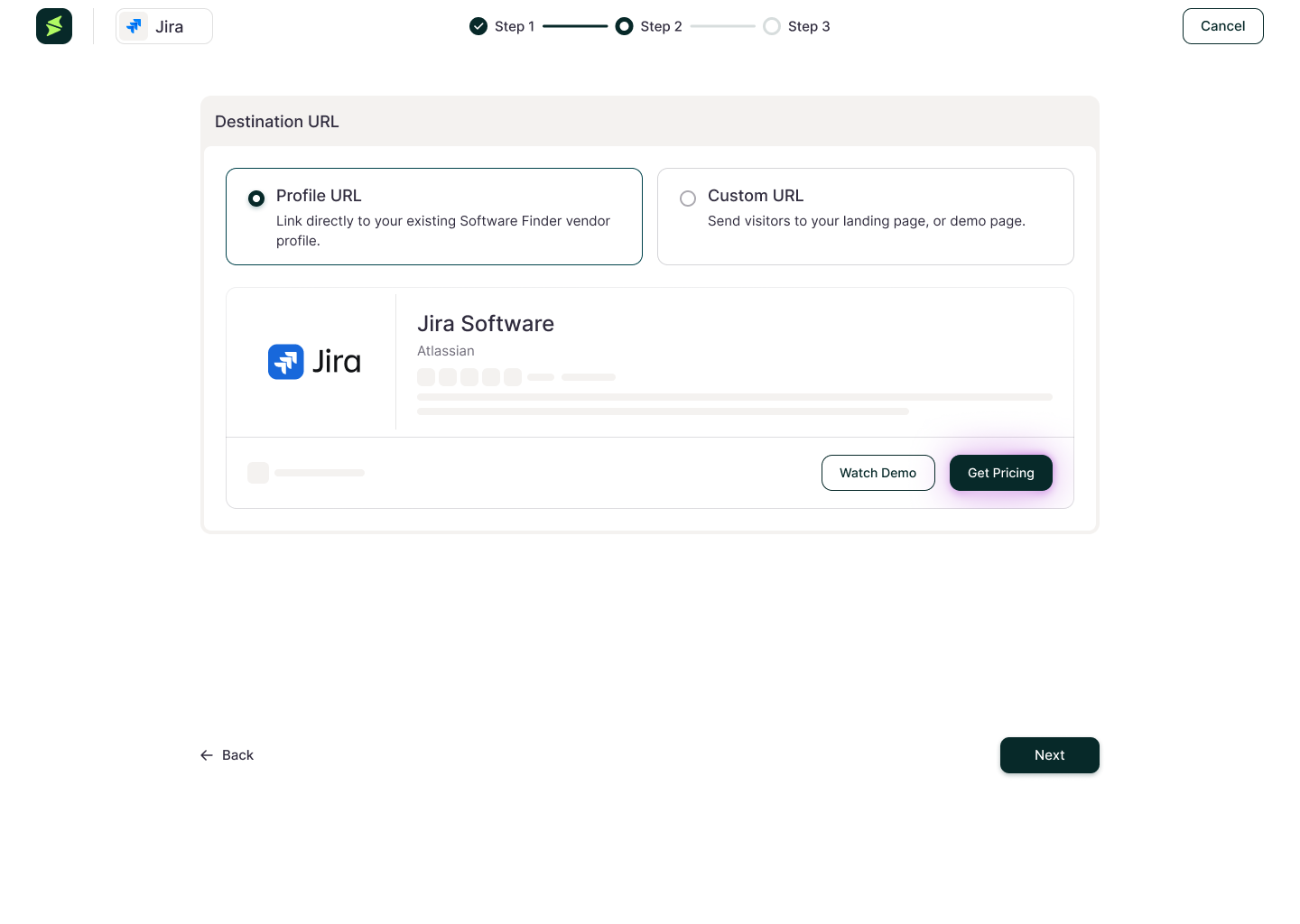
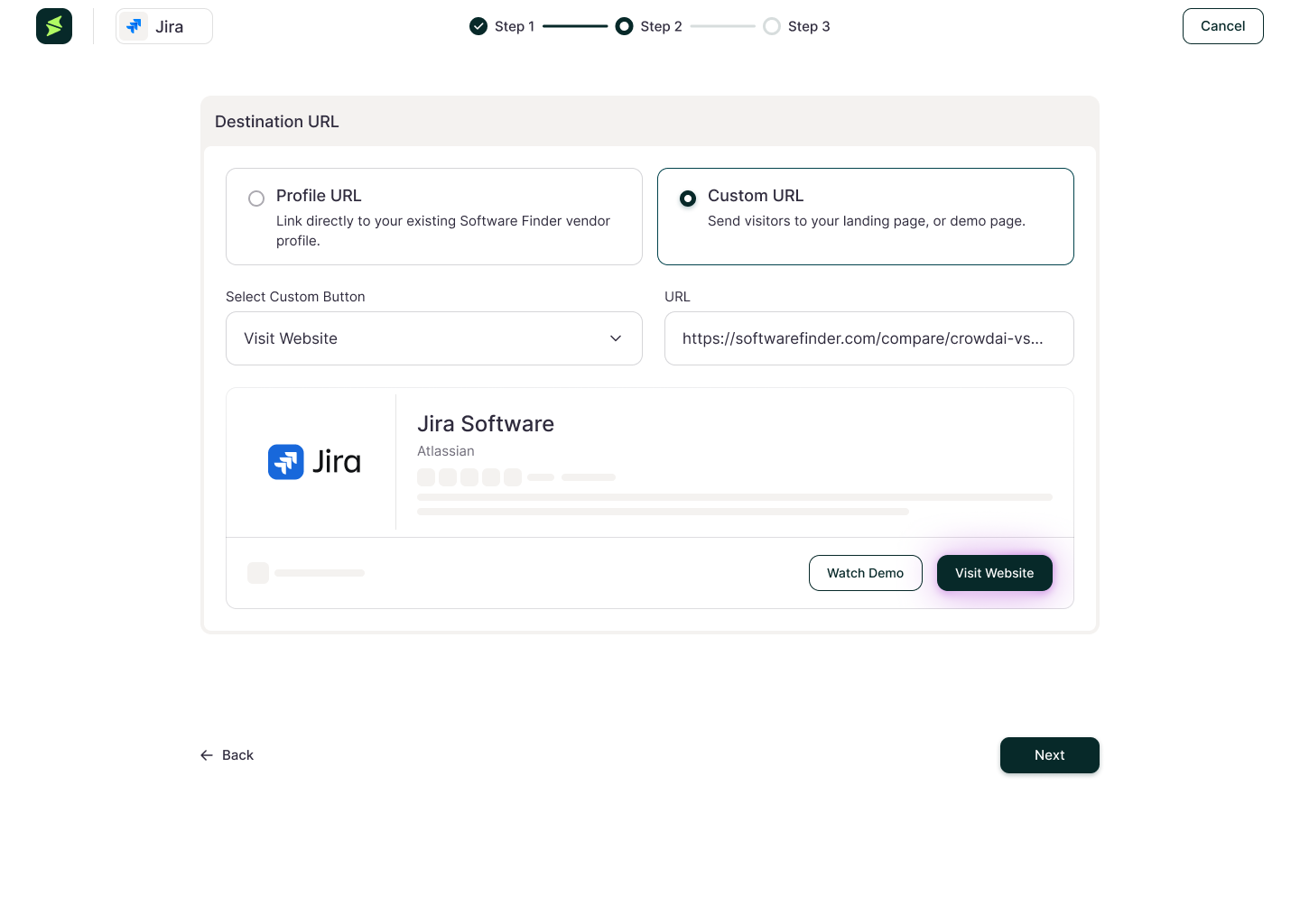
Step 2: Select a Destination URL
To choose where your placement sends buyers:
- Select one of the options:
- Profile URL: Sends buyers to the existing link on your Software Finder profile.
- Custom URL: Sends buyers to a link you enter. Select the button text from the Custom Button Text dropdown.
- Click Next.
Step 3: Review and Pay
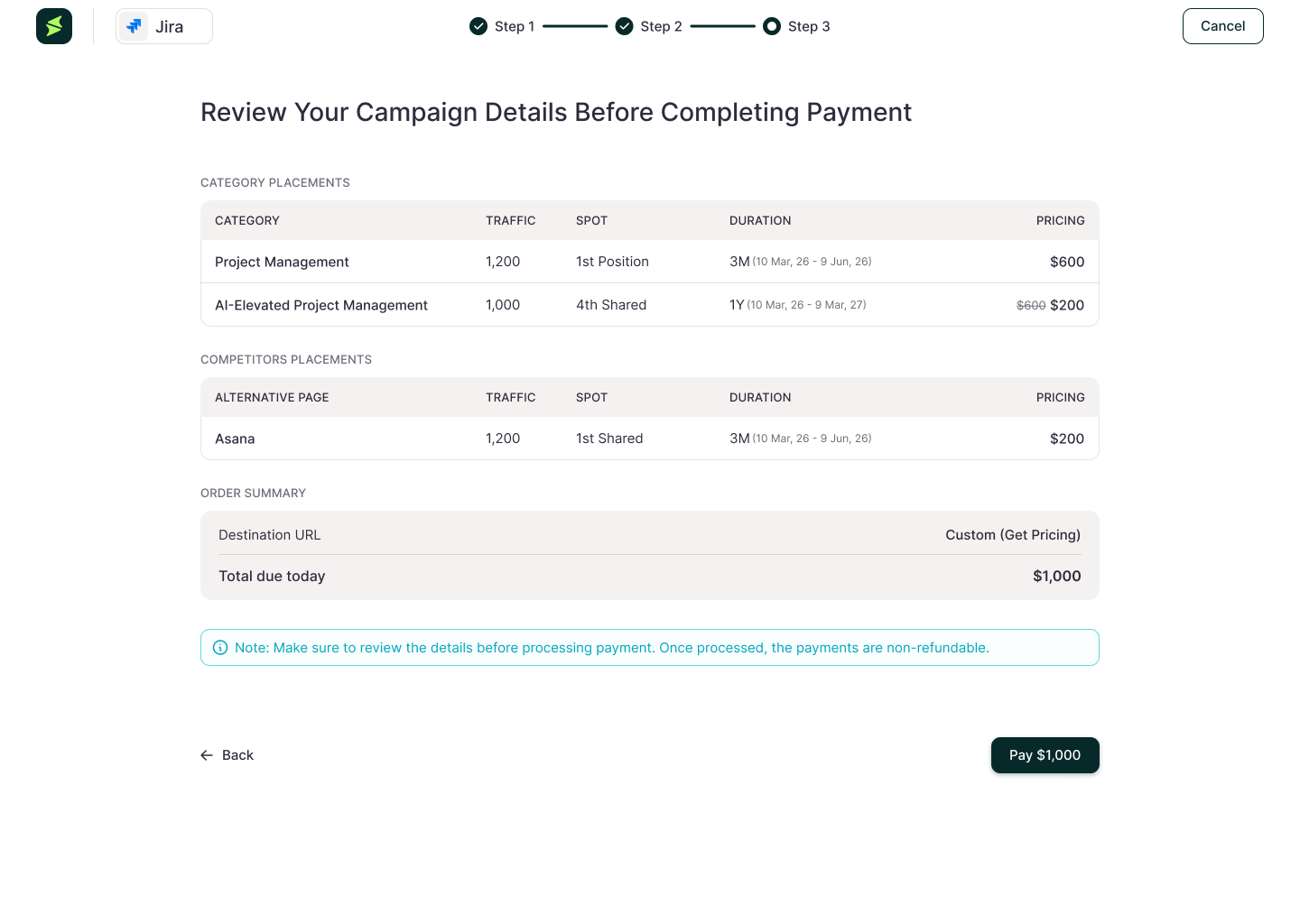
The review page shows:
- Order Summary: The category and competitor placements you selected.
- Destination URL: The destination you selected.
- Total Due Today: The total price of all selected placements.
To complete the purchase, click Pay.
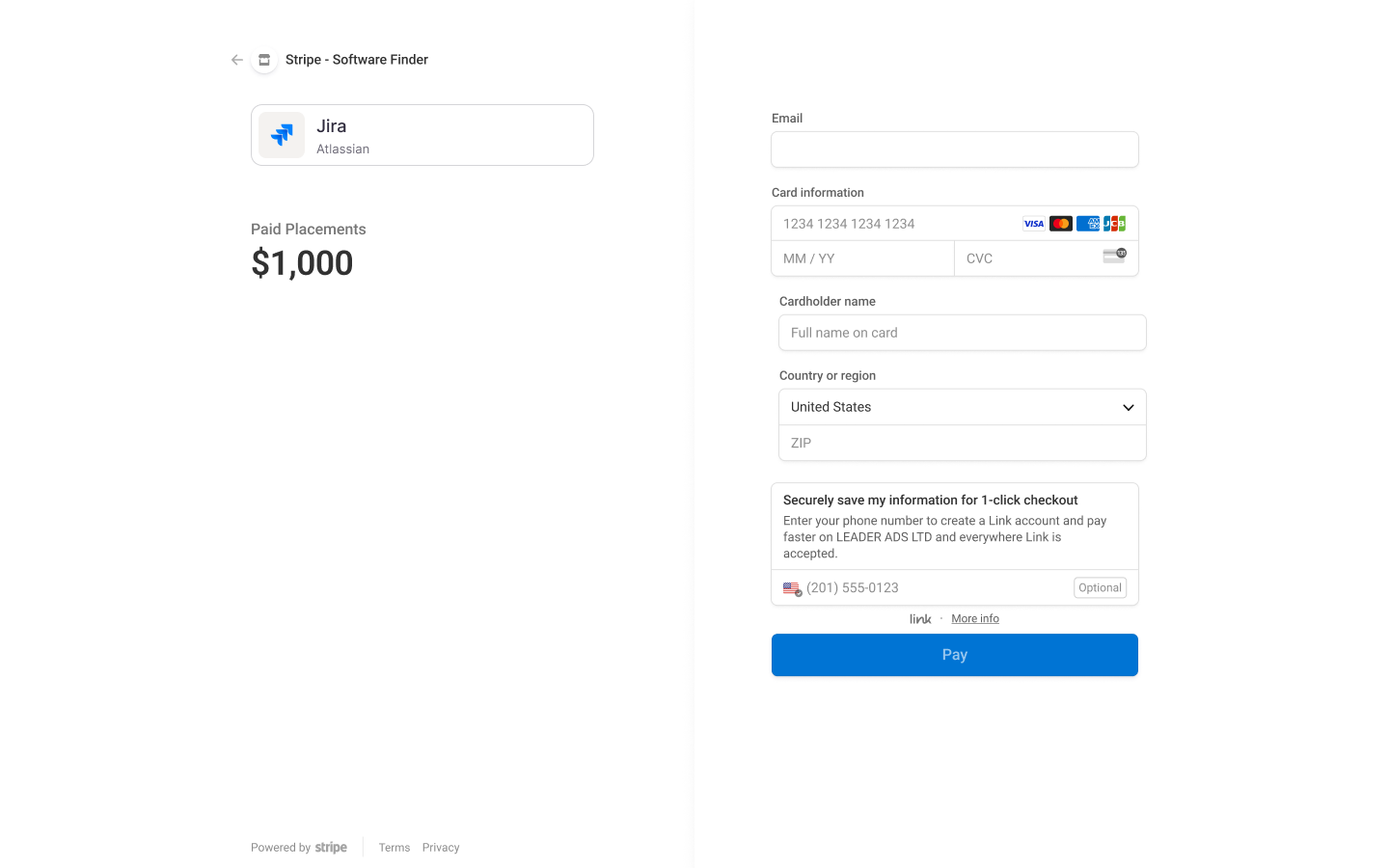
Placement payments are final and non-refundable. Check your selections before you click Pay.
Placement payments appear in the product's payment history. See Billing.
Placements Screen
After you buy placements, the Placements screen shows every placement campaign for the selected product.
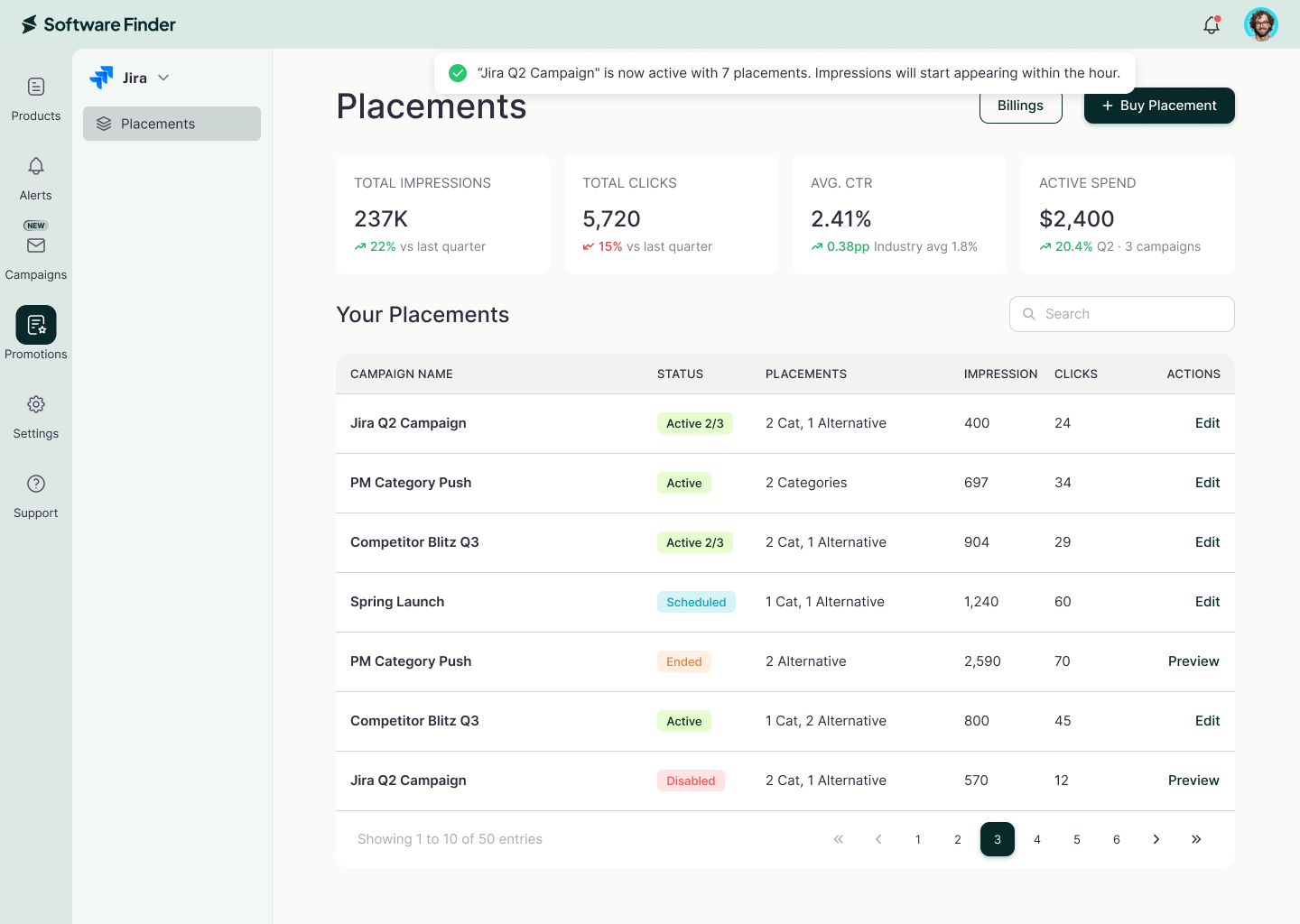
Performance Cards
- Total Impressions: How many times your placements appeared to buyers.
- Total Clicks: How many buyers clicked your placements.
- Avg. CTR: The average click-through rate (CTR) of your placements.
- Active Spend: The amount currently assigned to your active placements.
Your Placements
- Campaign Name: The name and date of the placement campaign.
- Status: Active, Scheduled, Disabled, or Ended.
- Placements: The number of category and competitor placements in the campaign.
- Impressions: How many times the campaign's placements appeared.
- Clicks: How many clicks the campaign received.
- Actions: Edit the campaign's destination URL. You can edit only active and scheduled campaigns.
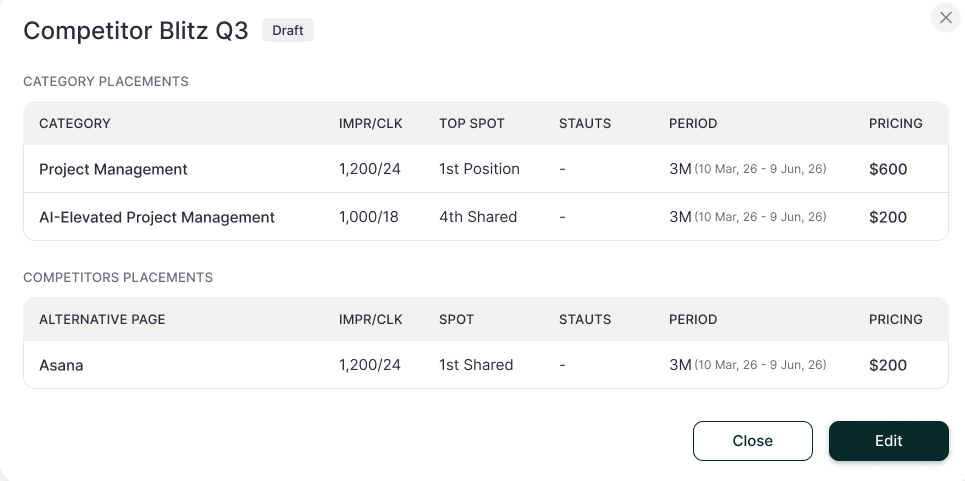
View Campaign Details
Click a campaign in Your Placements to open the Campaign Details dialog, which lists every placement in the campaign. Click Edit to change the destination URL, or click the open-link icon (↗) to visit the related category page.
FAQs
What is the difference between category and competitor placements?
Category placements show your product in category listings. Competitor placements show your product on competitors' product pages, where buyers are evaluating alternatives.
How long can a placement run?
3 months, 6 months, 9 months, or 1 year, where available.
How am I charged?
You pay for all selected placements when you complete the purchase. The payment is non-refundable.
Can I edit a campaign after it goes live?
Yes. You can change the destination URL while a campaign is Active or Scheduled. You can't change the placements.
Why can't I always see my 4th-spot placement?
The 4th spot is shared with other vendors, so it may not appear on every page load.
Do I need a payment method before buying placements?
Yes. You need a valid payment method on file, or you can add one during checkout. If no card is saved, you are taken to a secure payment page.
What happens if I schedule a placement for the future?
The campaign stays Scheduled until its start date, then changes to Active and your placements go live. You can edit the destination URL while it is scheduled.
When do impressions and clicks start counting?
When the campaign changes to Active and your placements go live, usually within one hour of the start date.
Why was my campaign marked as Disabled?
A campaign or one of its placements can be disabled for compliance, performance, or inventory reasons. Contact support for details.