Leads (Premium)
This guide shows you how to access and use the Leads section on Vendor Portal. Leads lets you see exactly who has looked at your profile, with verified contact info, company details, and the ability to export full visitor data.
To open Leads, click Leads in the left sidebar, which will open the Leads page.
Click Upgrade to subscribe and start using these insights today!
Leads List
After subscribing, the Leads page displays a card for each visitor, broken down into:
- Profile & location: Provides full name and location, plus a LinkedIn icon you can click to open their LinkedIn profile.
- Role & company: Their job title and company name, with a small company icon.
- Contact & website: Verified email address (if available) and the visitor’s company website URL.
- View timestamp: The exact date and time when they viewed your profile.
- Intent score: Score based on their browsing activity and engagement with products on Software Finder.
At the top, you can pick a date range, search by company/person/email, or click Export to download the full viewer data as a CSV.
Viewer data is only available for dates on or after the day you purchased this add-on.
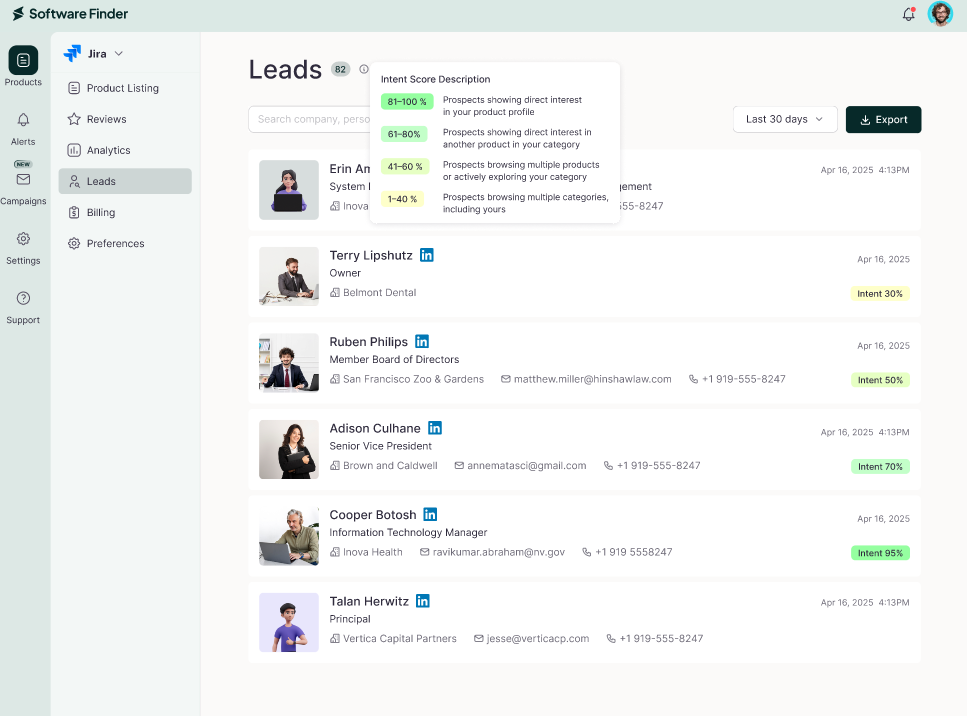
Intent Score
Intent score represents the level of interest a visitor has shown while browsing products.
The ranges are defined as:
81–100% – Prospects showing direct interest in your product profile
61–80% – Prospects showing direct interest in another product in your category
41–60% – Prospects browsing multiple products or actively exploring your category
1–40% – Prospects browsing multiple categories, including yours
Higher scores indicate stronger interest.
Leads Details
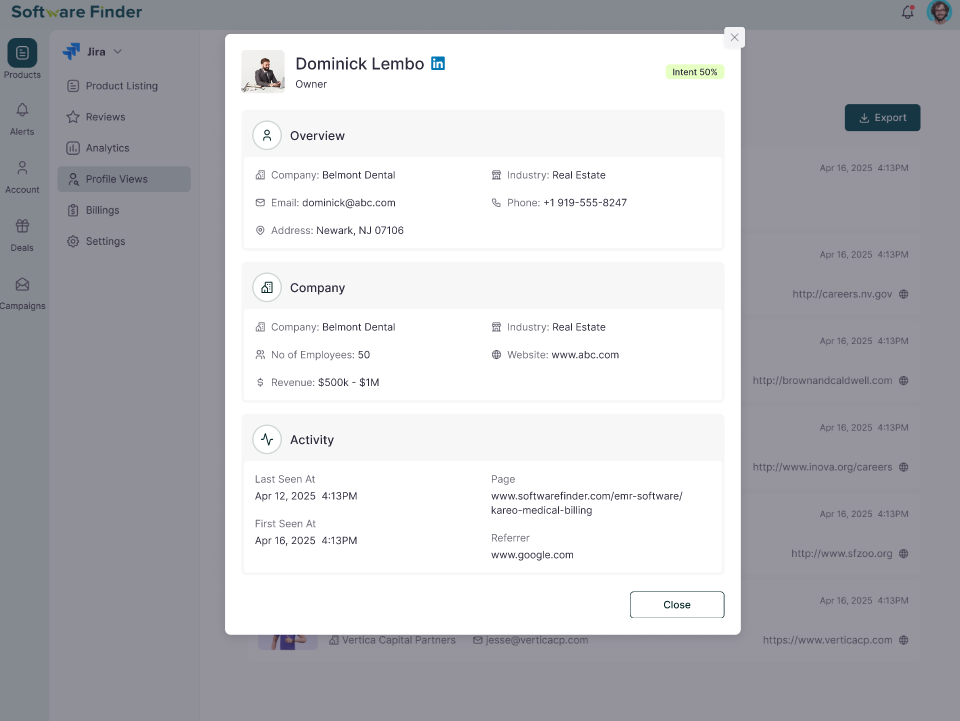
When you click any viewer card, a detail panel opens showing three sections:
- Overview: Shows visitor identity and contact details with Company, Industry, Email, and Address.
- Company: Provides organization context via Company, Industry, No. of employees, Website, and Revenue.
- Activity: Shows the visitor’s interaction with your profile, including First seen, Last seen, Page URL, and Referrer.
Armed with these insights, you can reach top prospects quickly and turn profile views into real opportunities.
FAQs
How do I open the detail panel?
Click any viewer card in the Viewer list to see full details.
What does the Overview section show?
It displays Company, Industry, Email, and Address for that visitor.
What information is in the Company section?
You’ll find Company, Industry, No. of employees, Website, and Revenue.
What does the Activity section track?
It records First seen, Last seen, Page URL, and Referrer for each visit.
Can I export the leads details?
Yes—use the Export button at the top of the Viewer list to download a CSV.
What is the Intent score?
The Intent score indicates the visitor’s level of interest in your product based on their browsing activity.