Settings
Settings enable you to manage your whole vendor account: your personal details, your company information, and who can access your company.
In the Vendor Portal: Settings.
To open Settings, click Settings in the left sidebar. The page has four tabs: User Account, Company, Company Members, and Join Requests.
User Account
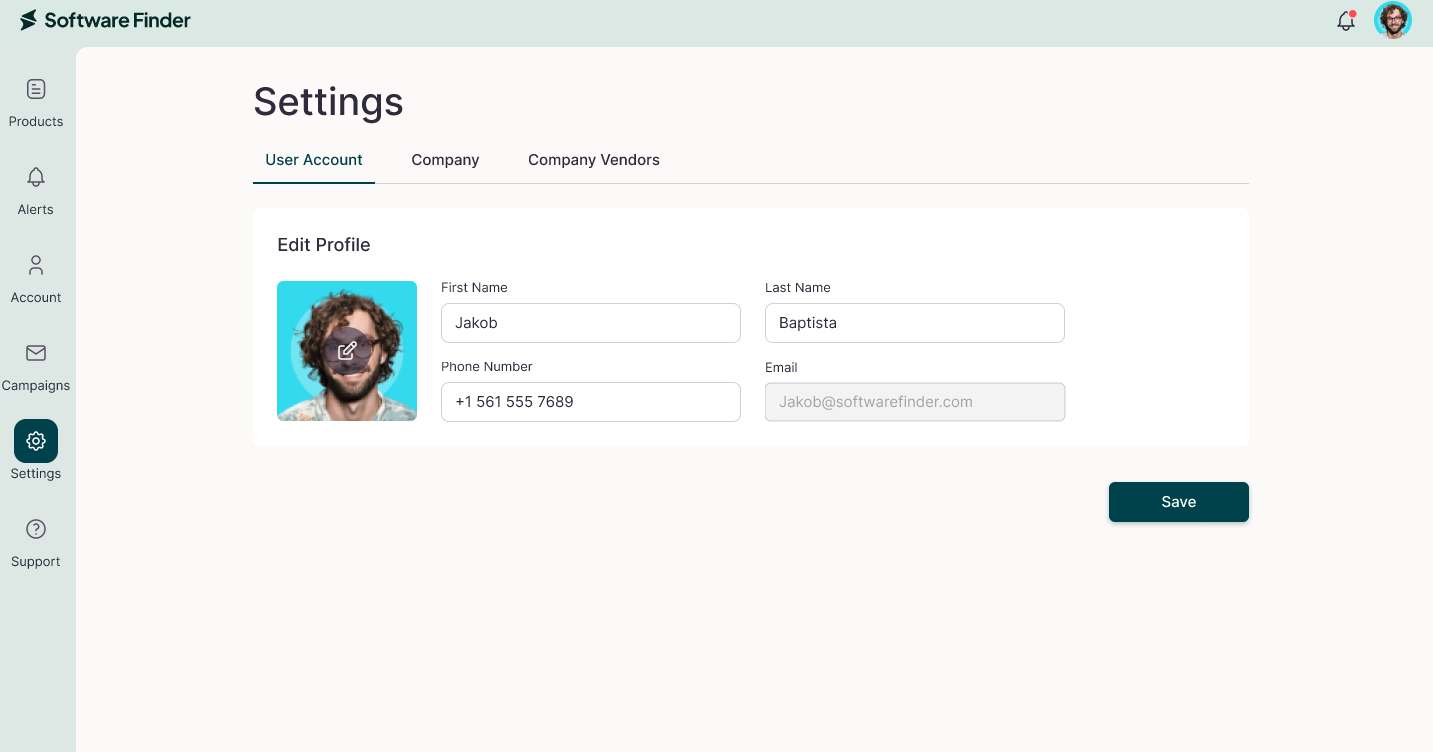
To update your personal details:
- Click the User Account tab.
- To change your photo, click the Edit icon on the photo and upload a new image.
- Update your First Name, Last Name, and Phone Number.
- Click Save.
Your Email is shown but can't be changed.
Company
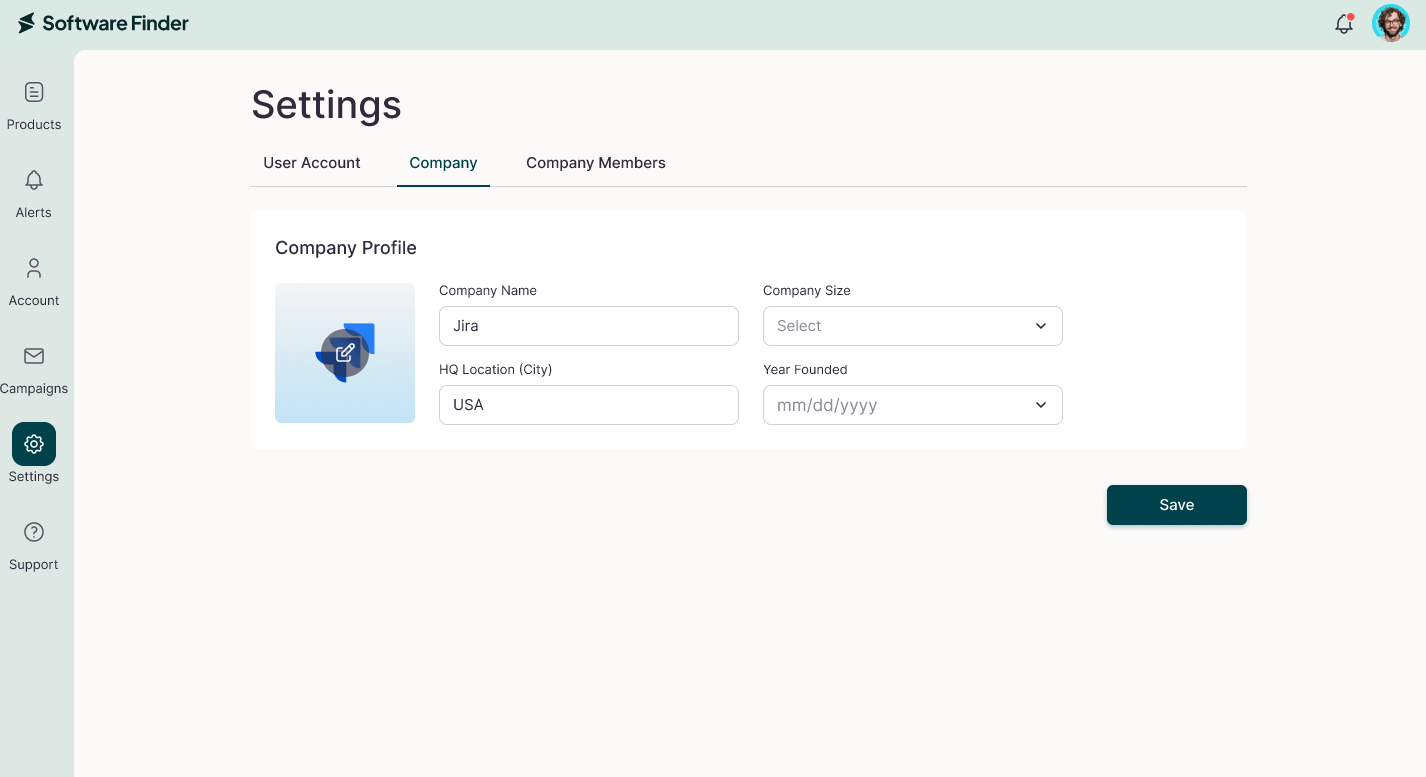
To update your company information:
- Click the Company tab.
- To change the logo, click the Edit icon on the logo and upload a new image.
- Update the Company Name, Year Founded, Company Size, and HQ Location (City).
- Click Save.
Company Members
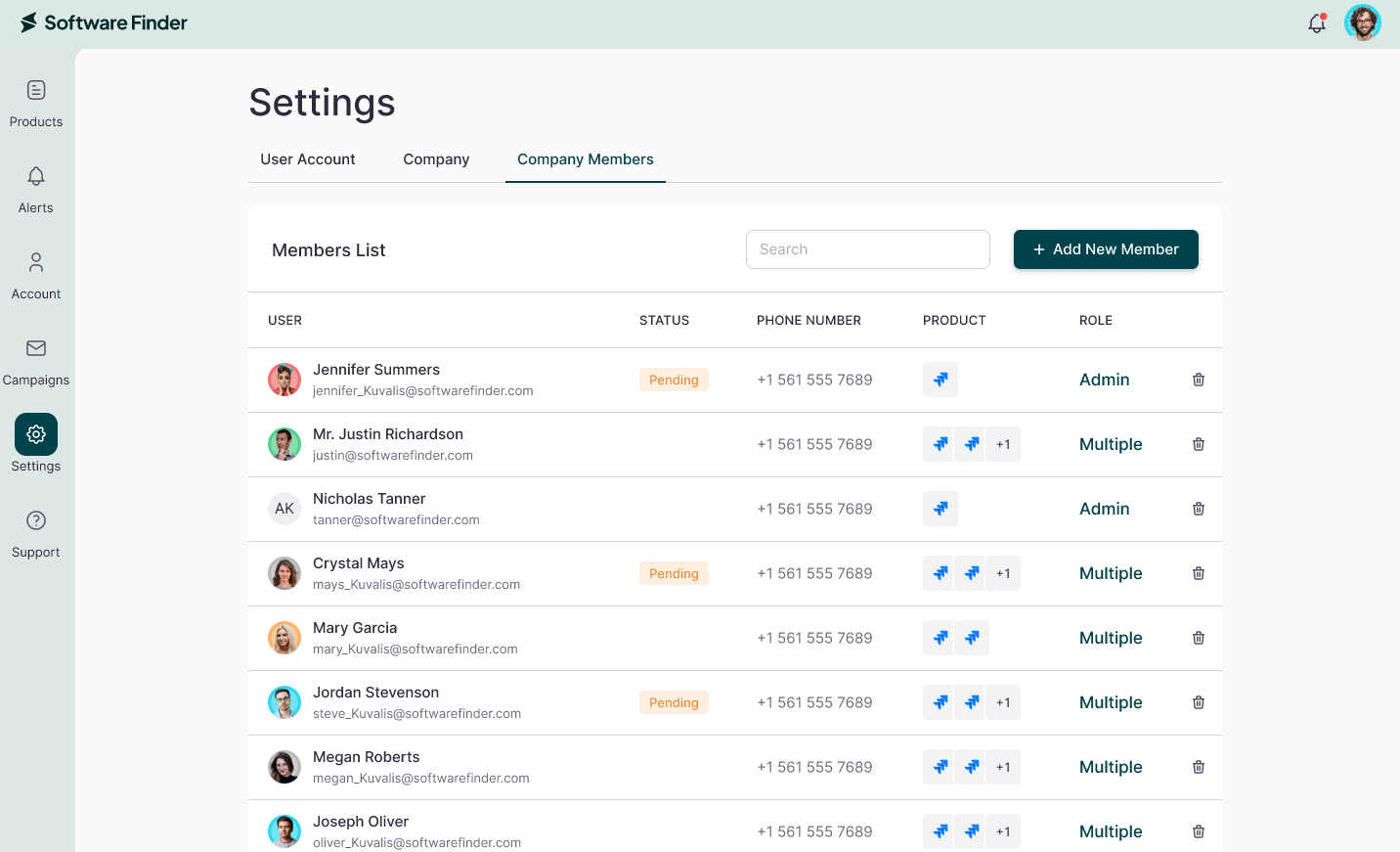
The Company Members tab lists everyone in your company and the products they can access. Company-level settings are managed by the company owner.
The table shows each member's USER, PHONE NUMBER, PRODUCT, ROLE, and ACTION options.
To add a member:
- Click the Company Members tab.
- Click Add New Member.
- Select the Product they should access, enter their User Email, and select a Role Type.
- Click Save to send the invitation.
To remove a member, click the Trash icon in their row.
For access to a single product, see Preferences.
Join Requests
The Join Requests tab lists people who have asked to join your company. The company owner approves them.
The table shows each request's USER, PRODUCT, REQUEST DATE, ROLE, and ACTIONS.
FAQs
How do I open Settings?
Click Settings in the left sidebar.
Can I change my email address?
No. Your email is shown in User Account but can't be edited.
Who can manage company settings?
The company owner.
Who approves join requests?
The company owner.
What is the difference between Company Members and Preferences?
Company Members controls access at the company level. Preferences controls who can access a single product and their role for that product.