Preferences
Preferences enable you to update a product's name, find its public URL, and manage who on your team can access the product and their role.
In the Vendor Portal: Products > Manage > Preferences.
To open Preferences:
- In the left sidebar, click Products.
- Click Manage next to the product.
- In the product menu, click Preferences.
The Product Settings page opens with two tabs: Product Profile and Users And Permissions.
Product Profile
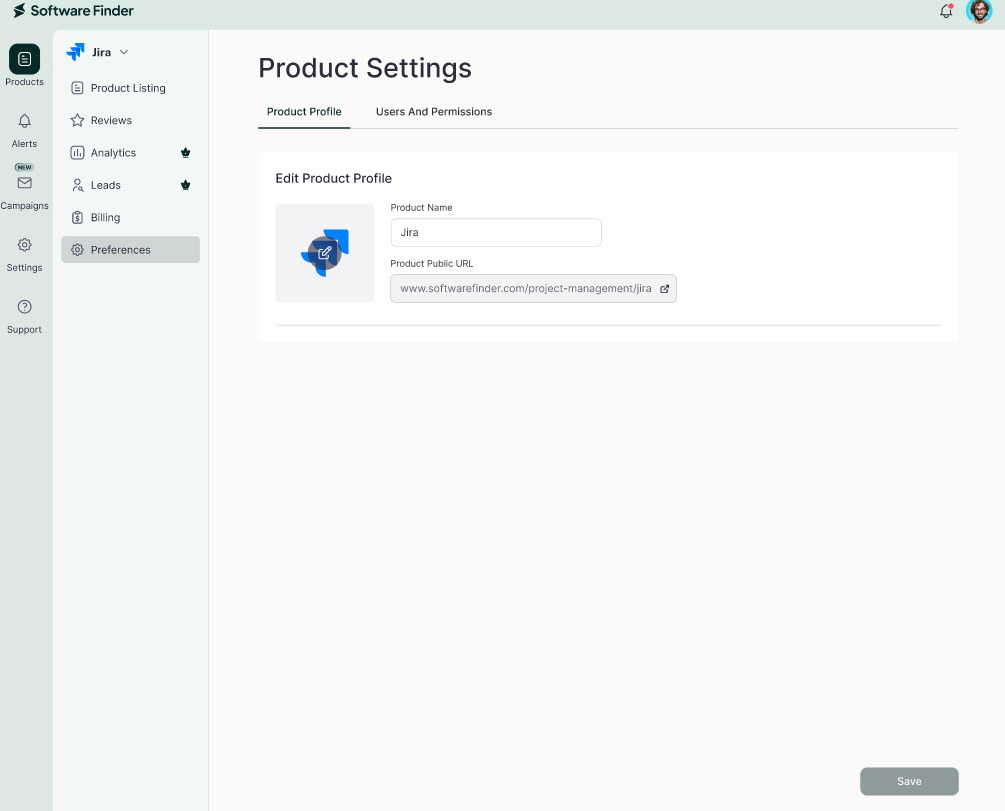
In Edit Product Profile, you can update:
- Product Name: The name shown to buyers.
- Product Public URL: Your product's public link. Click the open-link icon to view your public profile.
The Product Public URL is not editable. It is created automatically from your product name.
Click Save to apply your changes.
Users And Permissions
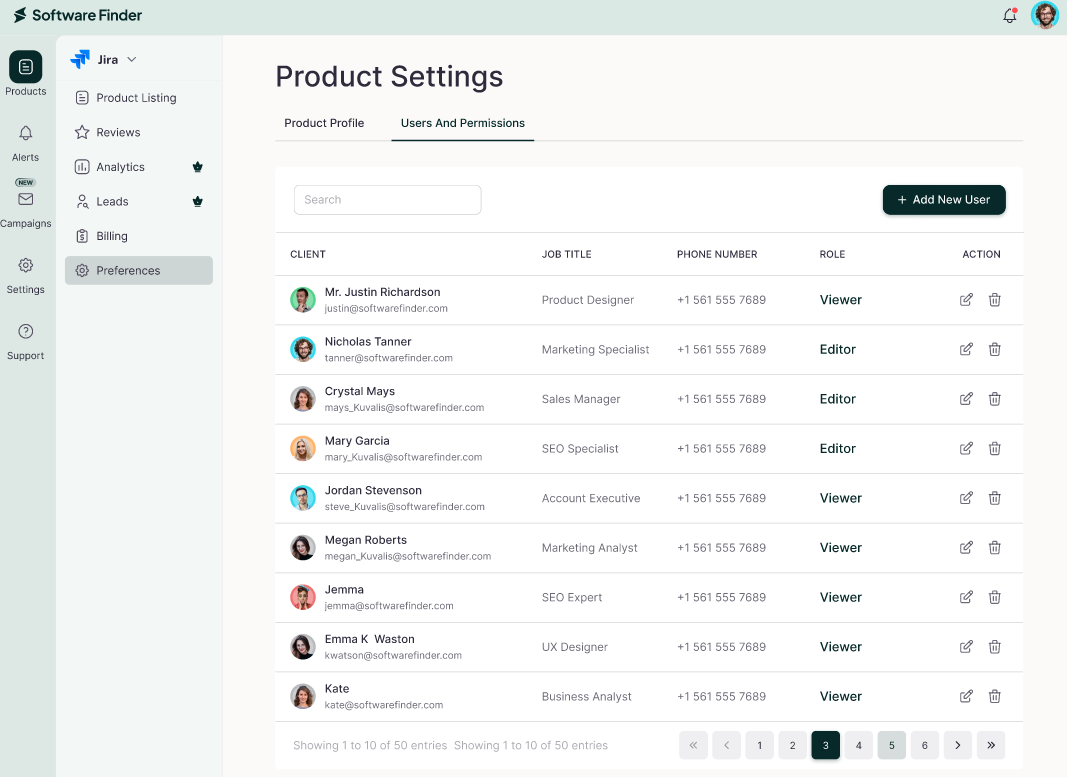
This tab lists the people who can access this product. The table shows each user's USERS, JOB TITLE, PHONE NUMBER, STATUS, ROLE, and ACTION options. Use the search box to find a user by name or email.
Add a User
To add a user:
- Click the Users And Permissions tab.
- Click Add New User.
- Enter the User Email.
- In Role Type, select Admin, Editor, or Viewer.
- Click Save, or Cancel to close without adding.
Change or Remove a User
In the ACTION column:
- Click the Edit icon to change the user's role.
- Click the Trash icon to remove the user.
For company-wide access, see Settings.
FAQs
How do I open Product Settings?
Click Products, click Manage next to the product, then click Preferences.
Can I change my Product Public URL?
No. It is created automatically from your product name.
What is the difference between Viewer and Editor?
A Viewer can only view settings. An Editor can make and save changes.
How do I find an existing user?
Use the search box in the Users And Permissions tab to search by name or email.
What is the difference between Preferences and Company Members?
Preferences controls access to one product. Company Members in Settings controls access at the company level.