Reviews
The Reviews page shows the feedback verified customers have left for your product, including star ratings, written comments, reviewer details, and the date of each review.
In the Vendor Portal: Products > Manage > Reviews.
This page shows data only after your product has at least one review.
Review Summary
To open Reviews:
- In the left sidebar, click Products.
- Click Manage next to the product.
- In the product menu, click Reviews.
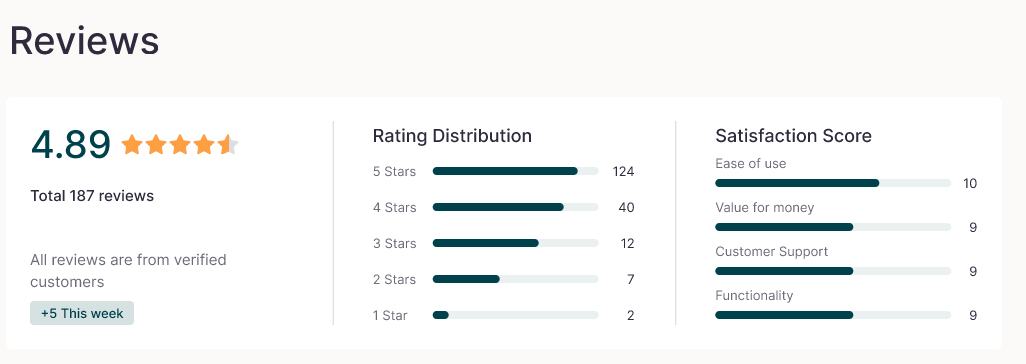
At the top of the page, a summary card shows:
- Average rating: Your overall star score, shown as stars and a decimal value.
- Total reviews: The number of reviews submitted.
- Rating Distribution: A bar chart of your 5-star to 1-star reviews, with the percentage and count for each.
- Satisfactory Score: Average percentages for Ease of Use, Customer Support, Value for Money, and Functionality.
Pros and Cons
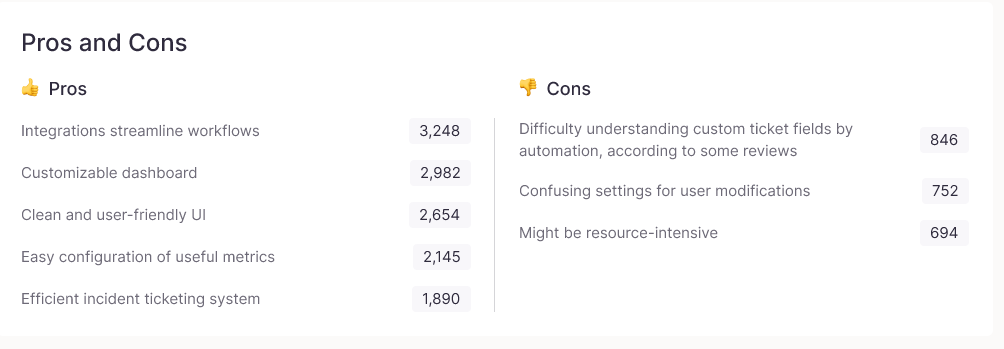
Below the summary, two lists show the positive points and the issues that come up in your reviews:
- Pros: What reviewers praise.
- Cons: The issues reviewers raise.
User Reviews
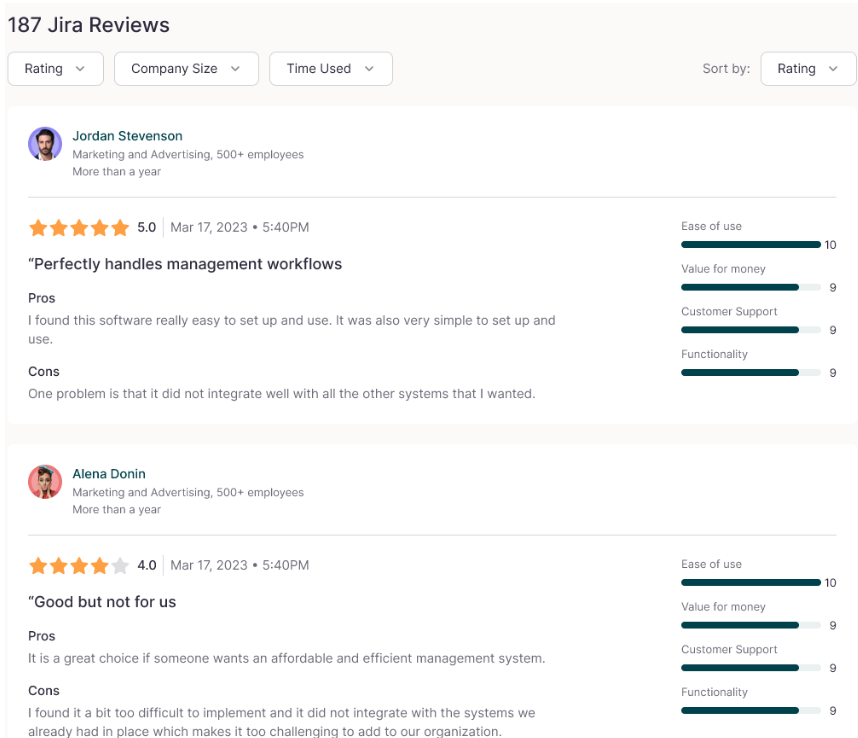
At the bottom of the page, each review appears as its own card.
To narrow the list, use the filters Ratings, Company Size, and Time Used. To change the order, use Sort By.
Each review card includes:
- Reviewer info: Name, industry, company size, and how long they've used your product.
- Star rating and date: The star rating and numeric score, with the date and time the review was posted.
- Review title and text: A headline followed by the full written feedback.
- Pros and Cons: The reviewer's own positive points and issues.
- Scores: Percentages for Ease of Use, Customer Support, Value for Money, and Functionality.
FAQs
Why is my Reviews page empty?
The page shows data only after your product has at least one review.
Can I filter reviews?
Yes. Filter by Ratings, Company Size, and Time Used, and change the order with Sort By.
How do I read the Rating Distribution chart?
Each bar represents one star level, from 5 to 1. It shows the percentage and number of reviews at that rating.
Are the reviews verified?
Yes. All reviews are from verified customers.