Review Campaigns
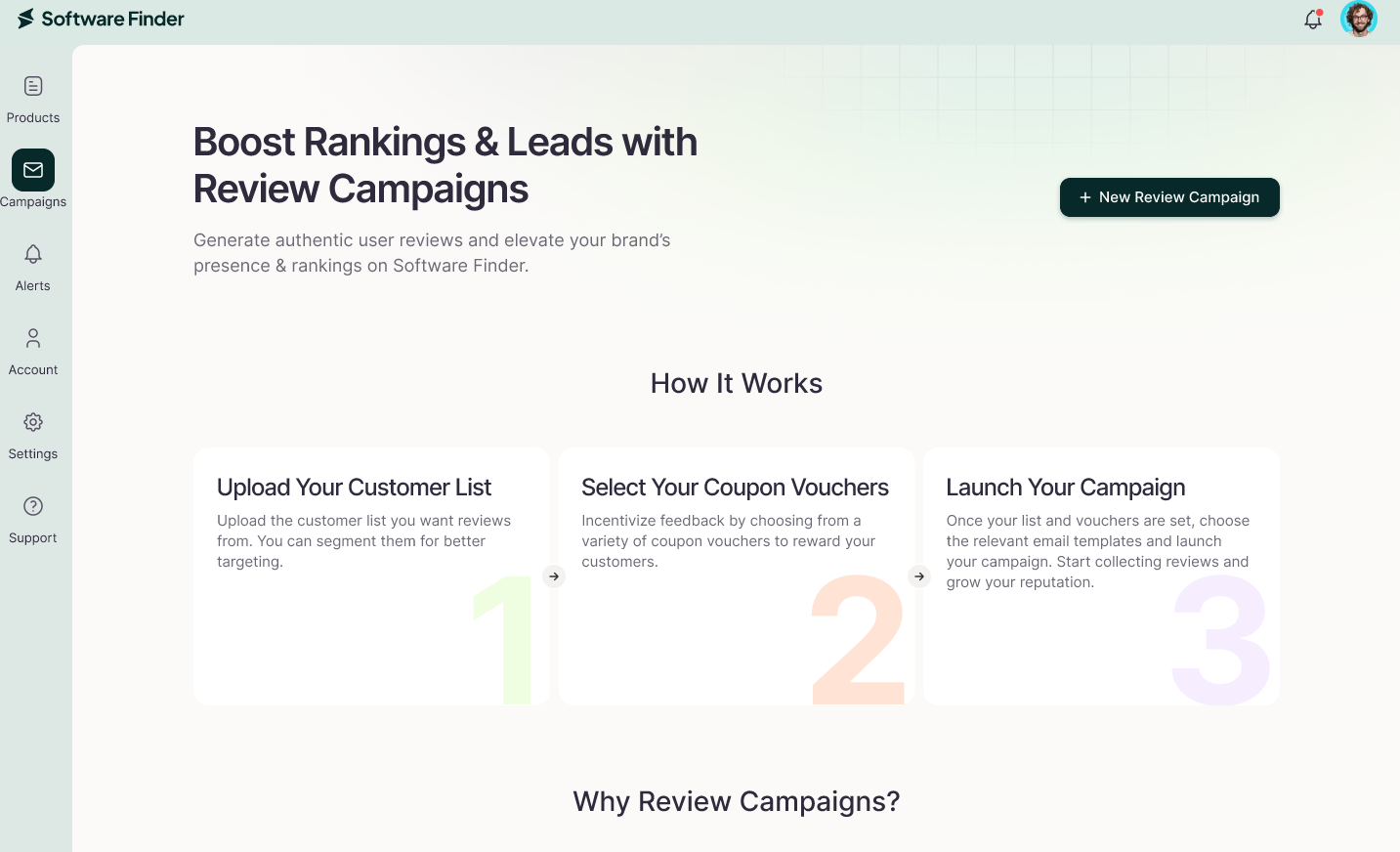
Review campaigns enable you to collect reviews at scale by sending personalized email invitations to your customers. You can upload contacts, choose an email template, schedule delivery, and add rewards to increase participation.
In the Vendor Portal: Campaigns.
To open Campaigns:
- In the left sidebar, click Campaigns.
- At the top of the Campaigns menu, select a product.
The Campaigns menu has four pages: Review Campaign, Contacts, Rewards, and Billing.
Contacts for Campaigns
Paid plans include review campaign contacts every month. Unused contacts carry over from month to month. The number of contacts available appears at the top of the Review Campaign, Contacts, and Billing pages. See Subscription Plans.
Buy More Contacts
To buy more contacts:
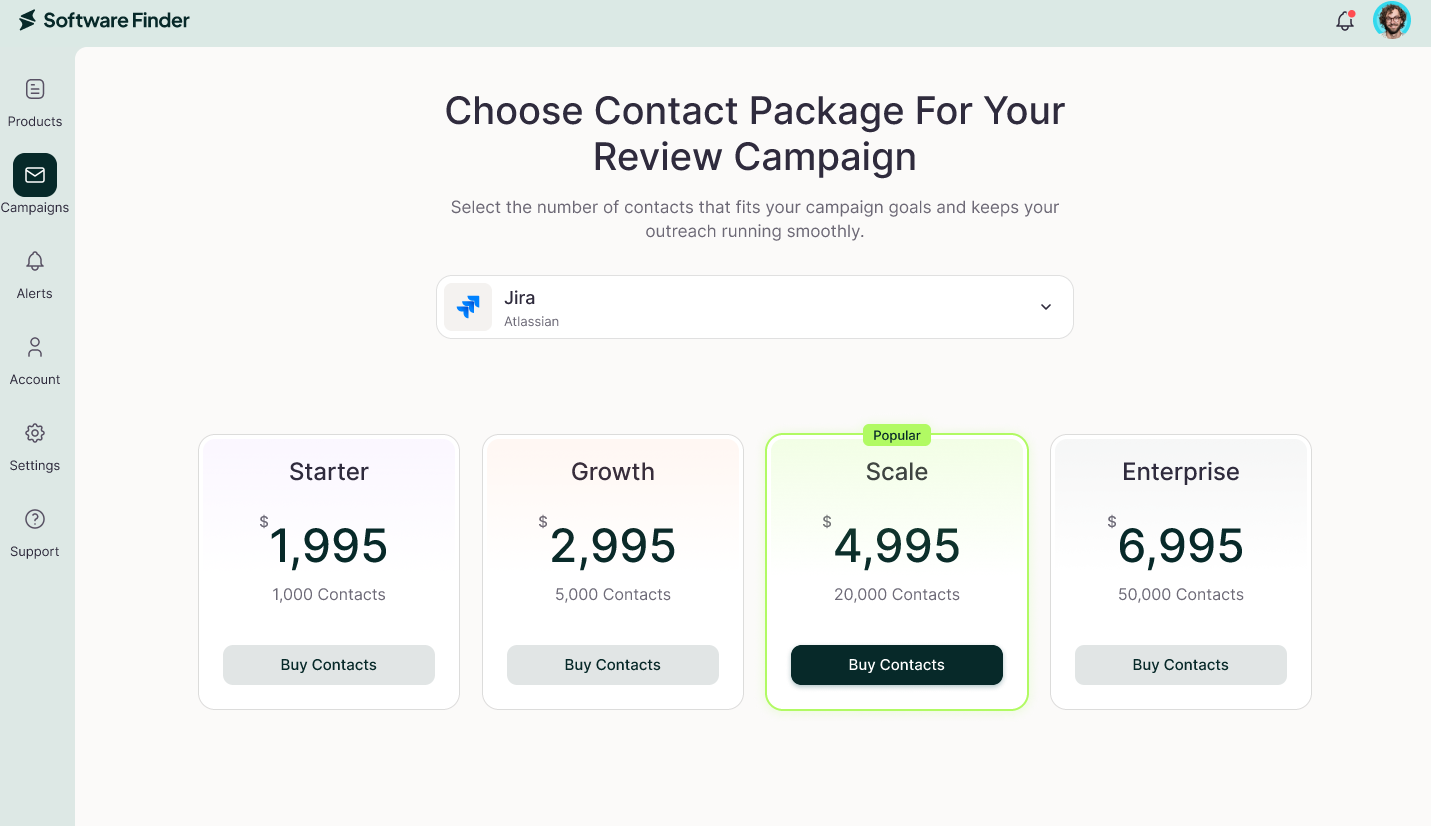
- Click Buy Contacts. The Choose Perfect Package for Your Review Campaigns dialog opens.
- Choose a package:
- Starter: 1,000 contacts
- Growth: 5,000 contacts
- Scale: 20,000 contacts
- Enterprise: 50,000 contacts
- Click Buy Contacts on the package you want.
- In the confirmation dialog, review the details and click Confirm Purchase.
Packages are a one-time purchase that you can use at any time. Each contact can receive up to 3 emails. Contacts can't be reused after they are uploaded.
Payment behavior: If no card is on file, you are taken to a secure checkout page to enter your email, card details, and billing information. If a card is already saved, the payment is processed automatically.
Create a Campaign
To start, click + Create Campaign on the Review Campaign page. The Create Review Campaign screen opens, with a live email preview on the right. To leave and keep your progress, click Save & Exit. To go back without saving, click Back.
Choose an Email Template
- Open Choose an Email Template.
- Select Template 1, Template 2, or Template 3.
- Click Next.
Name the Campaign
- Open Campaign Name.
- Enter a clear name so you can track the campaign. Names can be up to 50 characters.
- Click Next.
Add Contacts
- Open Email Contacts for this Campaign.
- Click Download template to get the CSV template, and add your contacts in that format.
- Under Import Unique Contacts (CSV), upload your CSV file (maximum 5 MB), or select existing contacts. You can also use both.
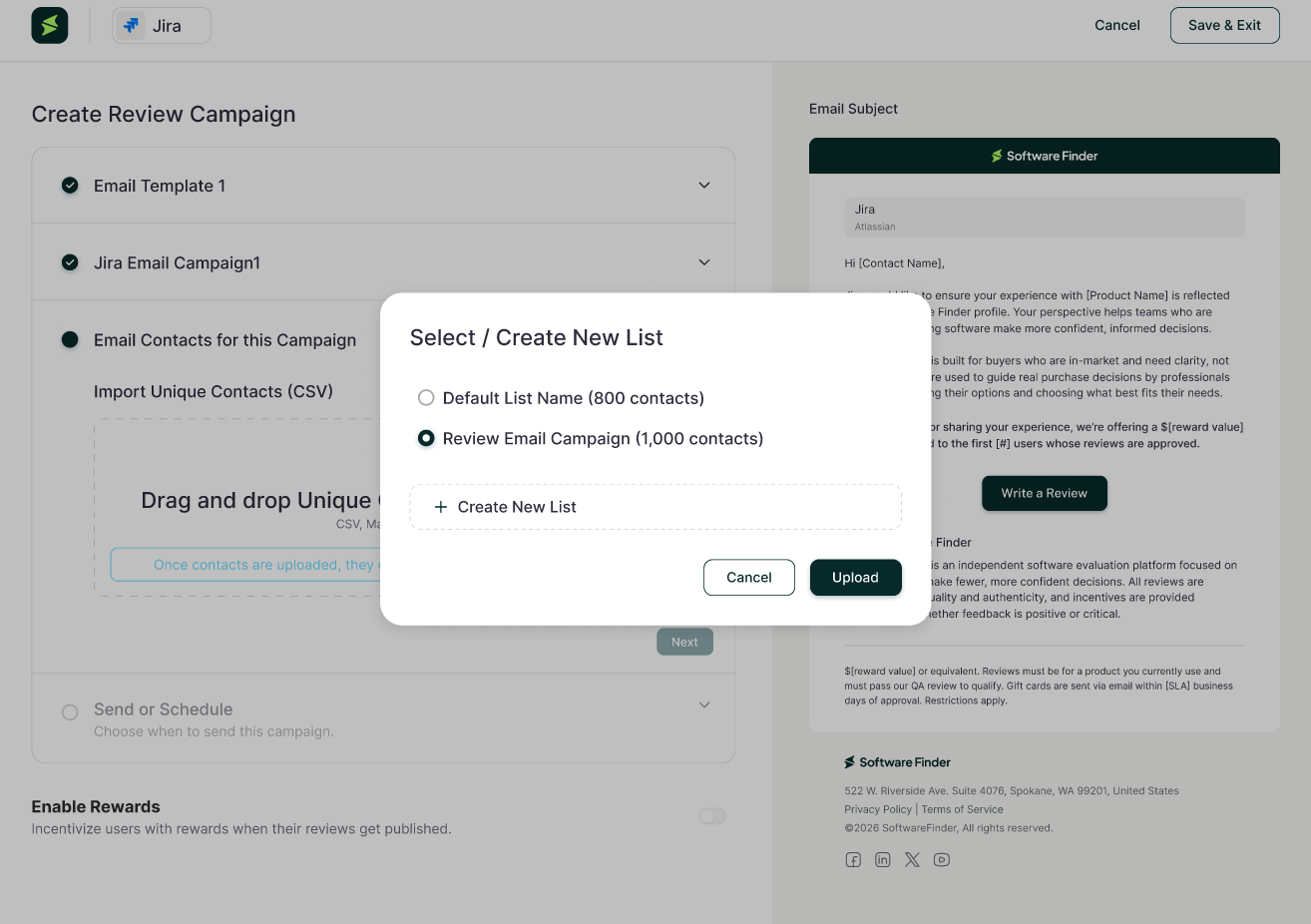
- When asked where to add the new contacts, choose an existing contact list, or select Create New List.
- Click Upload.
- Click Next.
Uploaded contacts can't be edited or deleted. You can only archive them.
Send or Schedule
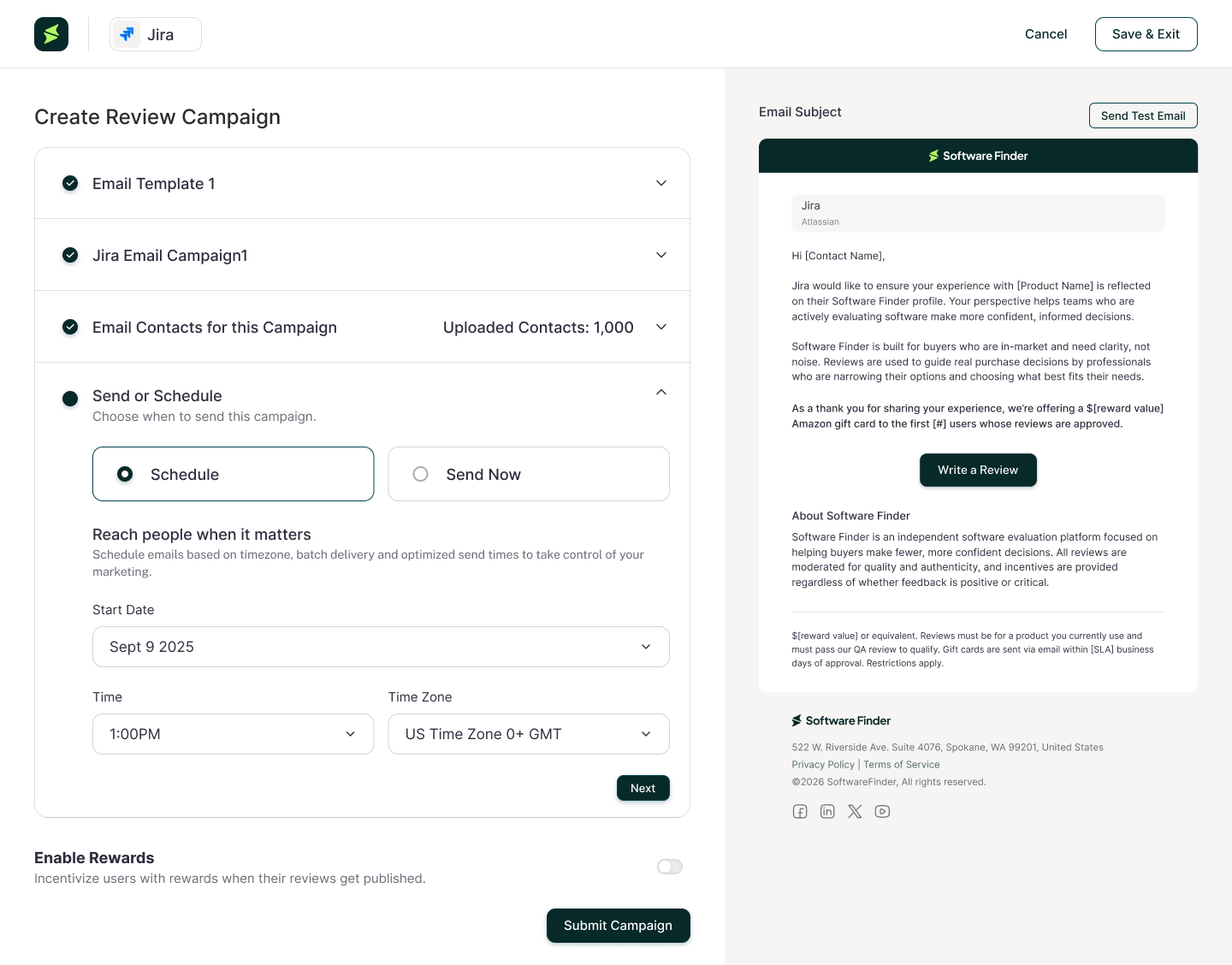
- Open Send or Schedule.
- Choose one of the following:
- Send now to send the campaign immediately.
- Schedule to choose a Start Date, Time, and Time Zone.
- Click Next.
Add Amazon Rewards (Optional)
- Turn on Amazon Rewards.
- Select the Number of Rewards, from 25 to 250.
- Enter the Rewards Value, from $10 to $100.
- Review the Rewards Top Up and Total Payable, then click Pay.
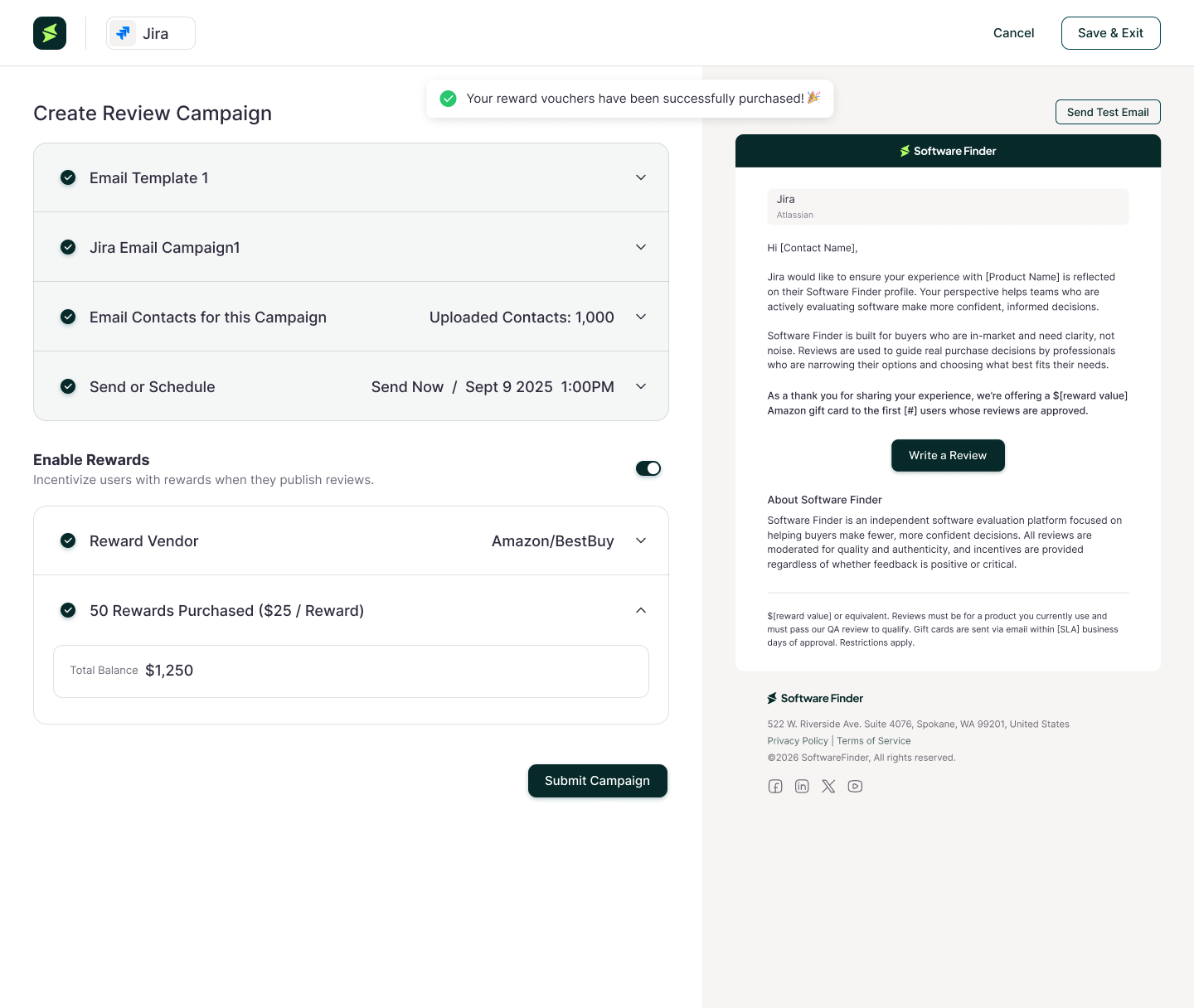
- In the confirmation dialog, review the summary and click Complete Purchase.
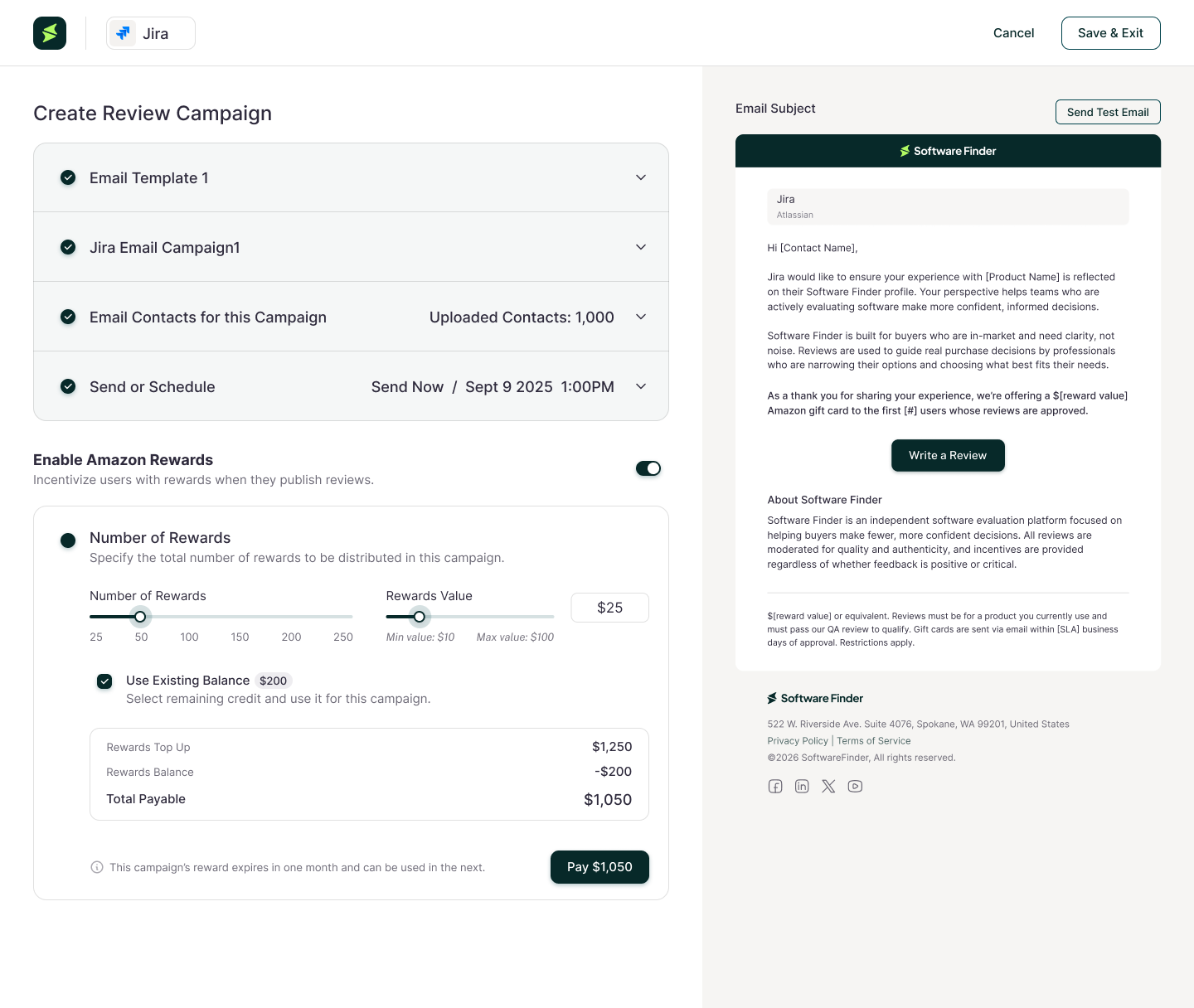
For incentivized campaigns, the email template updates automatically to include reward information. Review the updated template before you submit the campaign.
Send a Test Email (Optional)
- Complete the required campaign information.
- Above the email preview, click Send Test Email.
- Enter the recipient name and email address.
- Click Send.
Submit the Campaign
- Review the template, contacts, schedule, and rewards.
- Click Submit Campaign. A message confirms that the campaign was sent or scheduled.
Review Campaign Page
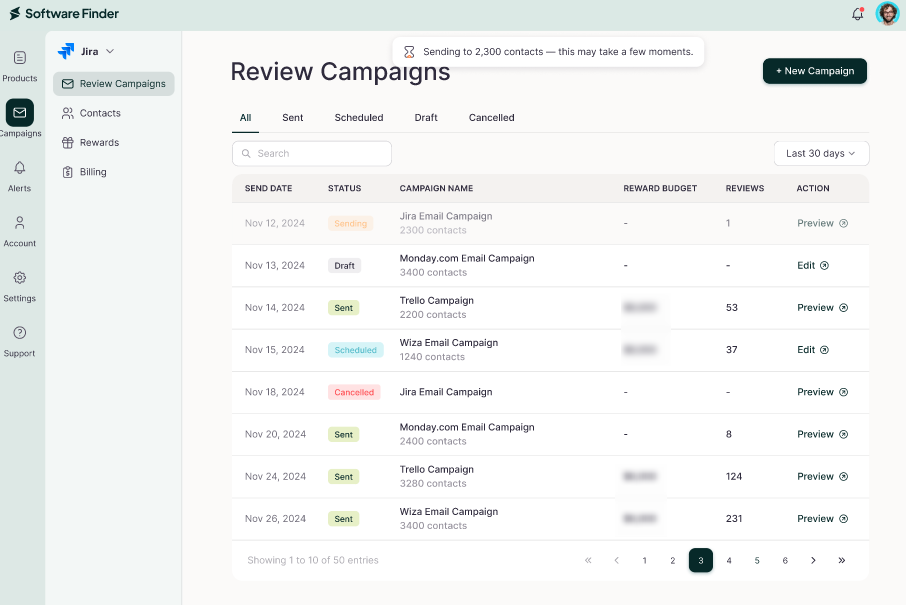
After you submit a campaign, the Review Campaign page shows all your campaigns.
Filters and Search
- Filter campaigns by All, Sent, Scheduled, or Draft.
- Use the search box to find a campaign by name.
- Use the date filter on the right to change the time range.
Campaign List
Each campaign shows:
- Date: The scheduled or sent date.
- Status: Draft, Scheduled, Sending, or Sent.
- Campaign Name: The campaign name and number of contacts.
- Reward Budget: The rewards allocated, if enabled.
- Reviews: The number of reviews received.
- Email Actions: Options such as preview or edit, depending on the status.
Contacts Page
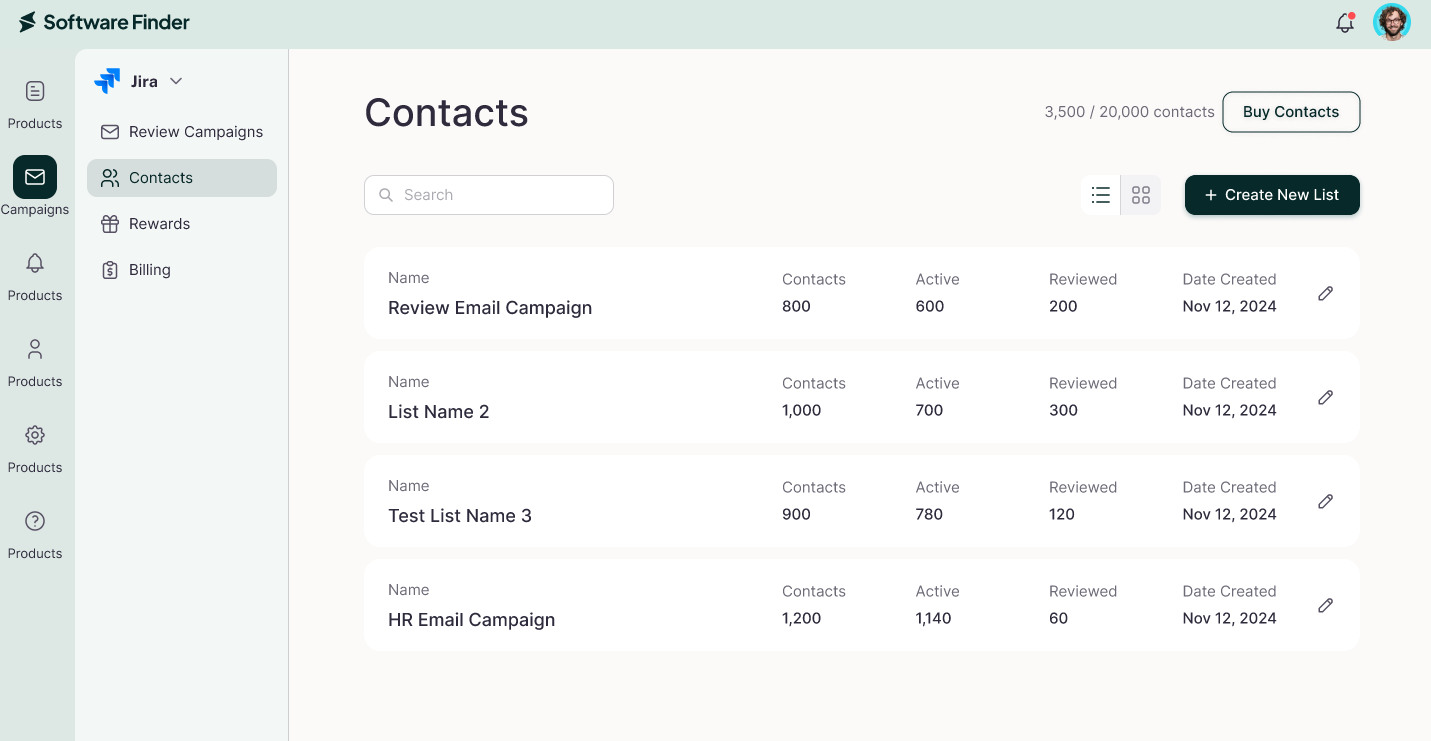
The Contacts page shows your contact lists and how many contacts you have used, for example 0 / 500 contacts. Each list card shows the total number of contacts, active contacts, and contacts who have submitted reviews.
To create a list, click + Create New List.
Contact Filters
- All: Every contact.
- Active: Contacts eligible for campaigns.
- Expired: Contacts that are no longer valid.
- Rewarded: Contacts who have received rewards.
- Reviewed: Contacts who have submitted reviews.
- Archived: Contacts that were archived.
Contact Table
Each contact includes:
- Status: The contact's status.
- Email Address: The contact's email.
- First Name / Last Name: The contact's name.
- Campaign Name: The campaign the contact belongs to.
- Sent: The number of emails sent.
- Reward: The reward value, if applicable.
To add contacts, click Import Contacts. To buy more, click Buy Contacts.
Rewards Page
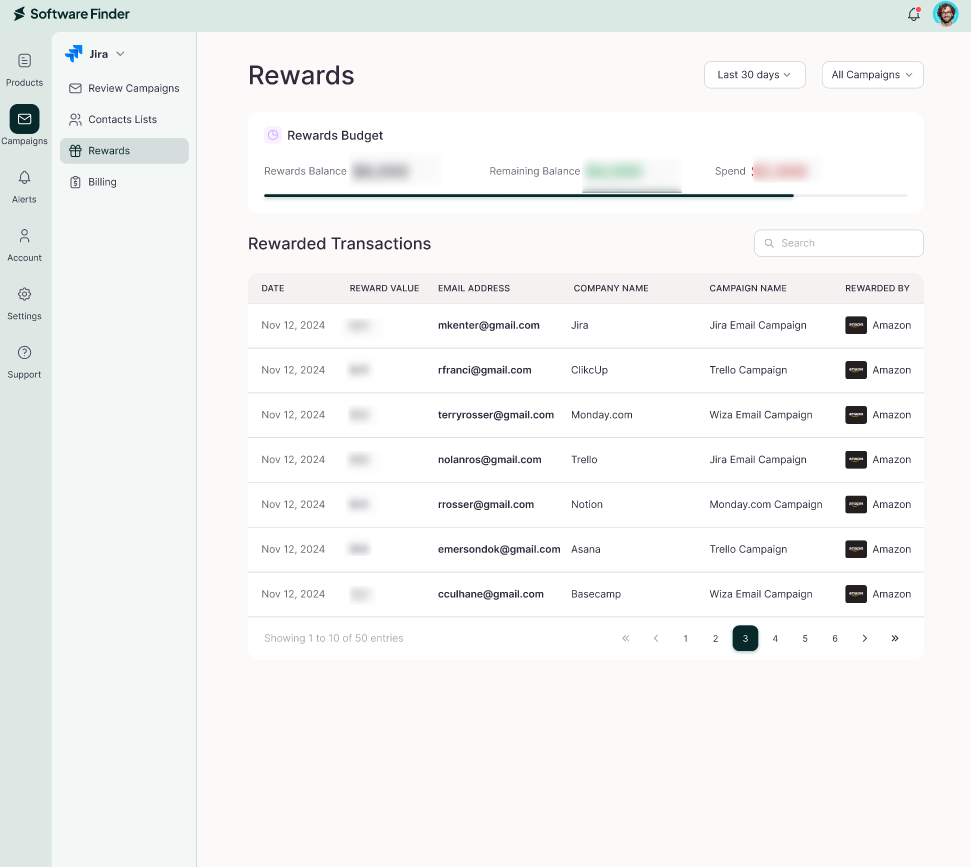
The Rewards page shows your rewards budget and every reward issued. Use the filters at the top to choose a time range (for example, All time) and a campaign (for example, All Campaigns).
Rewards Budget
- Rewards Balance: The total reward value available.
- Remaining Balance: The unused balance.
- Spend: The amount used.
Reward Transactions
| Column | Description |
|---|---|
| DATE | When the reward was issued. |
| REWARD VALUE | The value of the reward. |
| EMAIL ADDRESS | The recipient's email address. |
| COMPANY NAME | The recipient's company. |
| CAMPAIGN NAME | The campaign that triggered the reward. |
| REWARDED BY | The provider that issued the reward. |
Billing Page
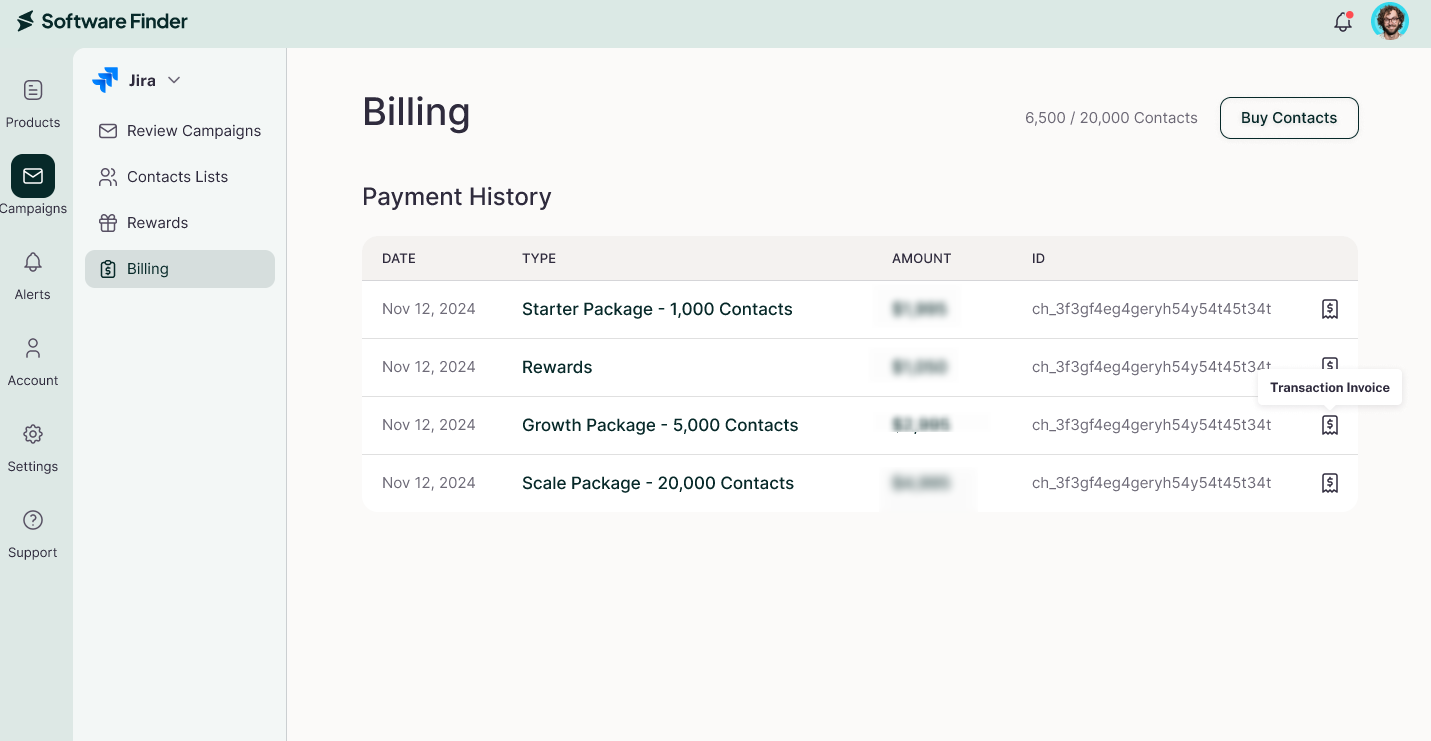
The Campaigns Billing page shows your contact usage and all payments for contact packages and rewards. From this page, you can click Buy Contacts or Change Payment Method.
Payment History
| Column | Description |
|---|---|
| DATE | The date of the transaction. |
| TYPE | Contact package or reward credits. |
| AMOUNT | The amount paid. |
| ID | The transaction reference. |
Review Rejection Reasons
To maintain review authenticity and platform trust, all submitted reviews go through a multi-layer verification and quality review process. Reviews or incentives may be rejected if they do not meet validation, quality, product experience, or campaign compliance standards.
Reviewer Validation
These rejections occur when the reviewer's identity, credibility, or affiliation cannot be confidently verified.
| Reason | Description |
|---|---|
| Professional Credibility Not Established | Reviewer's role or experience could not be validated through professional credentials. |
| Identity Verification Failed | Reviewer identity could not be confirmed due to inconsistent or suspicious account data. |
| Conflict of Interest Detected | Reviewer is affiliated with the vendor, reseller, or a competing organization. |
| Unverified Contact Information | Email or contact details could not be linked to a legitimate organization. |
| Submission Risk Indicators | Review submission showed high-risk geographic or technical signals. |
Review Quality
These rejections focus on the substance, originality, and professionalism of the review content.
| Reason | Description |
|---|---|
| Non-Original Submission | Review content was duplicated, paraphrased, or reused from existing sources. |
| Insufficient Experience Detail | Review did not provide meaningful insights into product usage or outcomes. |
| Low-Clarity Response | Review content was unclear, repetitive, or did not meet readability standards. |
| Multiple Submissions Detected | More than one review was submitted for the same product by the same reviewer. |
| Automated Content Identified | Review content appears to be generated using automated or AI tools. |
| Promotional Tone Detected | Review reads like marketing copy rather than genuine user experience. |
| Inconsistent Review Signals | Review contains contradictory or unverifiable statements. |
| Policy-Inappropriate Language | Review includes language that does not meet professional standards. |
Product Experience
These rejections occur when the reviewer's product usage does not meet eligibility requirements.
| Reason | Description |
|---|---|
| Evaluation Not Fully Completed | Reviewer only used a trial, demo, or partial version of the product. |
| Product Alignment Issue | Review content does not match the product or service reviewed. |
| Experience No Longer Current | Reviewer's product usage occurred beyond the accepted timeframe. |
| Usage Evidence Not Confirmed | Reviewer could not provide verifiable proof of product usage. |
| Active User Status Unverified | Reviewer could not be confirmed as a direct, active user. |
| Indirect Product Exposure | Reviewer's experience was secondary or through a third party. |
| Limited Decision Influence | Reviewer lacked sufficient involvement to evaluate the product. |
Campaign Compliance
These rejections are related to violations of campaign rules, incentive guidelines, or verification workflows.
| Reason | Description |
|---|---|
| Incentive Program Misuse | Reviewer activity violated reward or incentive guidelines. |
| Coordinated Submission Pattern | Review activity suggests organized or bulk submissions. |
| Verification Follow-Up Incomplete | Required verification steps were not completed within the allowed timeframe. |
Incentive Rejection Status
In some cases, a review may be approved but still not qualify for an incentive.
| Campaign Incentive Status | Description |
|---|---|
| Not Eligible for Incentive | Review was approved, but campaign incentive funding was unavailable at the time of submission. |
| Incentive Withheld | Incentive was not issued due to review rejection or campaign non-compliance. |
| Incentive Reversed | Incentive was withdrawn after approval due to policy violations identified post-issuance. |
Review approval and incentive eligibility are evaluated independently. Rejected reviews do not count toward campaign review totals. Incentives are only issued for reviews that fully comply with campaign and platform policies.
FAQs
Do I need to buy contacts before creating a campaign?
No, if your plan includes review campaign contacts. Paid plans include contacts every month. You can buy more with Buy Contacts.
Can I schedule a campaign instead of sending it immediately?
Yes. Choose Send now to send immediately, or Schedule to choose a date, time, and time zone.
How do rewards work?
Turn on Amazon Rewards, select the number of rewards, and set the reward value ($10 to $100). The total is charged when you click Pay.
Can I edit or delete contacts after uploading them?
No. Uploaded contacts can only be archived.
Can I preview the email before sending?
Yes. Use Send Test Email to send a one-time preview.