Manage Your Product Profile
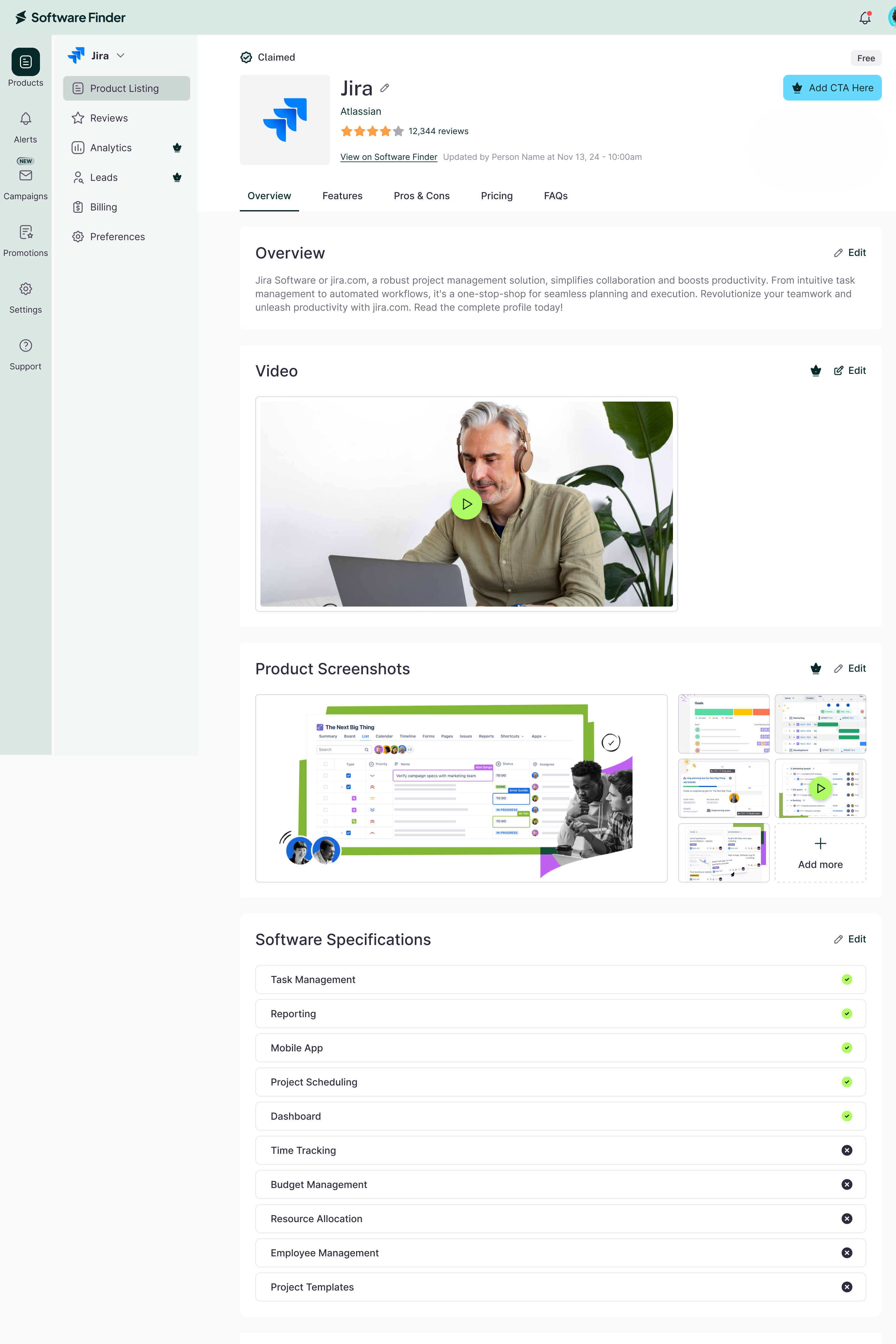
The Product Profile page enables you to manage your public product profile from one place. Edit the video, screenshots, specifications, description, features, pricing, and FAQs, then publish your changes.
In the Vendor Portal: Products > Manage > Product Profile.
Some sections depend on your plan. See Subscription Plans.
Saving an edit does not update your public profile. After you save your edits, click Publish Changes at the top of the page to make them live.
Open the Product Profile
To open your product profile:
- In the left sidebar, click Products.
- Click Manage next to the product you want to edit.
- In the product menu, click Product Profile.
The page shows tabs for Overview, Features, Pricing, and FAQs. Click a tab to jump to that part of the page.
Profile Header
The top of the page shows your product's status (for example, Claimed), its plan, logo, name, rating, and a View on Software Finder link that opens your public profile.
Update the Product Logo
To update the logo:
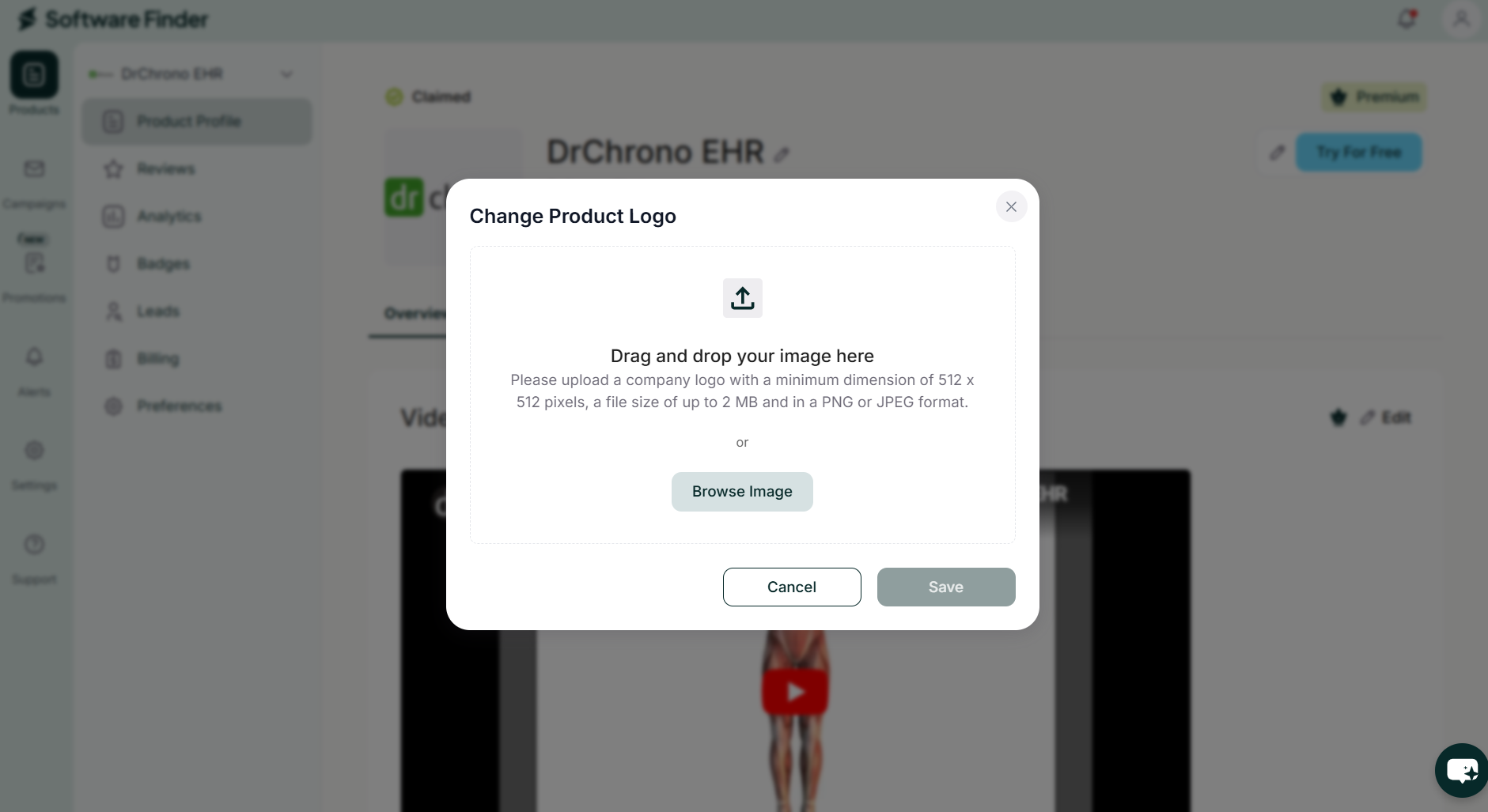
- Click the logo. A dialog opens.
- Upload a new image using Browse Image, or drag and drop it.
- Use the zoom bar (+/-) to fit the image, then click Save.
- Click Publish Changes.
Update the Product Name
To update the name:
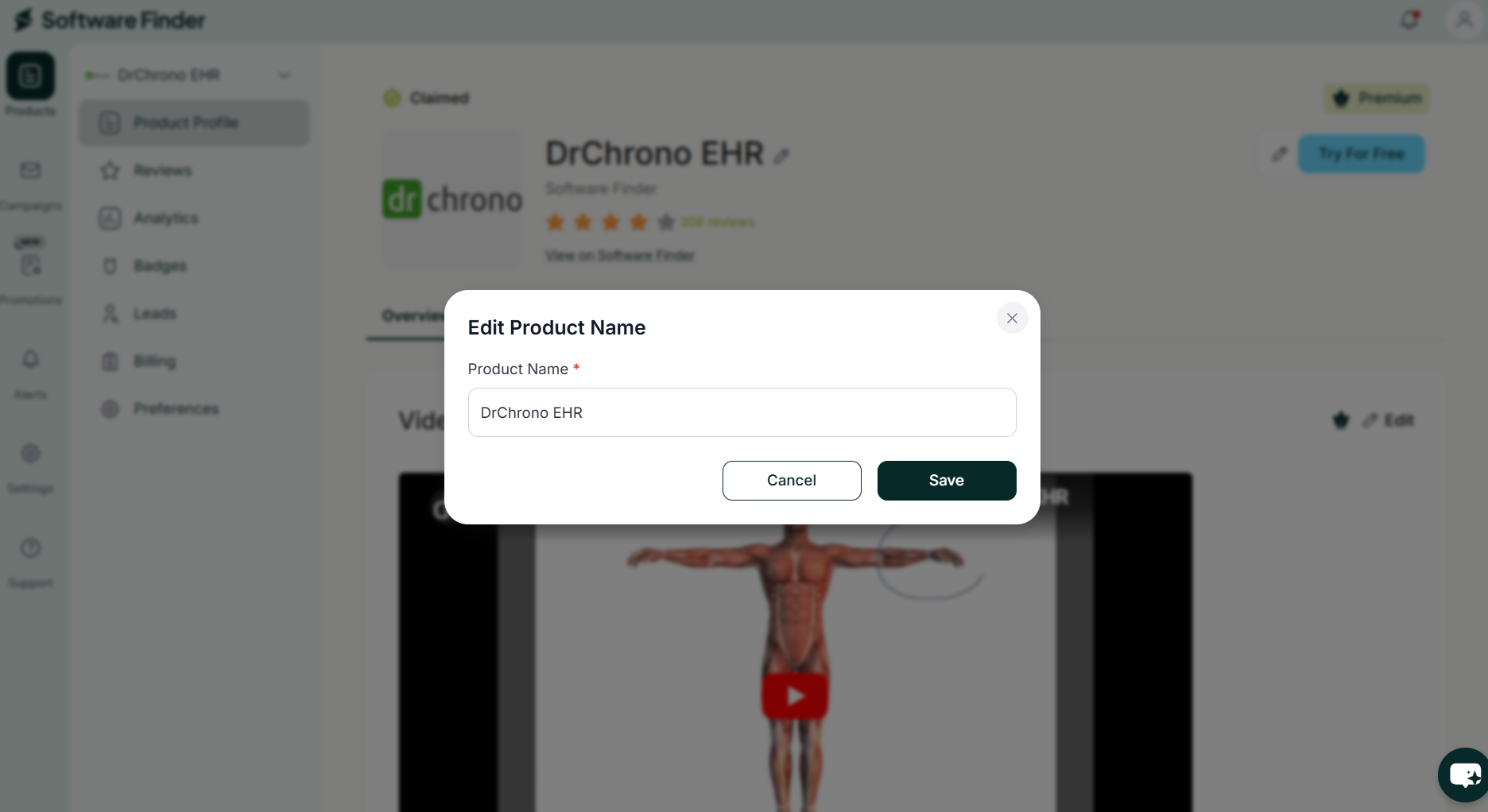
- Click the Edit icon next to the product name.
- Enter the new product name.
- Click Save, or Cancel to discard your changes.
- Click Publish Changes.
Video
To add or change your product video:
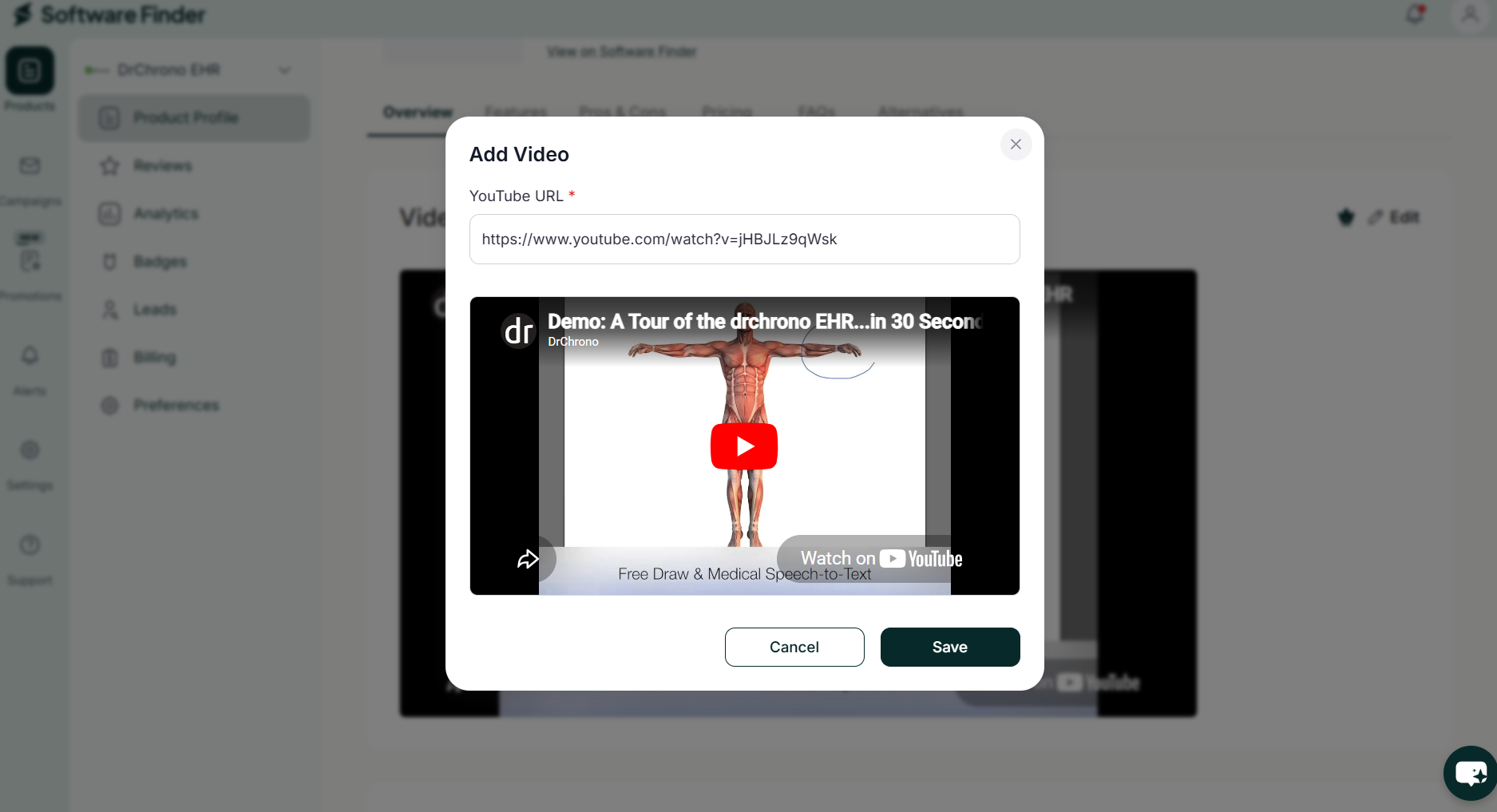
- In the Video section, click Edit.
- Enter your YouTube video URL.
- Click Save.
- Click Publish Changes.
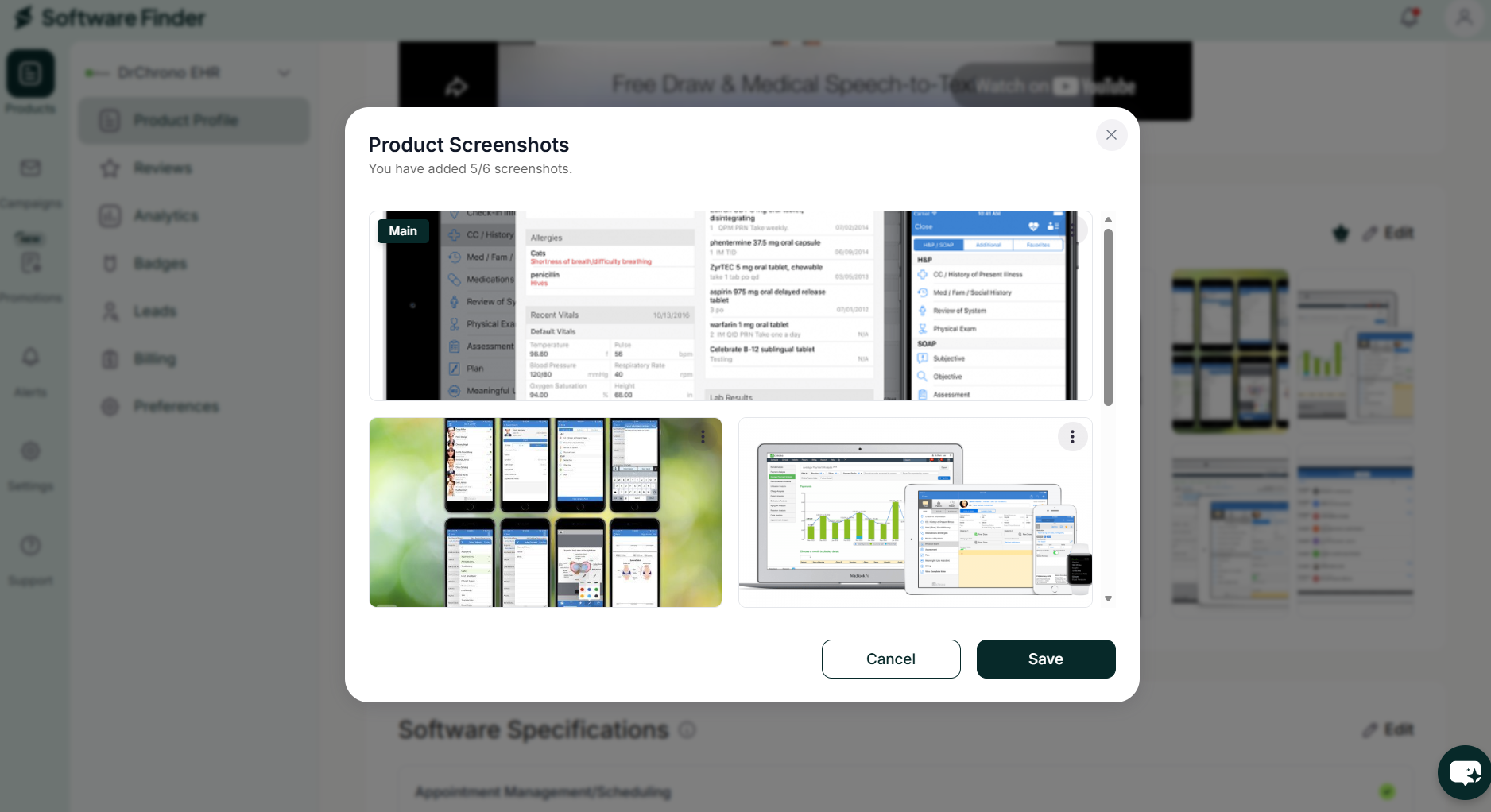
Screenshots
To add screenshots:
- In the Screenshots section, click Edit.
- Upload one or more images using Browse Image, or drag and drop them.
- Click Save.
- Click Publish Changes.
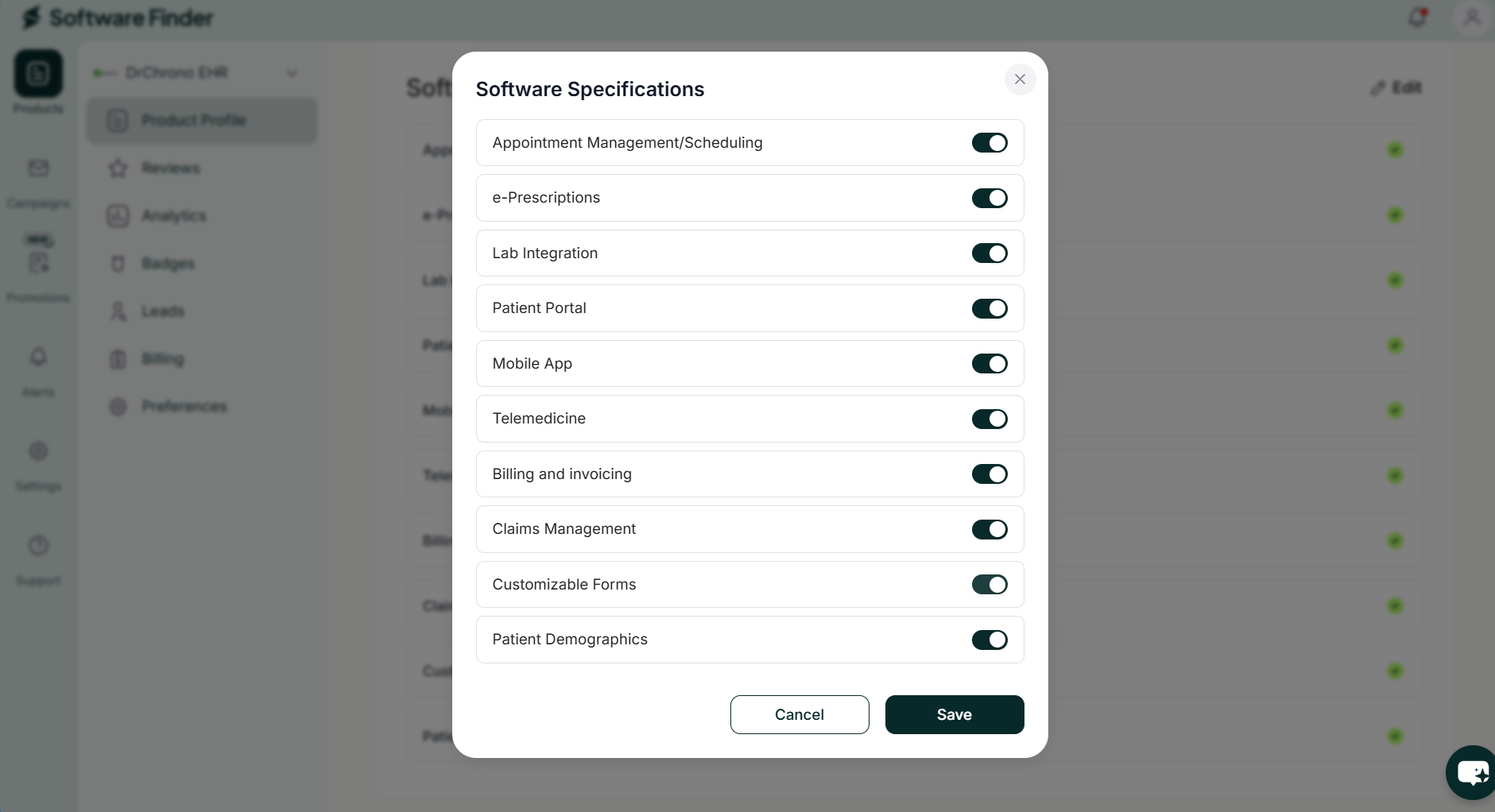
Software Specifications
Specifications show buyers which capabilities your product supports.
To update specifications:
- In the Software Specifications section, click Edit.
- Turn on the specifications your product supports, and turn off the ones it does not.
- Click Save.
- Click Publish Changes.
Description
Your description can be up to 7,000 characters.
To update the description:
- In the Description section, click Edit.
- Make your changes in the content editor.
- Click Save.
- Click Publish Changes.
Features
Use this section to highlight the functionality that sets your product apart. Click the arrow next to a feature to expand it.
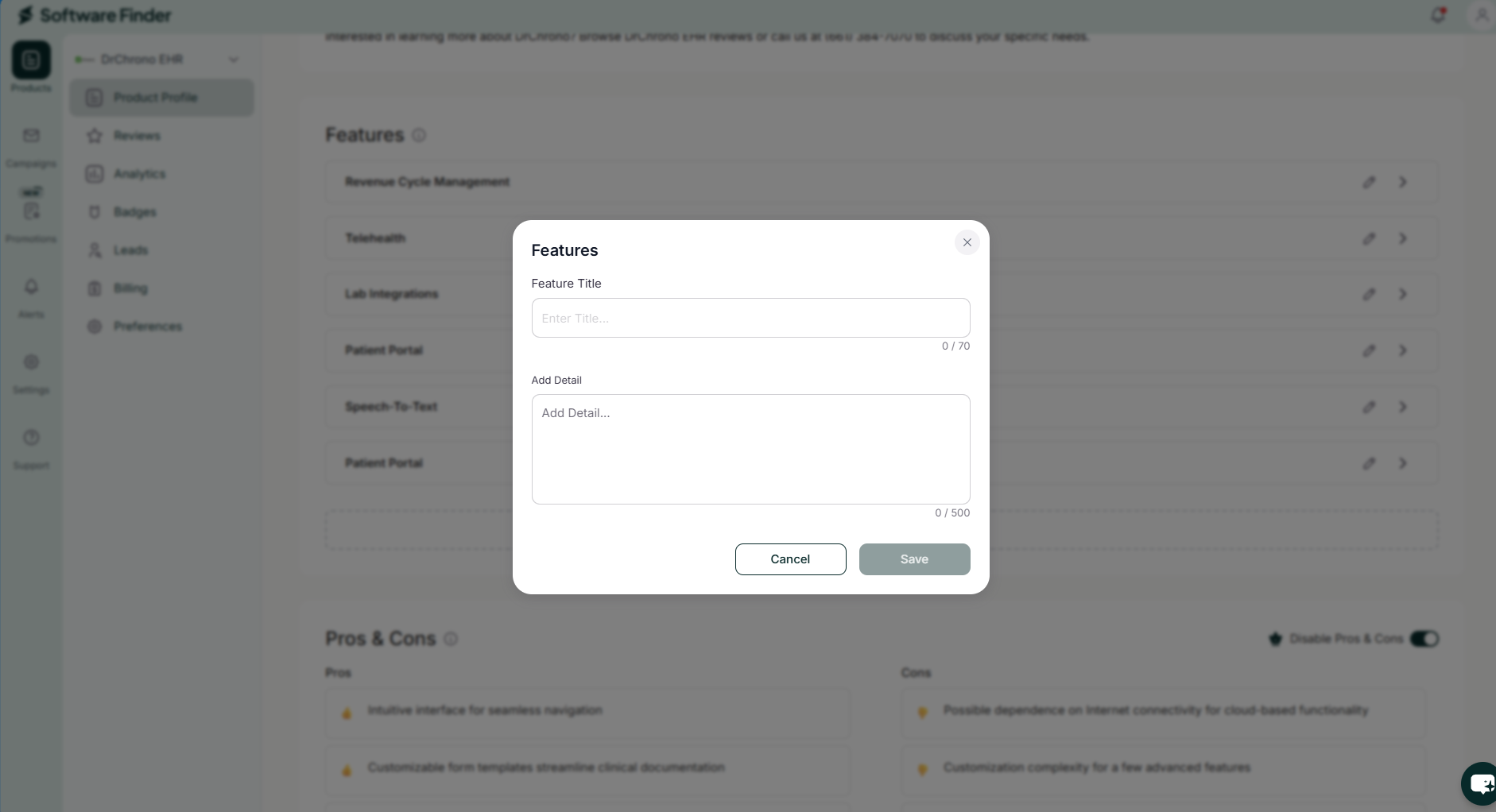
Add a Feature
To add a feature:
- Click + Add New Feature below the list.
- Enter the Feature Title and Feature Detail.
- Click Save.
- Click Publish Changes.
Edit a Feature
To edit a feature:
- Click the Edit icon next to the feature.
- Make your changes, then click Save.
- Click Publish Changes.
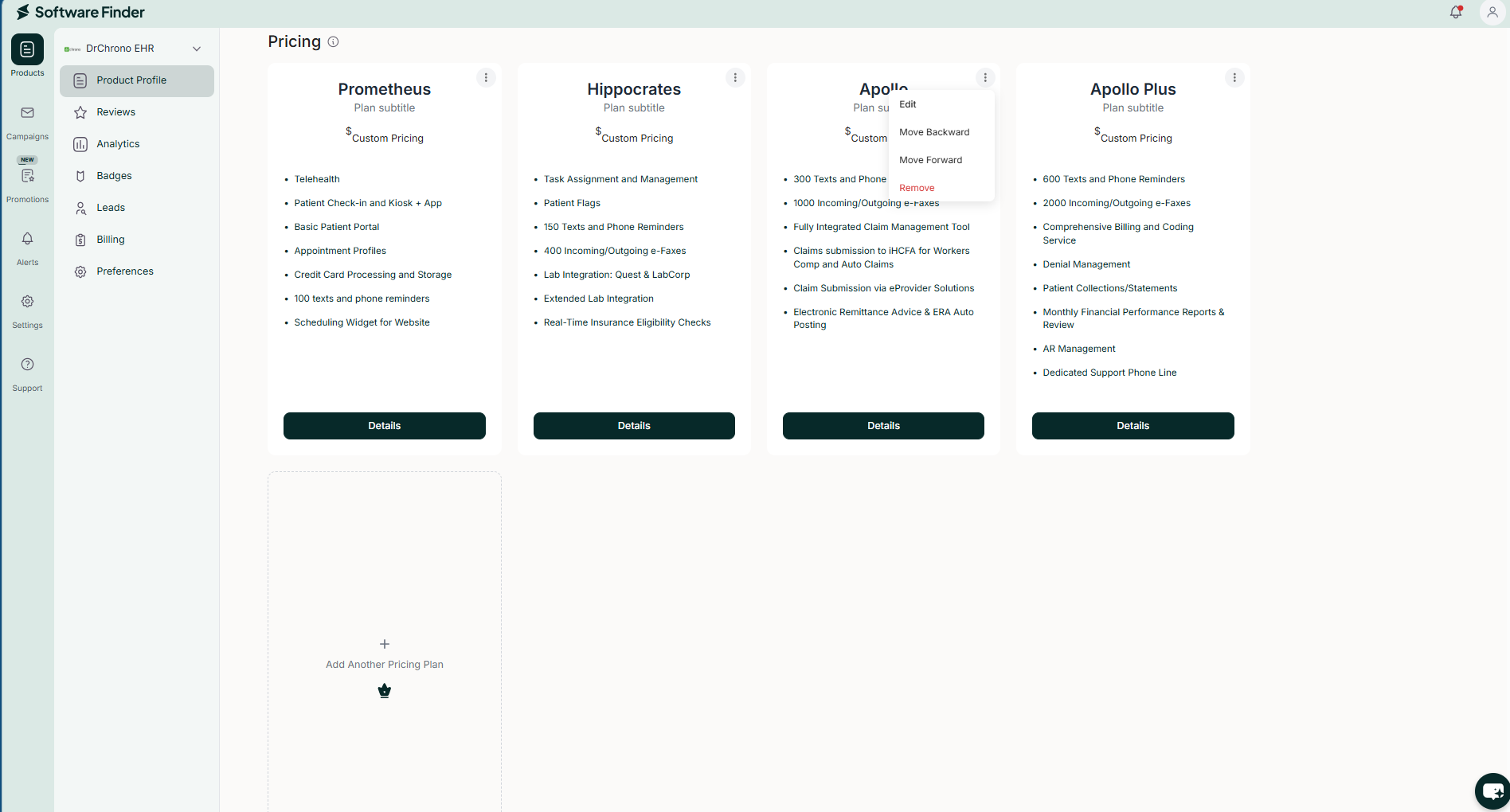
Pricing
You can add up to 6 pricing plans.
Add a Pricing Plan
To add a pricing plan:
- In the Pricing section, click Add Pricing.
- Enter the Plan Title, Subtitle, Monthly Price, Price Unit, and What's Included.
- Click Save.
- Click Publish Changes.
Frequently Asked Questions
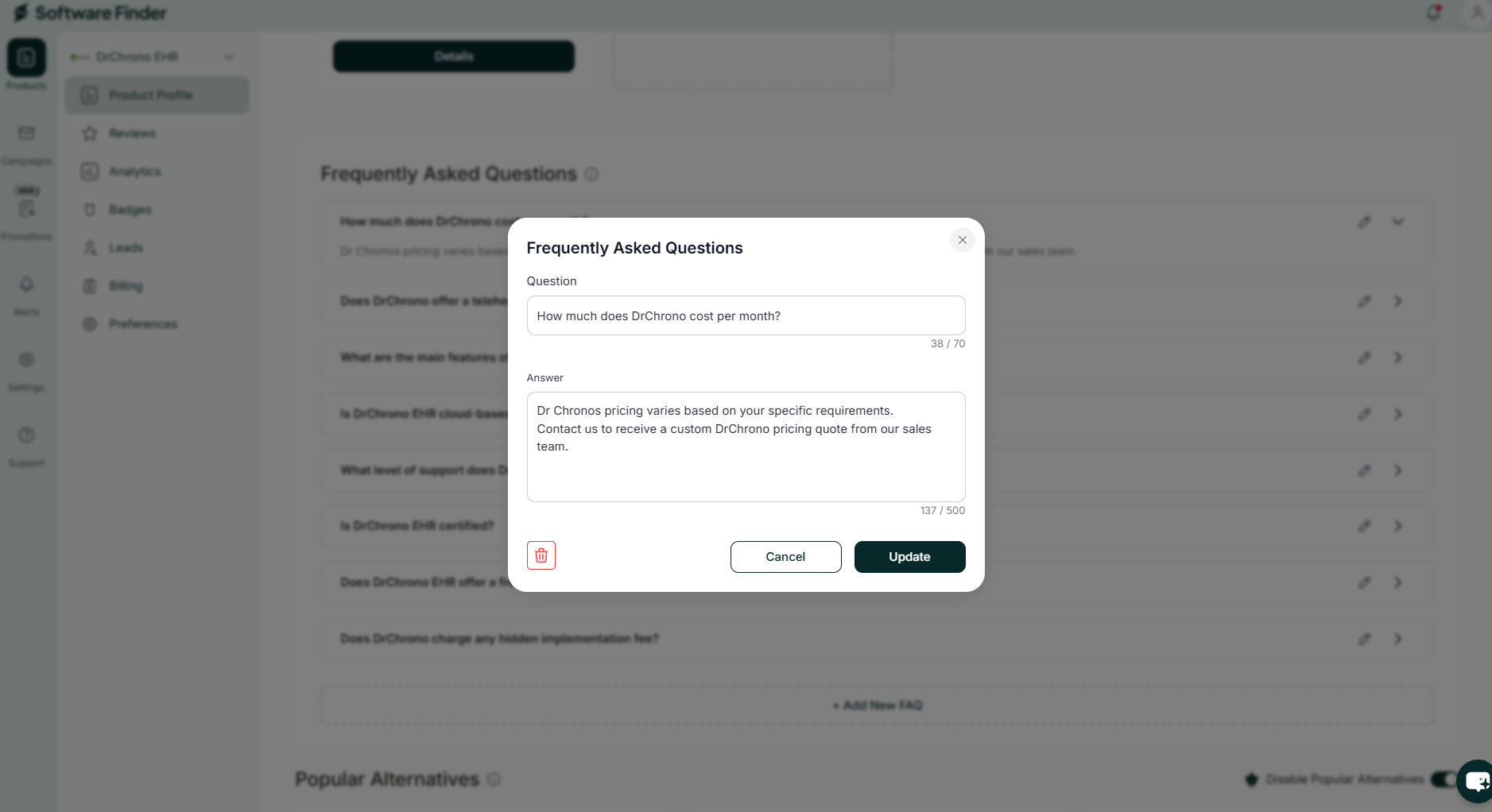
Use this section to answer common questions from buyers. Click the arrow next to a question to expand it.
Add a Question
To add a question:
- Click + Add New FAQ below the list.
- Enter the Question and Answer.
- Click Save.
- Click Publish Changes.
Edit a Question
To edit a question:
- Click the Edit icon next to the question.
- Make your changes, then click Save.
- Click Publish Changes.
Alternatives
The Alternatives section shows comparable products on your public profile.
The Alternatives section appears only for some products.
FAQs
What happens if I forget to click Publish Changes?
Your saved edits stay unpublished. Buyers see your changes only after you click Publish Changes.
Why can't I see the Alternatives section?
The Alternatives section appears only for some products.
How many pricing plans can I add?
Up to 6.
How long can my description be?
Up to 7,000 characters.