Analytics
Analytics enables you to track how your product profile performs over time, with interactive charts of category visits, impressions, profile visits, time spent, and reviews.
In the Vendor Portal: Products > Manage > Analytics.
Analytics depends on your plan. See Subscription Plans.
To open Analytics:
- In the left sidebar, click Products.
- Click Manage next to the product.
- In the product menu, click Analytics.
To change the time period, select 1 month, 3 months, 6 months, 12 months, or Custom at the top right.
Conversion Funnel
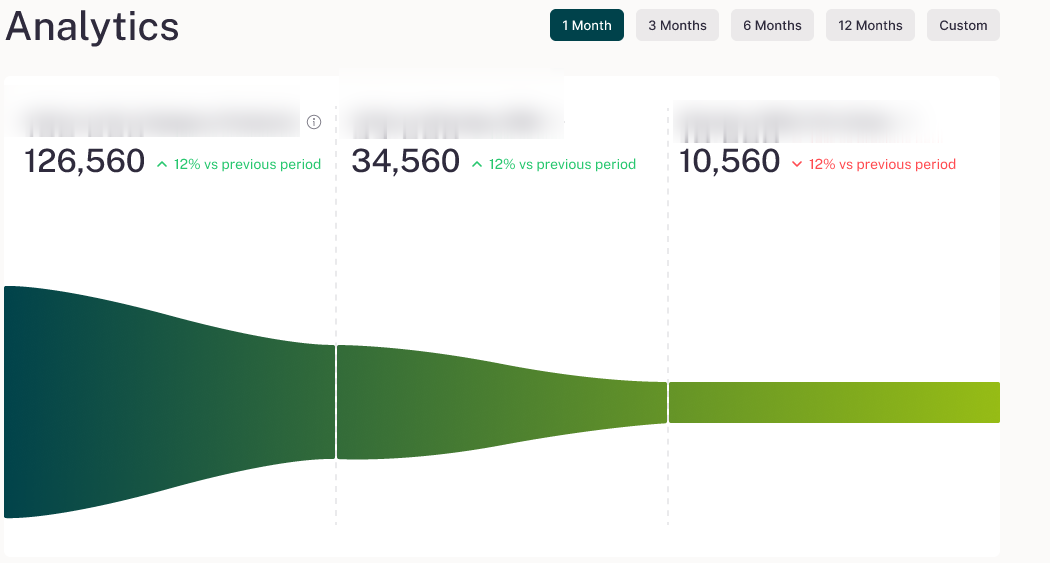
At the top, a funnel chart shows three stages side by side:
- Visits on this Category: Total visits across every profile in your category.
- Impressions on [product]: How many times your profile appeared in listings or search results.
- Visits to [product]: How many visits your profile received.
To see what a stage measures, hover over the info icon next to its title.
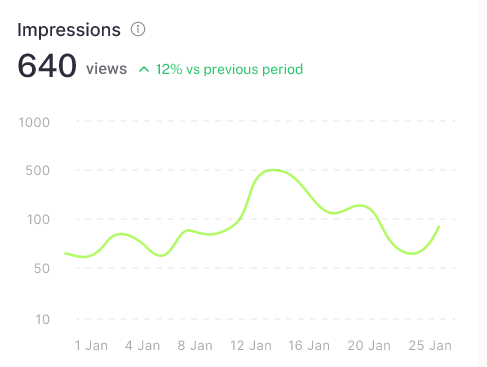
Impressions
A sparkline chart that shows how many times your profile appeared in listings or search results during the selected period.
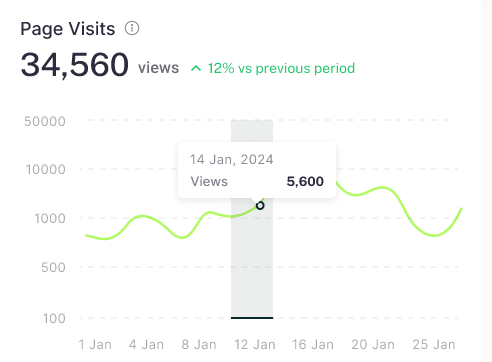
Page Visits
A sparkline chart of daily page views across your profile. Above it, you see the total views for the selected period. Hover over any point to see the count for that day.
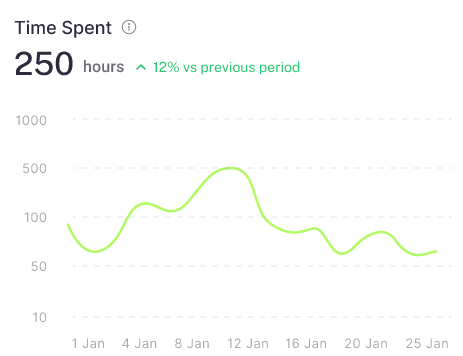
Time Spent
A sparkline chart of the total hours visitors spent on your profile each day. Above it, you see the total time for the selected period. Hover over any point to see the hours for that day.
User Reviews
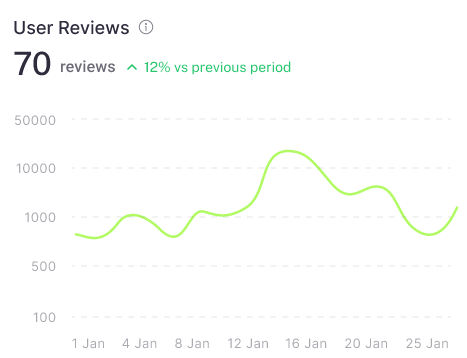
A sparkline chart of new reviews submitted for your profile each day. Above it, you see the total reviews for the selected period. Hover over any point to see the count for that day.
Profile Activity Trend
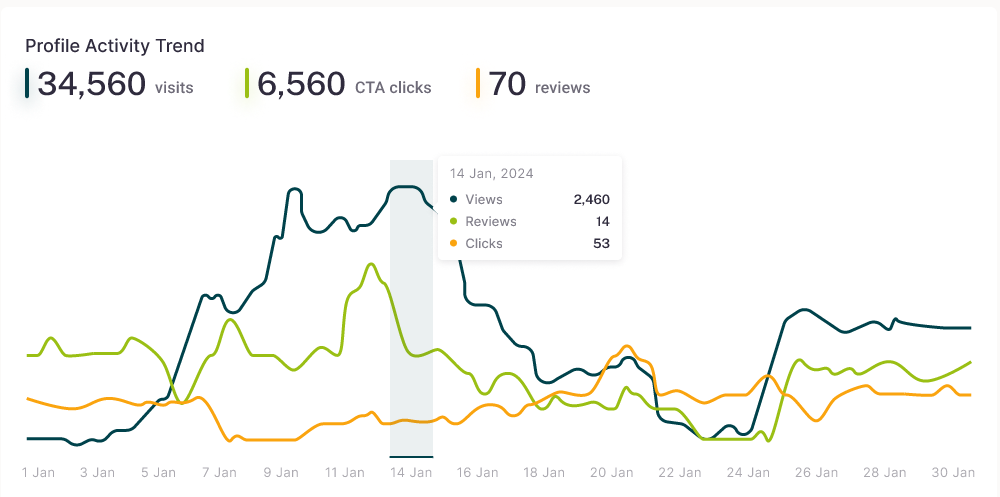
At the bottom, a multi-line chart shows your Impressions and Visits together, so you can see how they move over time. Totals for each metric appear above the chart. Hover over any point to see the values for that date.
FAQs
How do I change the time period?
Select 1 month, 3 months, 6 months, 12 months, or Custom at the top right of the Analytics page.
What is the difference between Impressions and Visits?
Impressions count how often your profile appeared in listings or search results. Visits count how often buyers opened your profile.
Does Analytics show data for all my products at once?
No. Analytics shows one product at a time. Open it from the product's menu.