Notifications & Alerts
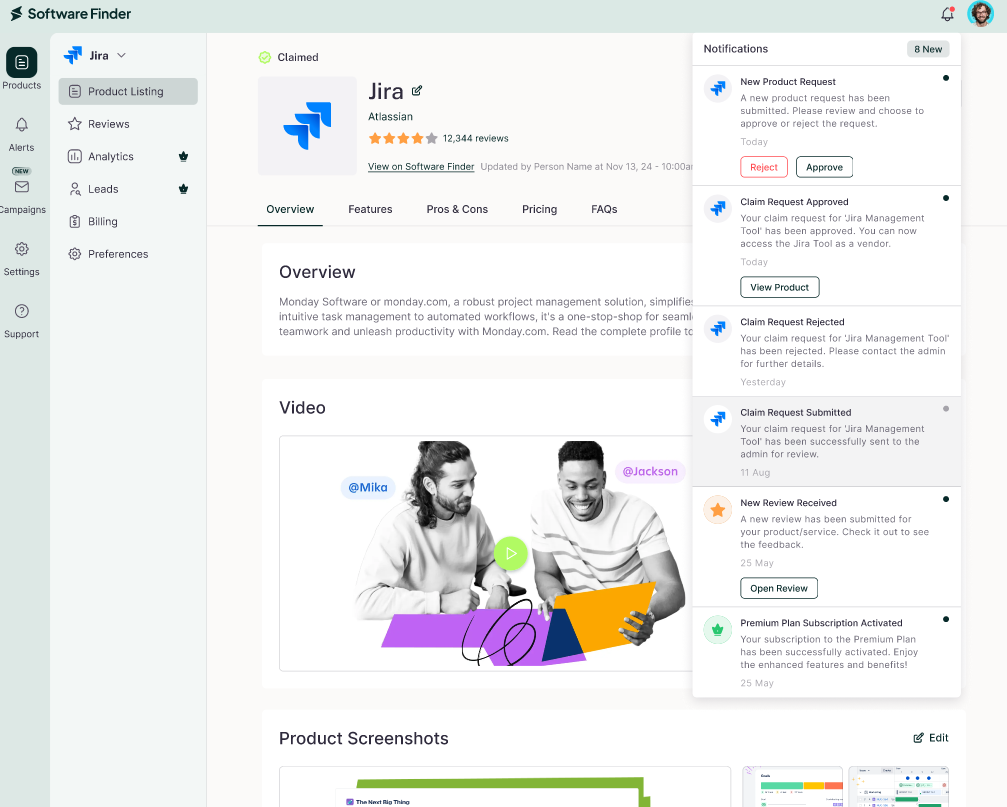
Notifications keep you informed about your account and products. The bell icon shows your recent notifications, and the Alerts page keeps the full history.
In the Vendor Portal: the bell icon at the top right of every page.
Notifications
To view recent notifications:
- Click the bell icon at the top right of the page. The Notifications panel opens and shows how many notifications are new.
- Select All or Unread.
- Click a notification's button to take action, for example Reviews.
A red dot on the bell icon means you have unread notifications.
Alerts
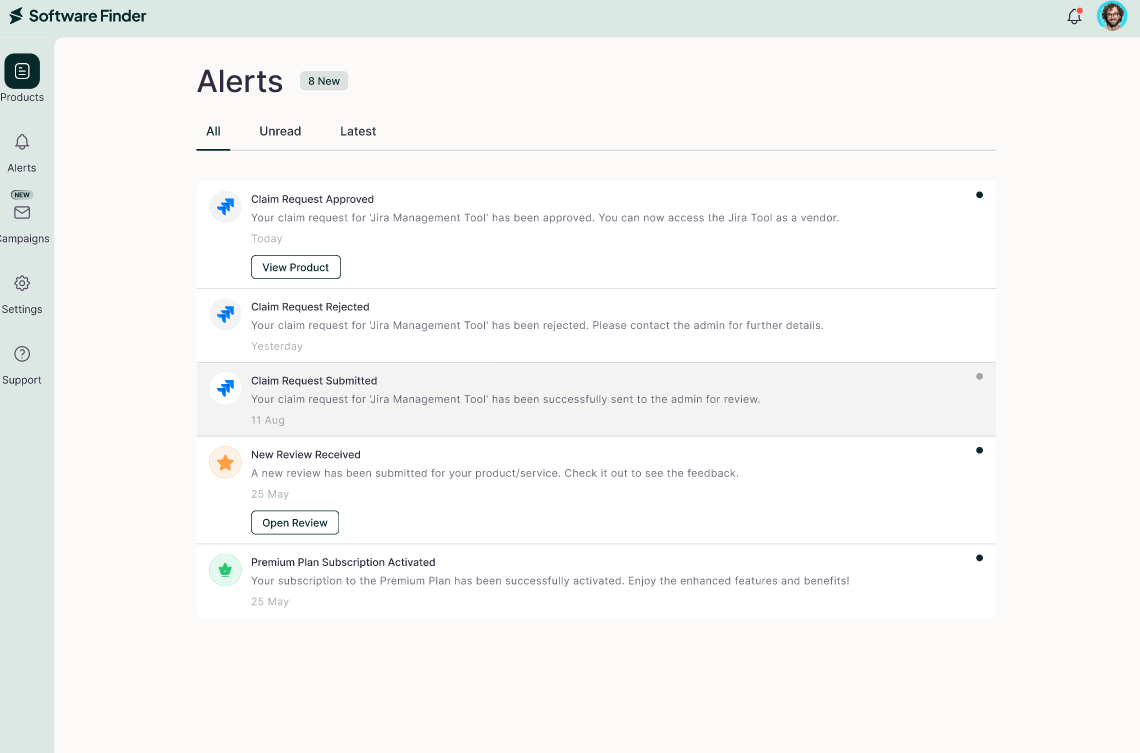
The Alerts page lists all your notifications.
To open Alerts:
- Click the bell icon.
- At the bottom of the Notifications panel, click View All.
Use the tabs to filter the list:
- All: Every notification.
- Recommendations: Suggested actions for your products.
- Notifications: Updates about your account and products.
- Unread: Notifications you haven't read.
- Latest: The most recent notifications.
To mark everything as read, click Mark All as Read.
FAQs
How do I check recent notifications?
Click the bell icon at the top right of the page.
Where can I see all my past notifications?
Click the bell icon, then click View All to open the Alerts page.
What does the red dot on the bell icon mean?
You have unread notifications.
How do I mark all notifications as read?
On the Alerts page, click Mark All as Read.