Billing
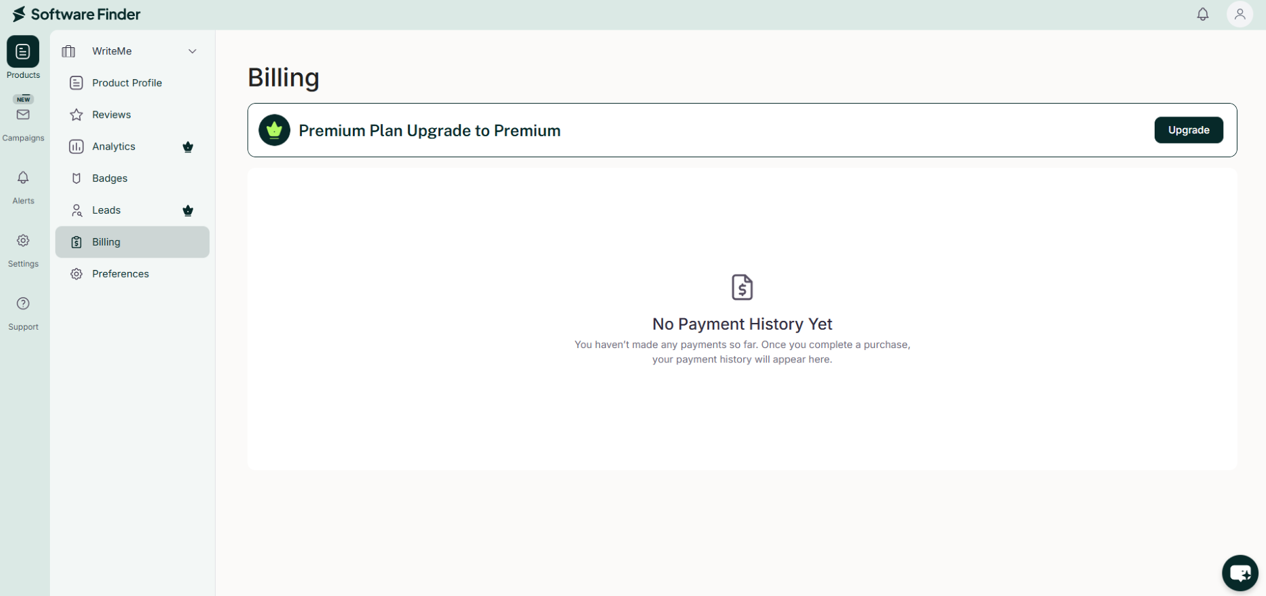
The Billing page enables you to view and change a product's plan and review every payment for that product, including subscriptions and promotions. Each product has its own Billing page.
In the Vendor Portal: Products > Manage > Billing.
Open Billing
To open Billing:
- In the left sidebar, click Products.
- Click Manage next to the product.
- In the product menu, click Billing.
Plans
The top of the page shows a card for each plan: Free, Starter, Growth, and Enterprise. Your product's plan shows Current Plan. A note above the cards shows your subscription term. To discuss other terms, click Contact sales.
To change plans, click Select Plan on the plan you want. For what the plans include, see Subscription Plans.
Subscription Overview
Below the plan cards, the subscription overview shows:
- Plan: The product's current plan.
- Status: Whether the subscription is active.
- Renewal Date: When the subscription renews.
- Manage Plan: Button to manage your subscription.
Subscription Checkout
When you select a plan, you are taken to a secure checkout page to complete your payment. The form collects:
- Email: Used for receipts and payment confirmations.
- Cardholder Name: Must match the name on your card.
- Country or Region: Determines billing format and taxes.
- Promo Code (optional): A discount code, if you have one.
- Card Information: Card number, expiration date, and CVC.
The checkout form accepts only United States in the Country or Region field.
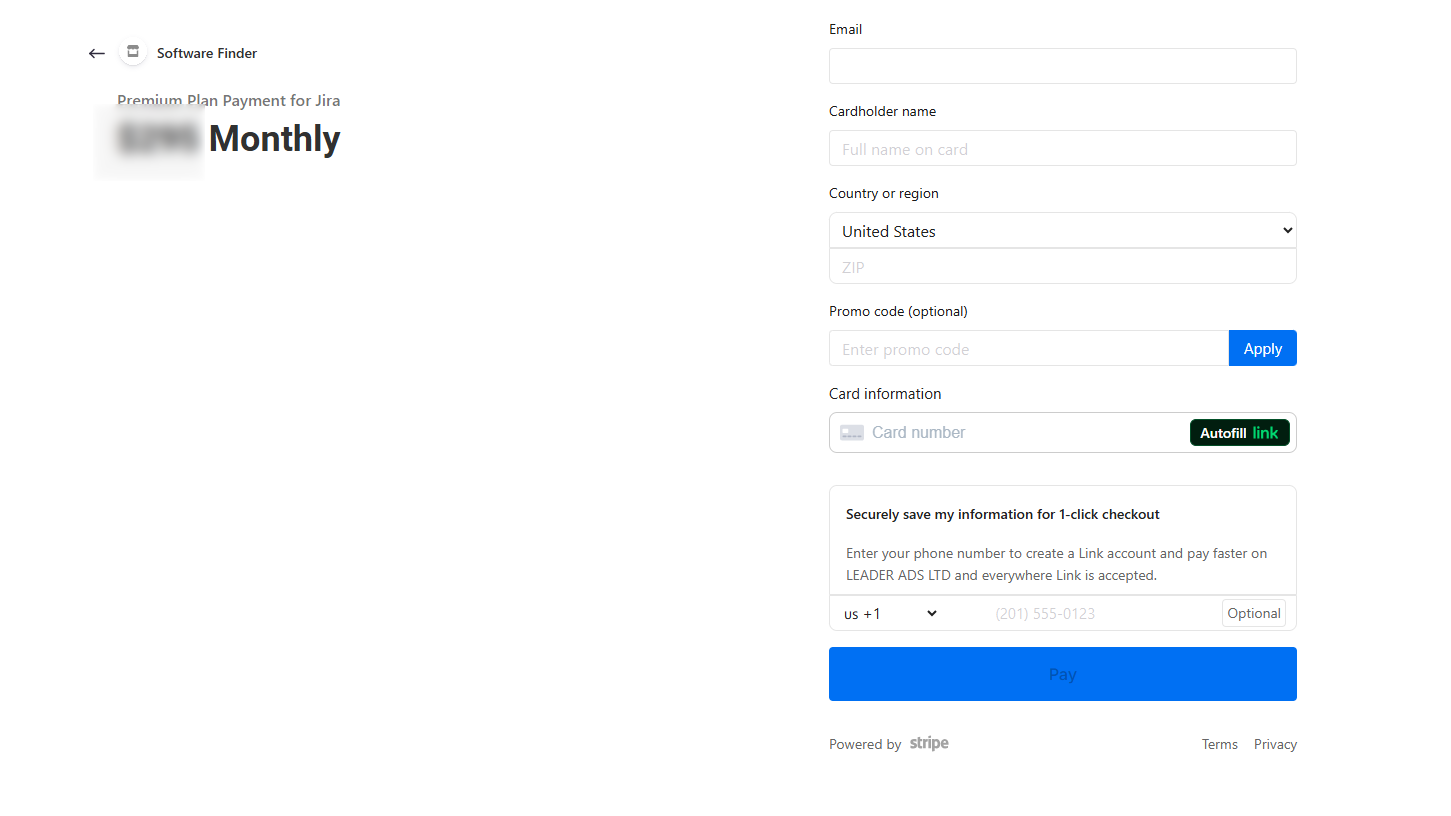
After you enter your details, click Pay. When the payment succeeds, you return to the Vendor Portal with your updated plan. If the payment fails, an error message asks you to retry or update your card.
Payment History
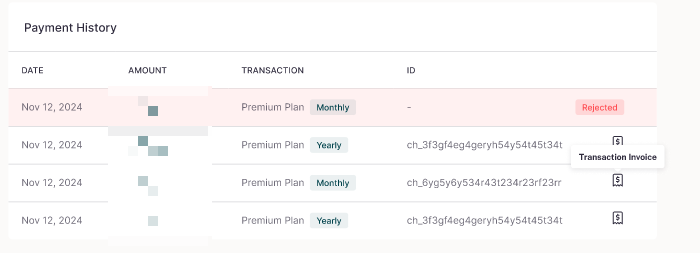
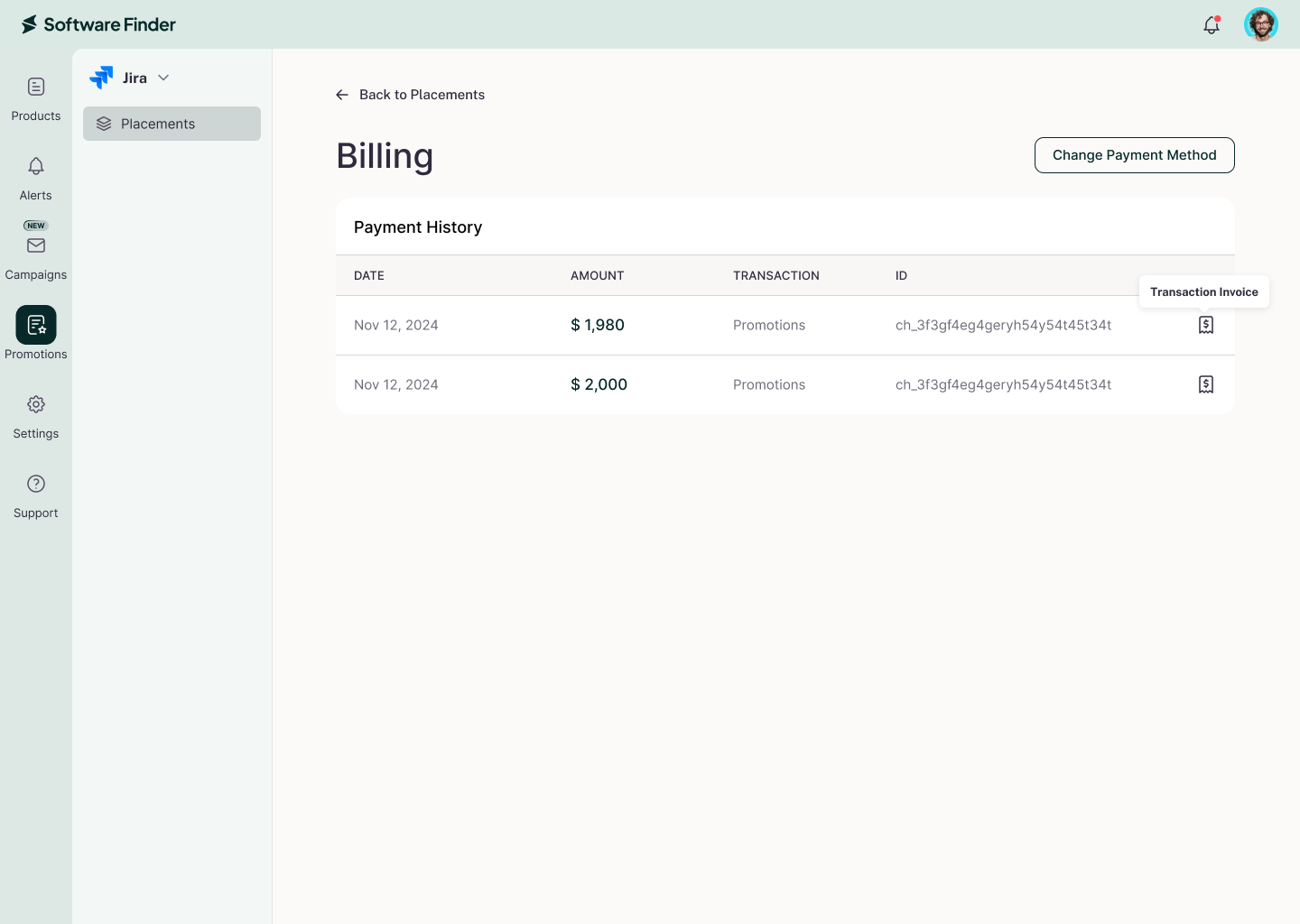
The Payment History table lists every payment for the product, including subscriptions and promotions such as premium placements.
- DATE: When the payment was made.
- AMOUNT: The amount charged.
- TRANSACTION: What the payment was for, for example a plan and its term, or Promotions.
- ID: The transaction reference.
- Receipt icon: Opens the receipt for the payment.
FAQs
How do I see a product's current plan?
Open the product's Billing page. The current plan shows Current Plan, and the subscription overview shows the plan, status, and renewal date.
How do I change a product's plan?
On the product's Billing page, click Select Plan on the plan you want.
Where do I see payments for premium placements?
In the product's Payment History, listed as Promotions.
Is billing shared across my products?
No. Each product has its own plan and payment history.