Set Up Vendor Portal
Setting up your Vendor Portal is the first step toward building your presence on Software Finder. In this section, you’ll complete a quick setup process by verifying your email, adding your personal and company details, and gaining access to your Vendor Portal profile.
Access the Sign-Up Page
To begin with the profile creation, you’ll need to access the sign-up page.
- Go to the Software Finder homepage.
- Locate the Join Free or Login button in the upper right corner of the page.
- Click the button to begin the registration process.
This will redirect you to the vendor sign-up page, where you can enter your account information.
Verify Your Work Email
Your work email will verify your identity and secure your account.
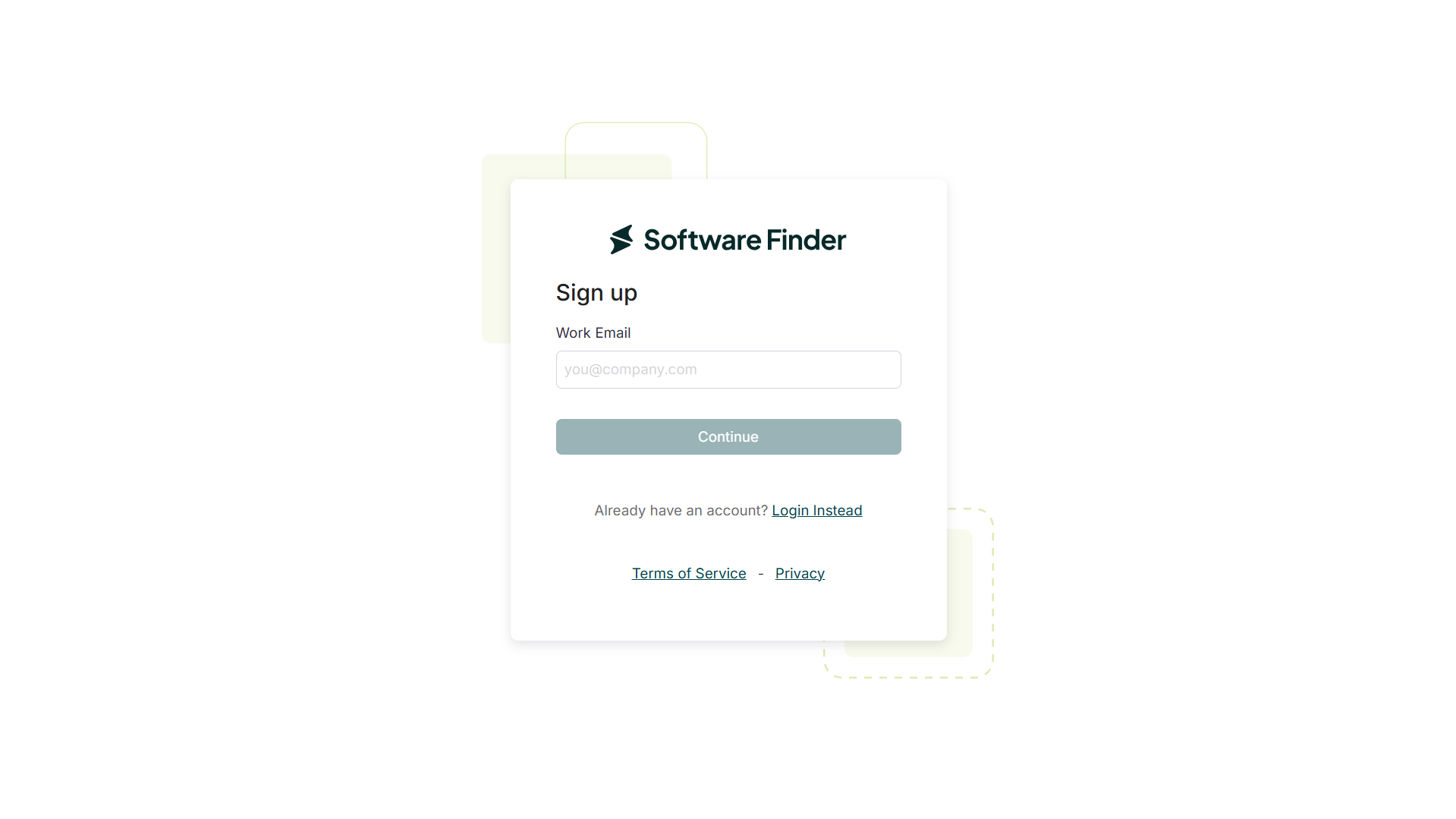
- On the sign-up page, enter your work email address in the format name@example.com.
- Click the Continue button to proceed.
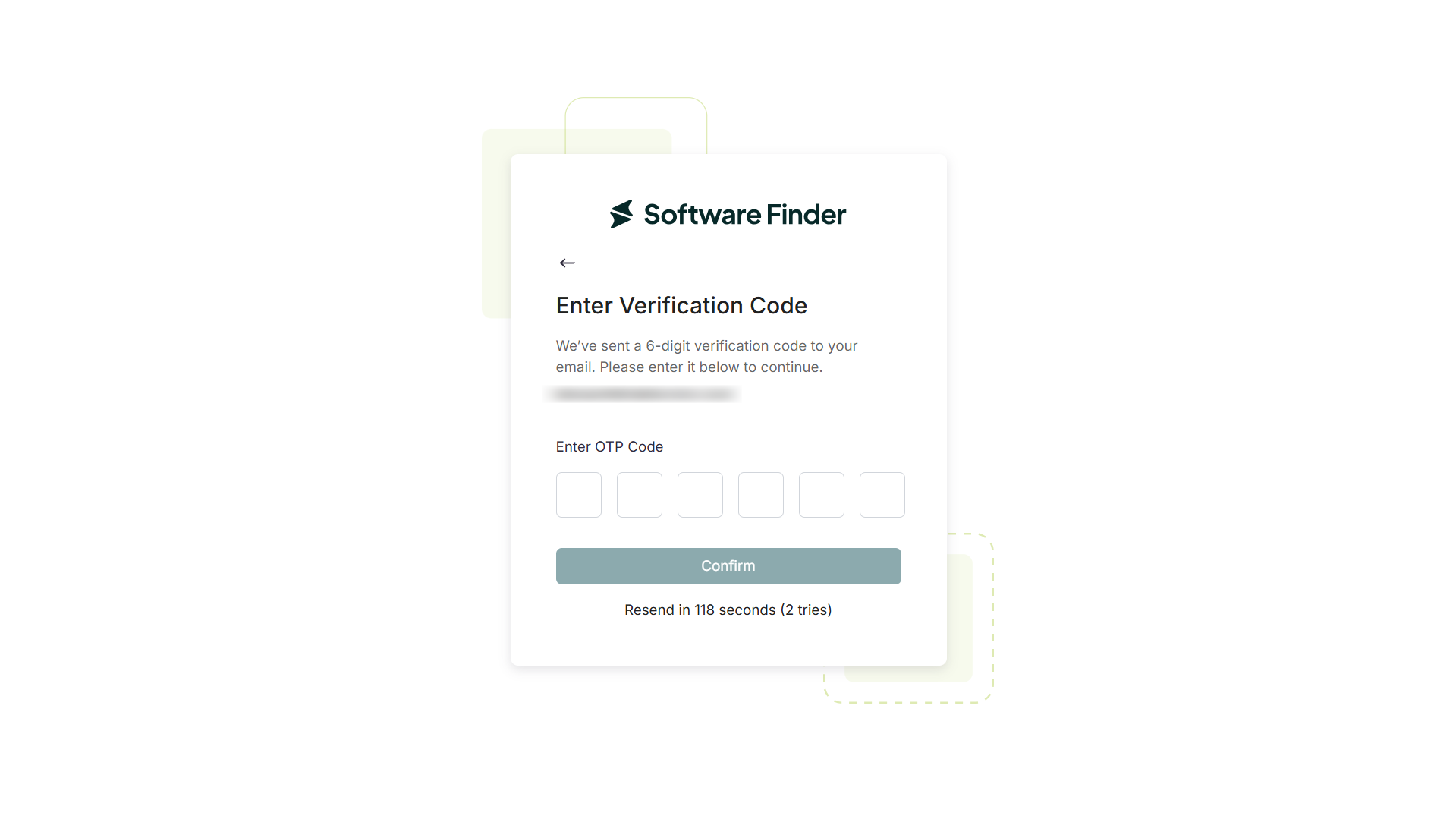
- Check your email inbox for a one-time password (OTP). If it doesn’t arrive, check your spam or junk folder. If you still don’t see it, click Resend to request a new one.
- Enter the OTP on the verification screen.
- Click Confirm to validate your email and move to the next step.
It is mandatory to use a work email address, as it will be used for important communications related to your vendor account.
Add Personal Information
Next, you need to enter your personal details to complete your user profile.
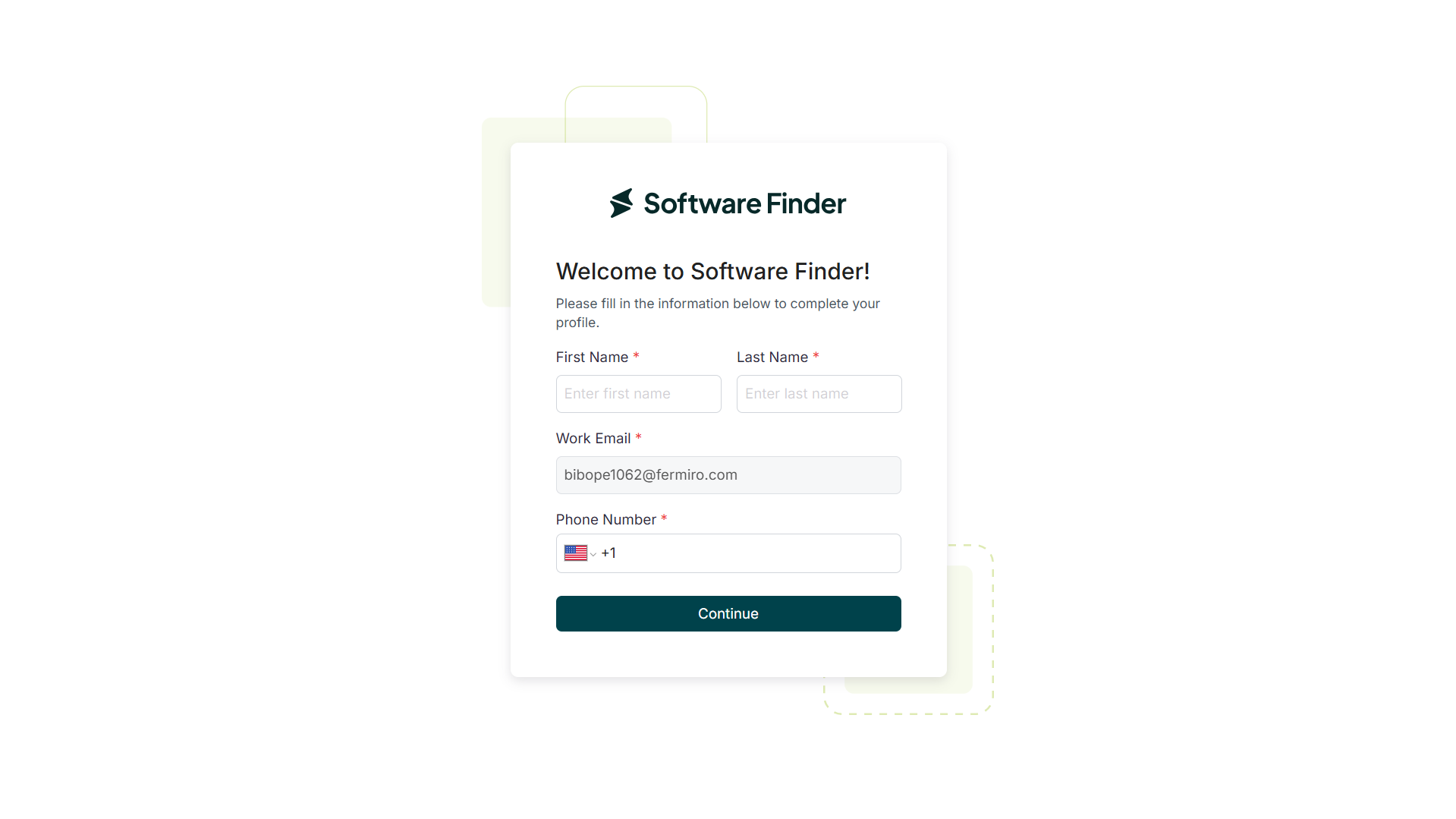
- Enter your First Name and Last Name.
- Confirm your Work Email (pre-filled from the previous step).
- Add your Phone Number.
- Click Continue to move forward.
Enter Company Information
This step involves submitting details about your company to finish the registration process.
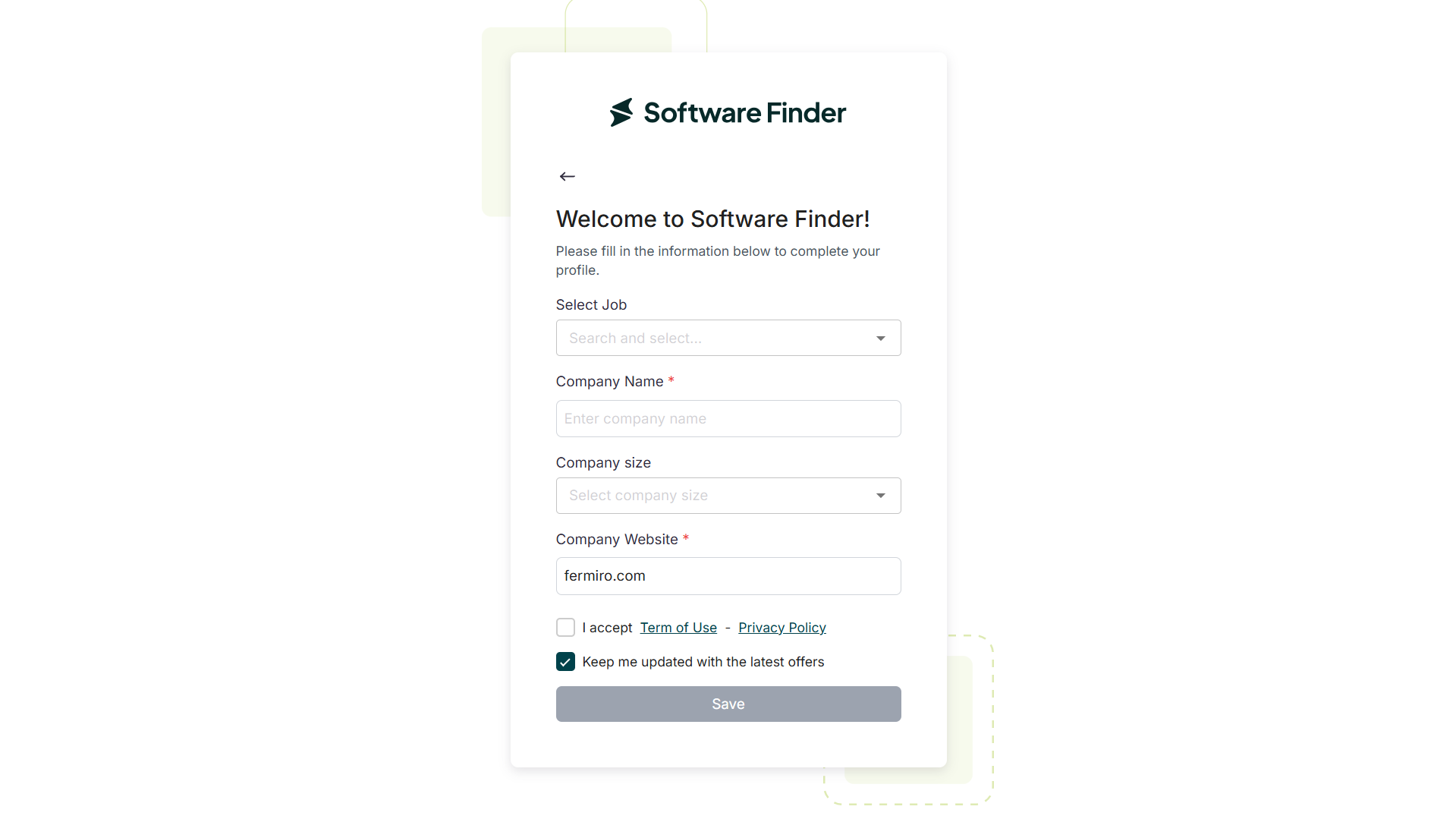
- Enter your Job Title, Company Name, and Website URL (pre-populated from your submitted work email).
- Select your Company Size from the dropdown menu.
- Check the box that says I accept the terms to activate the Save button.
- Click Save to complete your vendor profile setup.
Choose Your Profile Type
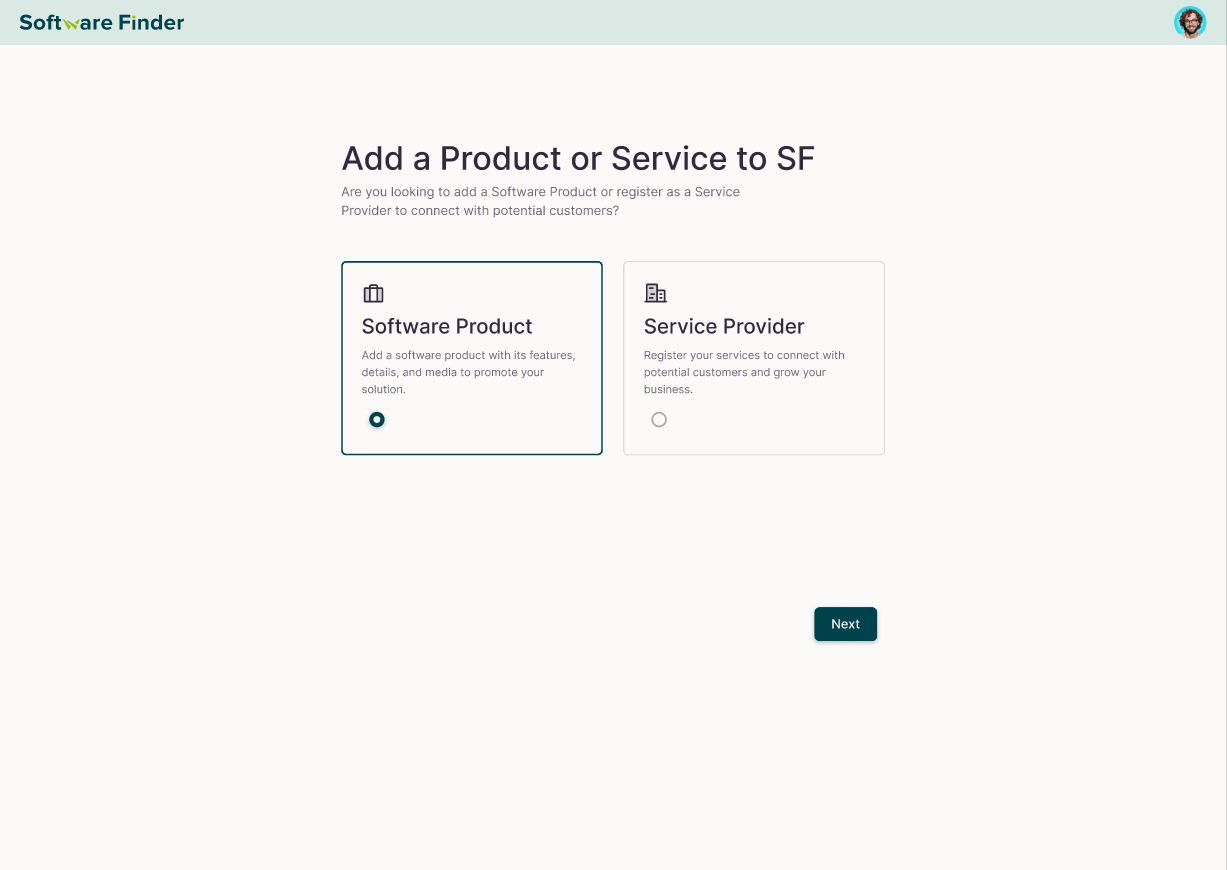
Once the sign-up process is complete, you’ll be directed to a selection page where you choose how you want to proceed:
- Software Product – Select this option if you want to add and manage a software product on the platform.
- Service Provider – Select this option if you want to register and list your services as a provider.
Your selection determines how your profile is set up and how you appear on the platform.
FAQs
How do I start setting up my vendor profile?
To get started, visit the Software Finder homepage and click the Join Free or Login button. You’ll be guided through entering your email and company information to unlock access to your Vendor Portal profile.
What information do I need to provide during registration?
During the sign-up process, you'll need to provide your work email, personal details (name and phone number), and company info (job title, company name, website URL). Make sure all the information is accurate for smooth registration.
What if I don’t receive the OTP?
If the OTP doesn’t show up in your inbox, be sure to check your spam or junk folder. If you still don’t see it, click Resend to request a new one.
How do I choose my company size during registration?
When registering, you’ll be asked to select your company size from the dropdown menu. Choose the option that best represents your business to help you categorize your profile appropriately.