Service Profile
When you select Service Provider on the option screen on my.softwarefinder, you’ll be taken directly to the Claim Your Service page. From this page, you can either claim your existing service profile or create a new one if your service isn’t listed. Then, simply follow the steps below.
Claim a Service
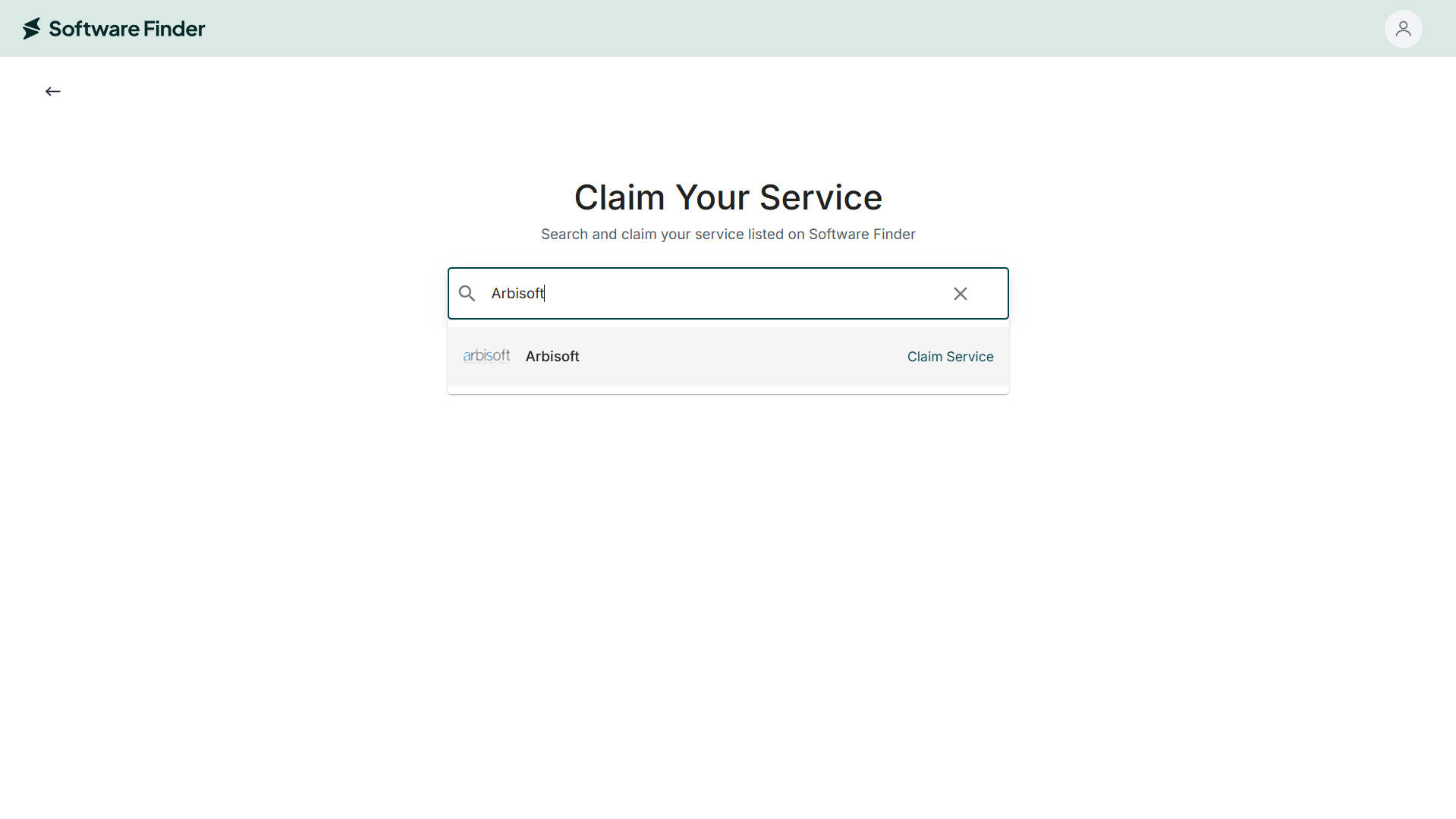
- Type your exact company or service name into the search bar on the Claim Your Service page.
- Review the results and click Claim Service next to your listing.
- Once you click the Claim Service button, you’ll be taken to the Send Claim Request screen. Click Send Request to confirm your submission.
- After submitting, you’ll see the confirmation message Your Request Has Been Submitted. From here, you can choose to View Services or Schedule a Call to fast-track your approval.
- Click View Services to open the Services page, where your claim will appear under Claim Requests Sent.
- Click Schedule a Call to open the calendar page and book a call with the Software Finder team.
- Once approved, you’ll receive a confirmation email, and the Manage button will appear next to your service profile.
The approval process takes about 3-5 business days.
Add a Service
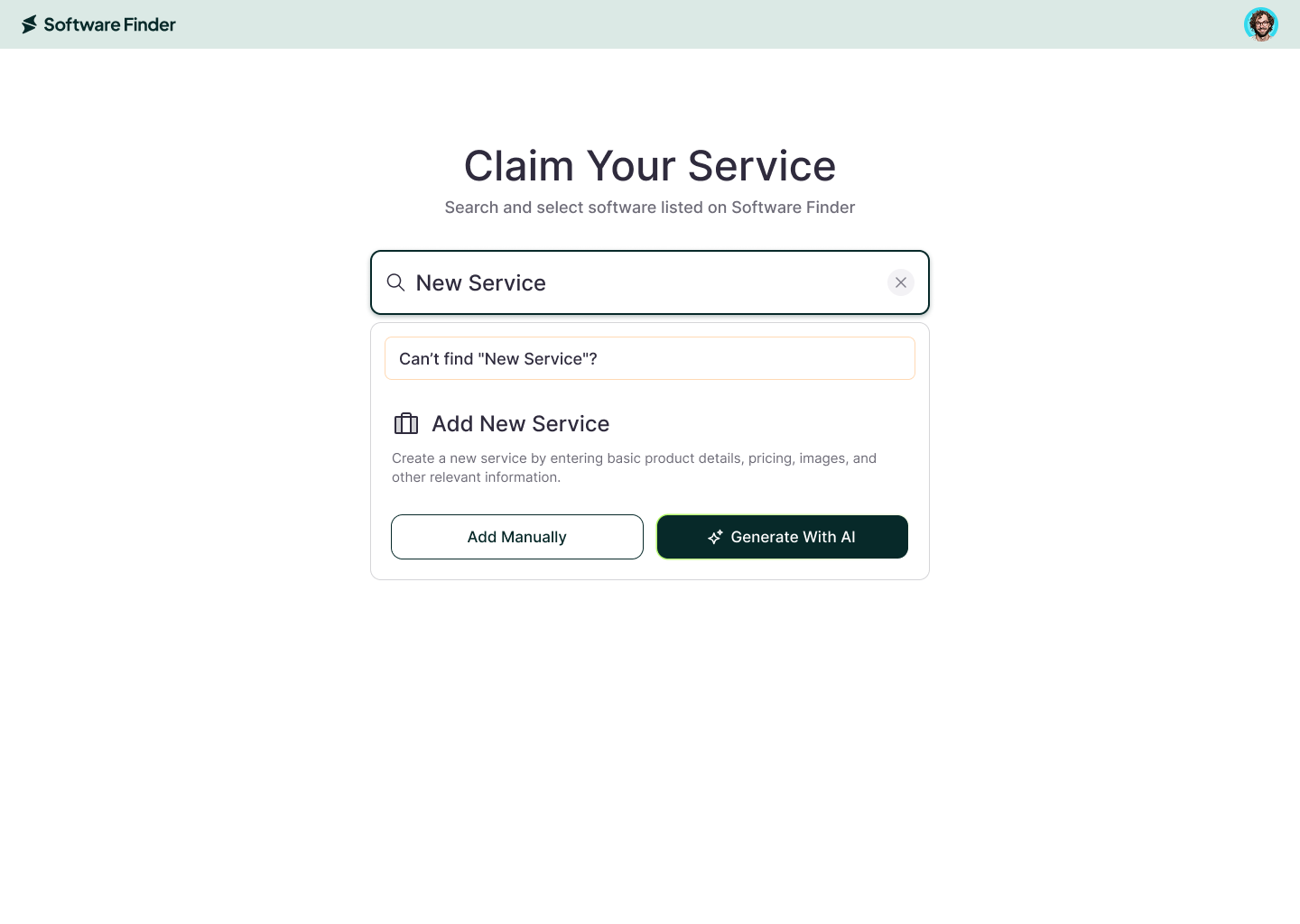
For no matching listing, click + New Product or Generate with AI at the bottom of the search dropdown
Two ways to add your service:
Add Manually — enter all product details yourself, step by step.
Generate With AI — provide a few key details and let AI draft your full profile automatically.
Option A: Add Manually
- To begin, select the appropriate Service Category from the provided list.
- Enter your Company Name and upload your Company Logo to establish your service identity.
- Create a unique, SEO-friendly Service URL to improve discoverability on Software Finder website.
- Add your company’s general details, including Year Founded and Headquarters Location (City), then click Next to continue.
- On the next screen, select your Available Service Languages and Available Service Timezones from the dropdown lists.
- Add a brief Company Services Overview highlighting your company’s mission, values, and key services.
- Provide a detailed Company Services Description outlining your main offerings, features, and areas of expertise.
- Finally, complete the Service Tags section by adding relevant keywords to enhance your profile’s visibility on the platform.
Want to make your service really stand out? With a Premium upgrade, you’ll unlock the Premium feature to showcase your service in the best possible light.
- Once you complete Step 1, click Next and move to Step 2: Media.
- Add the Service Screenshots using drag-and-drop or the Browse Image button.
- Add Video by adding a YouTube video URL in the provided field.
- After completing Step 2, click Next and move to Step 3: Services and Pricing.
- Enter your Service Title and Service Details, then click the ✓ icon to save your entry. To add more services, click + Add New Service.
- In the Pricing Setup, provide details including Pricing Plan Title, Plan Subtitle (optional), Monthly Price, Price Unit (e.g., USD), and What’s Included (list of features in the plan). Click Add this Plan to save.
To create more pricing options, click Add Another Pricing Plan, or select Skip to continue without adding pricing.
- On the next screen, you can add up to 20 customer email addresses to request reviews for your service.(Optional)
- Check the boxes to accept the Terms of Service and Privacy Policy, then click Submit to complete your submission.
Adding screenshots, videos, and pricing are available for the Premium plans only. Click the Upgrade button to enable the plan or press Skip to continue to next step.
Once submitted, you’ll see the Service Submitted Successfully message along with View Services and Schedule a Call buttons. Clicking View Services will take you to your Vendor Portal profile’s Services section, where your service will appear as Under Review for up to 48 hours. Upon approval, the Manage button will appear, allowing you to edit and update your service profile. Alternatively, you can click Schedule a Call to connect with the Software Finder team and expedite your review process.
Option B: Generate With AI
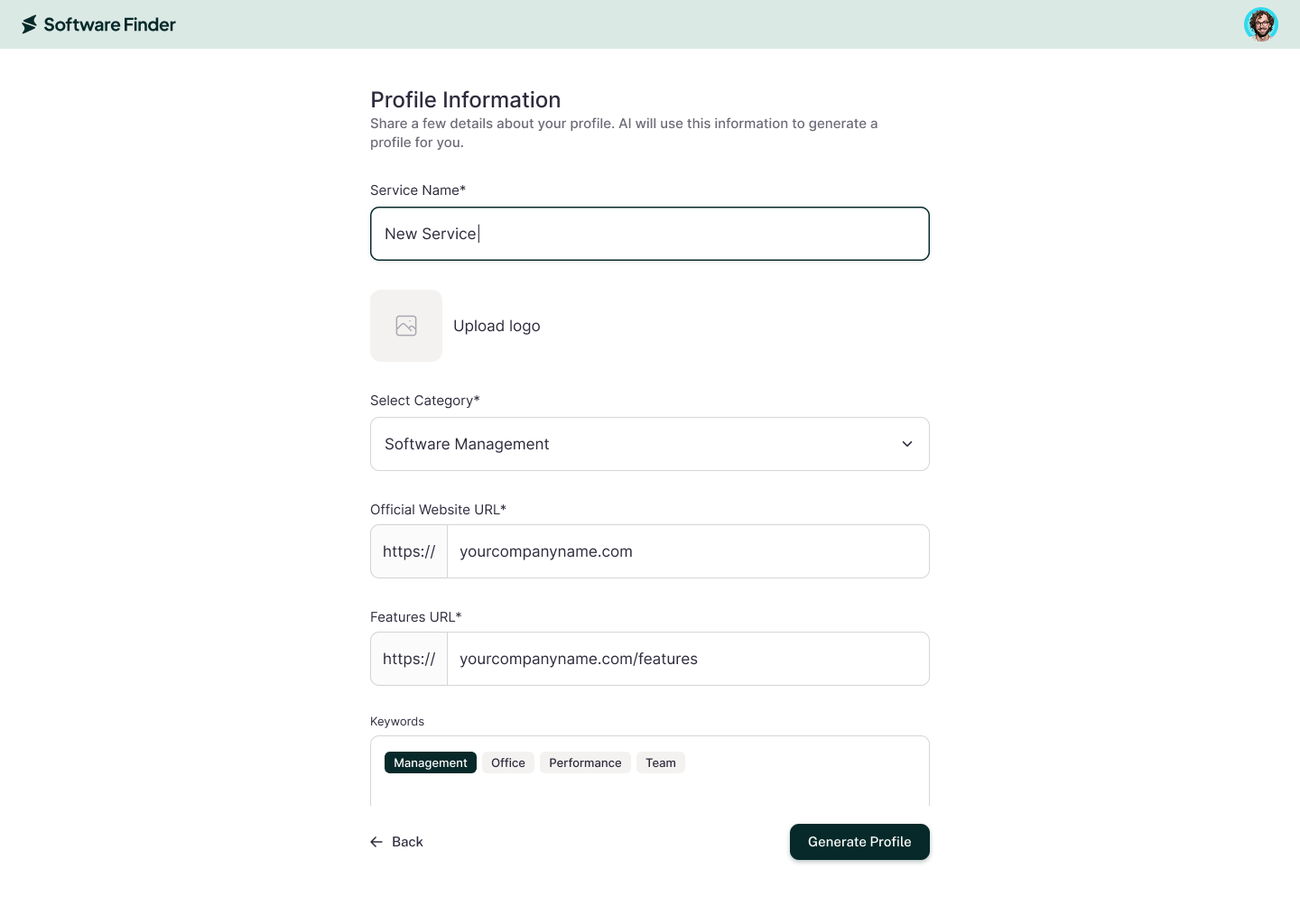
After clicking Generate With AI, you’ll be taken to the Profile Information form. Provide the following details:
- Service Name*
- Service Logo (gets pre-populated if image is found otherwise can be uploaded manually)
- Category*
- Official Website URL*
- Features URL
- Keywords
Once you’ve filled in the required fields, click Generate Profile.
Wait for Your Profile to Generate
The AI will start generating your profile and show progress as each section is completed, including Description, Features, and FAQs.
Profile generation typically takes around 90 seconds. You can watch the content appear in real time as each section is drafted.
Review the Generated Profile
Once generation is complete, your full profile will be displayed for review. It includes:
- Description — What the profile is, who uses it, and key information clients need to know
- Features — A structured list of your product’s key capabilities
- FAQs — Commonly asked questions with AI-drafted answers
Each section includes an Edit button so you can refine any part of the content before submitting.
Submit or Save for Later
When you’re satisfied with your profile, you can choose how you want to proceed:
- Submit Profile
- Submits your profile for review and listing on Software Finder Website.
- Save & Exit
- Saves your progress so you can return and make further edits before submitting.
FAQs
How do I claim my service profile?
Search for your service using the Claim Your Service search bar and click Claim Service to submit your claim request.
How long does it take for my claim request to be approved?
Claim requests are typically reviewed and approved within 3–5 business days. You’ll receive an email and in-app notification once your request has been approved.
What happens after my claim request is approved?
Once approved, you’ll receive a confirmation email, and the Manage button will appear in your profile, allowing you to update and manage your service listing.
What are the benefits of adding my service to Software Finder?
Listing your service on Software Finder increases visibility, connects you with high-intent buyers, and builds trust through a verified presence. With a Premium upgrade, you can unlock advanced features such as media uploads, and videos to boost your discoverability.
Can I save my progress while filling out the form?
Yes. You can click the Save & Exit button at any time from the top-right corner to pause your progress and return later without losing your data.
How do I add multiple pricing plans?
After entering your first pricing plan, click Add Another Pricing Plan to include additional pricing tiers or packages.(Pricing plans are available as part of the Premium feature set.)