Buyers
The Buyers page lists the companies viewing your product, your category, or your competitors on Software Finder, with their intent scores, company details, activity, and contacts you can reveal.
Buyers List
To open the Buyers page:
- In the left sidebar, click Buyer Intelligence.
- Select a product from the list at the top of the Buyer Intelligence menu.
- Click Buyers.
You can also click View All at the bottom of the Signals page.
The top of the page shows the total number of buyers next to the page title, and the Companies and Contact Reveals counters. See Usage Counters.
Buyers appear here once they engage with your profile or similar products. If the product is on the free plan, the list appears after you upgrade.
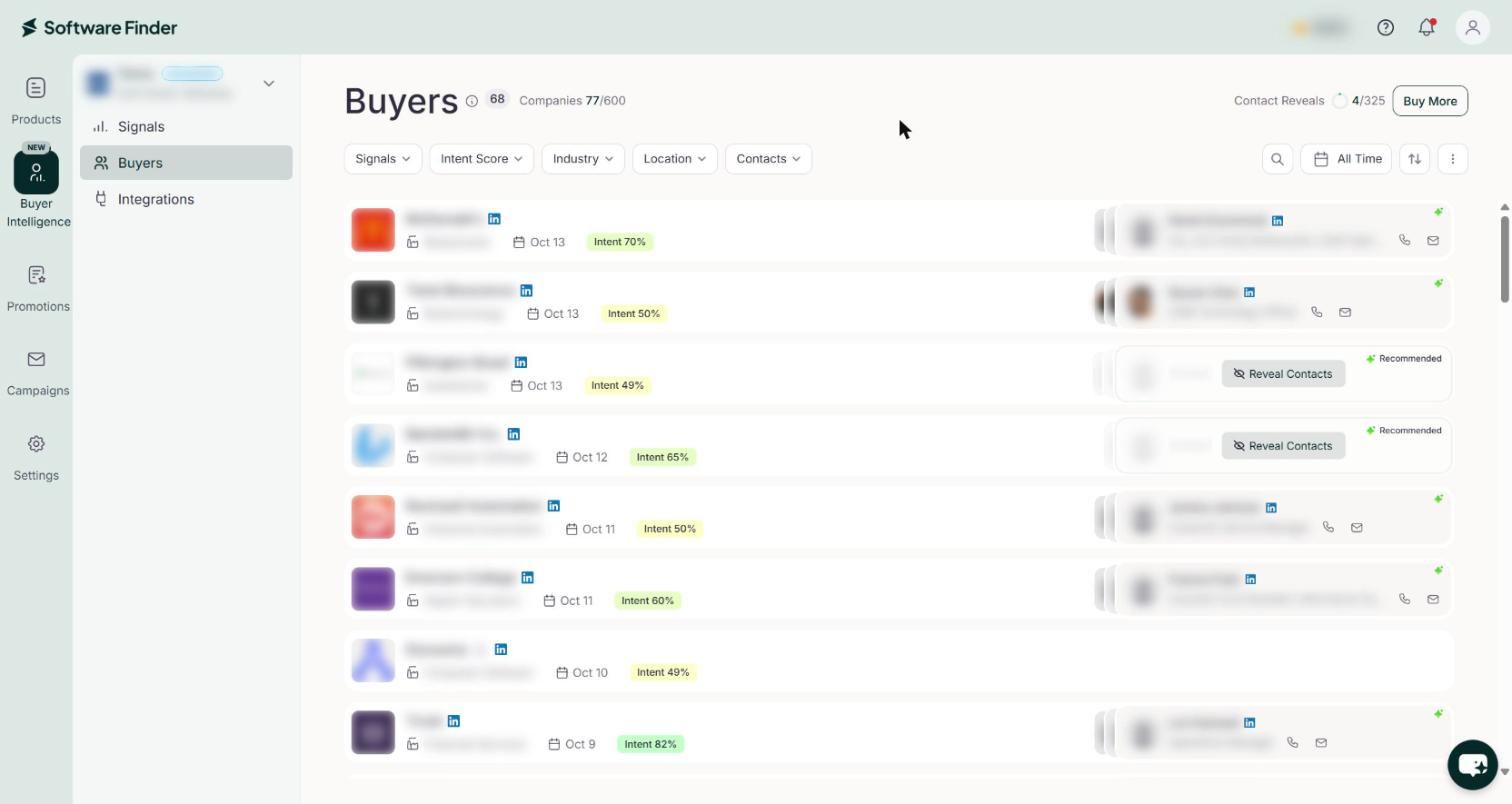
Each buyer shows:
- Company: The company logo and name, with a LinkedIn icon when available.
- Industry: The company's industry.
- Date: The date of the buyer's last activity.
- Intent score: For example, Intent 50%.
- Contacts: The contacts available at the company, labeled Verified or Recommended where applicable, with a Reveal Contacts button until you reveal them.
To see more buyers, click Load More at the bottom of the list.
Intent Score
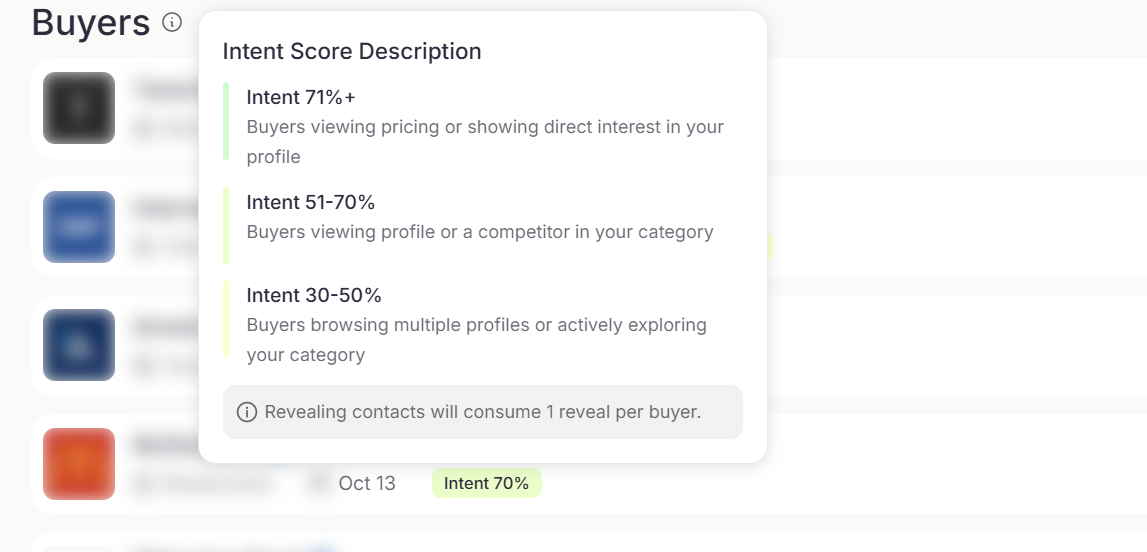
Each buyer has an intent score, shown as a percentage. Scores fall into three ranges:
| Intent score | What it means |
|---|---|
| Intent 71%+ | Buyers viewing pricing or showing direct interest in your profile. |
| Intent 51-70% | Buyers viewing profile or a competitor in your category. |
| Intent 30-50% | Buyers browsing multiple profiles or actively exploring your category. |
To see these descriptions on the page, hover over the info icon next to the Buyers title. The Intent Score Description panel opens. It also notes that revealing contacts uses 1 reveal per buyer.
Find Buyers
The filters below the page title are:
| Filter | Options |
|---|---|
| Signals | Category, Profile, Reviews, Demo, Pricing, Competitor |
| Intent Score | 30 - 50%, 51 - 70%, 71% + |
| Industry | A searchable list of industries |
| Location | Company locations |
| Contacts | Verified, Recommended |
When a filter is applied, it shows the number of selected options. To remove all filters, click Clear all.
Search, Date Range, and Sort
- Search: Click the search icon, then enter a search term.
- Date range: Click the date range button (it shows All Time by default) and select a time period.
- Sort: Click the sort icon and select Newest First or Oldest First.
Company Details
To view a company's details:
- In the buyers list, click a company name. A dialog opens with the company name, intent score, and website. It opens on the Activity tab.
- Click a tab:
- Activity: First Seen, Last Seen, and Total Time, then the Buyer Intelligence Activity bar, then a list of visits.
- Contacts: Contacts at the company, listed under Verified or AI Recommended. See Contact Types.
- Company Information: Company Name, Website, Industry, Location, Employees, and LinkedIn, X, and Facebook pages when available.
- Company Tech Stack: The technologies the company uses, when available.
- To close the dialog, click the Close icon (X).
Software Finder works with GDPR and SOC 2 compliant partners to identify the companies behind buyer activity and to find contacts at those companies.
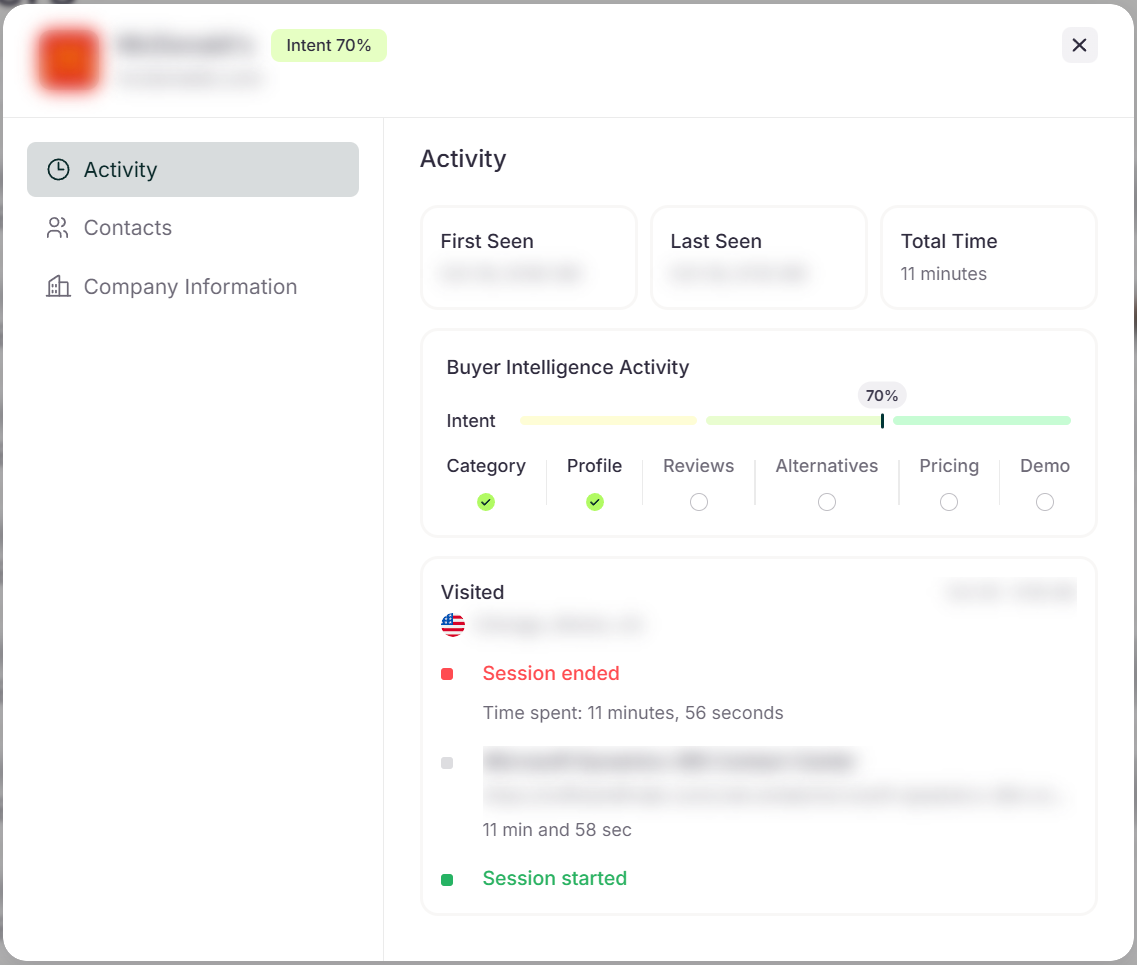
The Buyer Intelligence Activity bar shows the company's intent score on a scale, and marks which types of activity the company has shown: Category, Profile, Reviews, Alternatives, Pricing, and Demo.
Below it, the Activity tab lists visits with the most recent first. Each visit shows:
- Visited: The visitor's location and the date and time.
- Session ended: The Time spent during the visit.
- Pages viewed: Each page's URL and the time spent on it.
- Session started: The page where the visit began.
Contacts
Contact Types
Contacts are labeled by how they were found:
- Verified: Contacts confirmed as reachable.
- AI Recommended: Contacts suggested by AI based on the buyer's activity. In the buyers list, this label shows as Recommended.
To see these descriptions on the page, open the Contacts tab and hover over the info icon next to Contacts. To show only one type in the list, use the Contacts filter.
Reveal Contacts
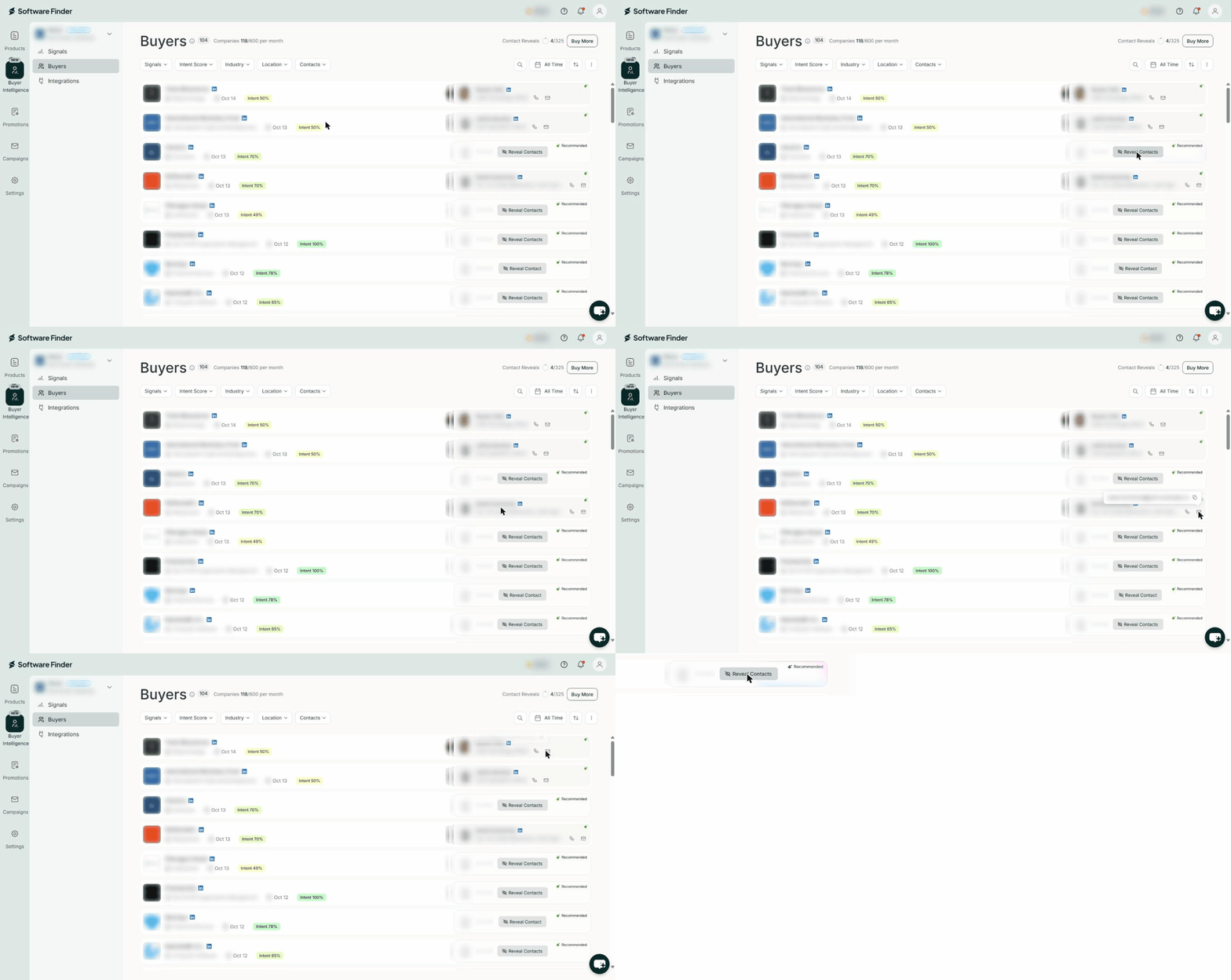
Revealing contacts shows the name and details of every contact at a buyer company. Each buyer uses 1 reveal, and that one reveal shows all contacts associated with the company. Revealed contacts stay visible, and you are not asked to confirm before a reveal is used.
To reveal contacts:
- In the buyers list, or in the Contacts tab of the company details, find the buyer.
- Click Reveal Contacts. Each contact's name and job title appear, with icons for LinkedIn, phone, and email when available. The Contact Reveals counter increases by one.
To get more reveals, see Buy More Contact Reveals.
Export Buyers
The export includes the buyers that match your current filters, date range, and sort order.
To export buyers:
- Click the three-dot icon at the top right of the list.
- Click Export. A CSV file downloads. No message appears on the page.
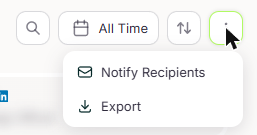
Export is unavailable while the list is loading.
Buyer Notification Recipients
You can send an email for every new buyer to up to 5 people. Recipients can be anyone with an email address. They do not need access to the Vendor Portal.
Add Buyer Notification Recipients
To add a recipient:
- Click the three-dot icon at the top right of the list.
- Click Notify Recipients. The Add Buyer Notification Recipients dialog opens.
- In Email address, enter the recipient's email address.
- Click Invite, or press Enter. A message confirms that the invite was sent. The recipient appears under Added with the status Pending.
The heading shows how many recipients you have added, for example Added (1/5). Each recipient's status is Pending, Accepted, or Rejected.
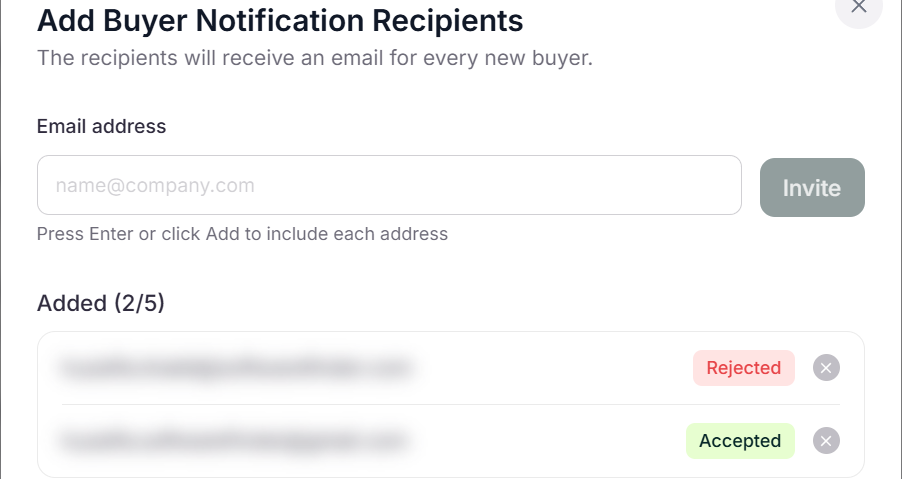
Remove a Recipient
To remove a recipient:
- Open the Add Buyer Notification Recipients dialog.
- Click the x icon next to the recipient. The recipient is removed immediately, and a message confirms they will no longer receive emails.
FAQs
How many reveals does it cost to see a company's contacts?
One. A single reveal shows all contacts associated with the buyer company.
Do I use a reveal every time I view revealed contacts?
No. Revealed contacts stay visible.
Why is Export unavailable?
Export is unavailable while the buyers list is loading. Wait for the list to load, then try again.
Can I send buyer notifications to someone outside my company?
Yes. Recipients can be anyone with an email address.
How many notification recipients can I add?
Up to 5.